Installing Pocket-3D
Pocket-3D Reference Guide
1-12
Toolbar
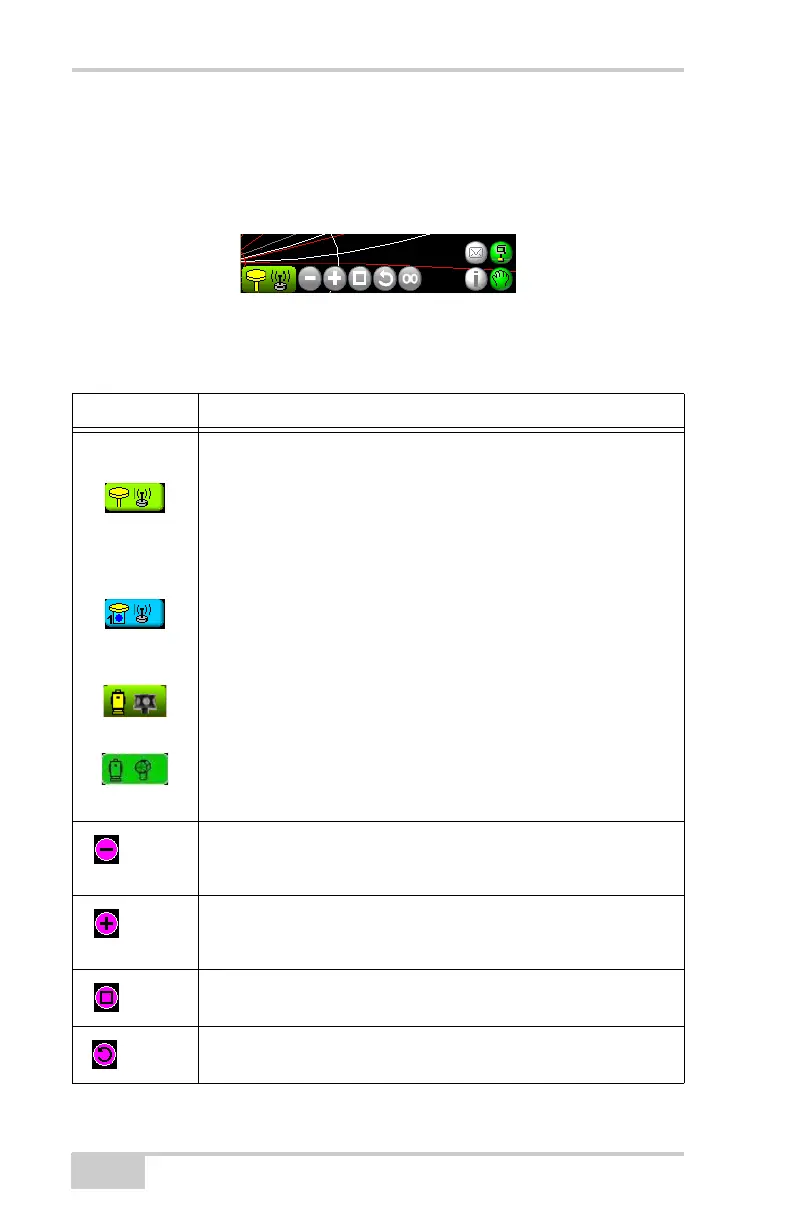
The toolbar (Figure 1-19) contains icons for frequently used
functions.
Figure 1-19. Pocket-3D Toolbar – GPS Example
Table 1-1 lists and describes the available icons.
Table 1-1. Pocket-3D Toolbar Icons
Icon Description
GPS Status
mmGPS Status
Total Station
Status
Robotic Status
GPS, LPS, mmGPS, total station status – displays symbols for the
type of control application used on the jobsite, as well as the
connection status (red for unconnected, green for connected, and
orange for low precisions in GPS applications).
• In GPS control applications, press this icon to display GPS
information. See “GPS Status Information” on page 1-17 for
details.
• In mmGPS control applications, press this icon to display GPS
information. See
“GPS Status Information” on page 1-17 for
details.
• In total station applications, press this icon to display total
station information. See
“Total Station Status” on page 1-21 for
details.
• In robotic applications, press this icon to display robotic
information. See “Robotic Survey Applications” on page 4-63
for details.
Zoom out – decreases the magnification of the design view each
time you tap this button. The zooming pivot is the center of the
screen.
Zoom in – increases the magnification of the design view each
time you tap this button. The zooming pivot is the center of the
screen.
Zoom window – increases the magnification of a design area
when drawing a box around the selected area.
Zoom previous – displays the previous design view.


 To Next Page