Installing Pocket-3D
Pocket-3D Reference Guide
1-20
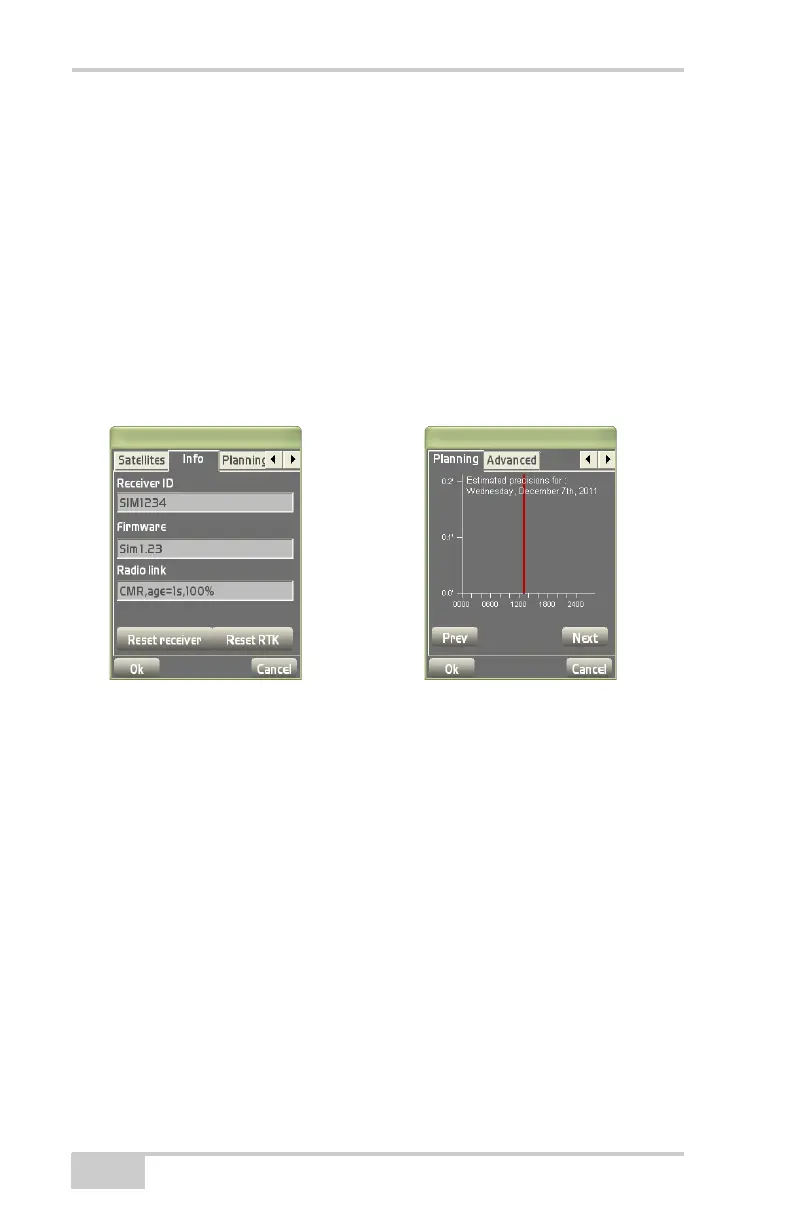
• Reset RTK – press to reset RTK ambiguities.
View PDOP Values
To view PDOP values for planning purposes, press the GPS status
button, then tap the Planning tab on the GPS status dialog box. Use
the left/right arrows to navigate to the Planning tab.
The Planning tab displays PDOP information at an hourly scale and
covers a 24-hour period (
Figure 1-24).
• Press Next to display PDOP values for the next day.
• Press Previous to display PDOP values for past days.
Figure 1-24. Info and Planning Tabs
Apply GPS Receiver Settings
To apply advanced GPS receiver settings, press the GPS status
button, then tap the Advanced tab (
Figure 1-25 on page 1-21) on the
GPS status dialog box. Use the left/right arrows to navigate to the
Advanced tab.
The Advanced tab contains the following GPS receiver settings.
• Use multipath reduction – leave enabled to reduce multiple
reflections from nearby objects.
• Use GLONASS satellites – leave enabled to include in position
calculations and to display on the satellite plot.
• Base Manufacturer – from the drop-down box, select which GPS
station manufacturer to use, i.e., Sokkia, Ashtech, Javad, Leica,


 To Next Page