Menu Bar
P/N 7010-0628
1-13
Menu Bar
The menu bar provides access to the Pocket-3D configuration, setup,
display, and other jobsite functions (
Figure 1-20). For details on the
menus, see the following:
• “Setup Menu” on page 2-1
• “Data Menu” on page 3-1
• “Survey Menu” on page 4-1
• “Display Menu” on page 5-1
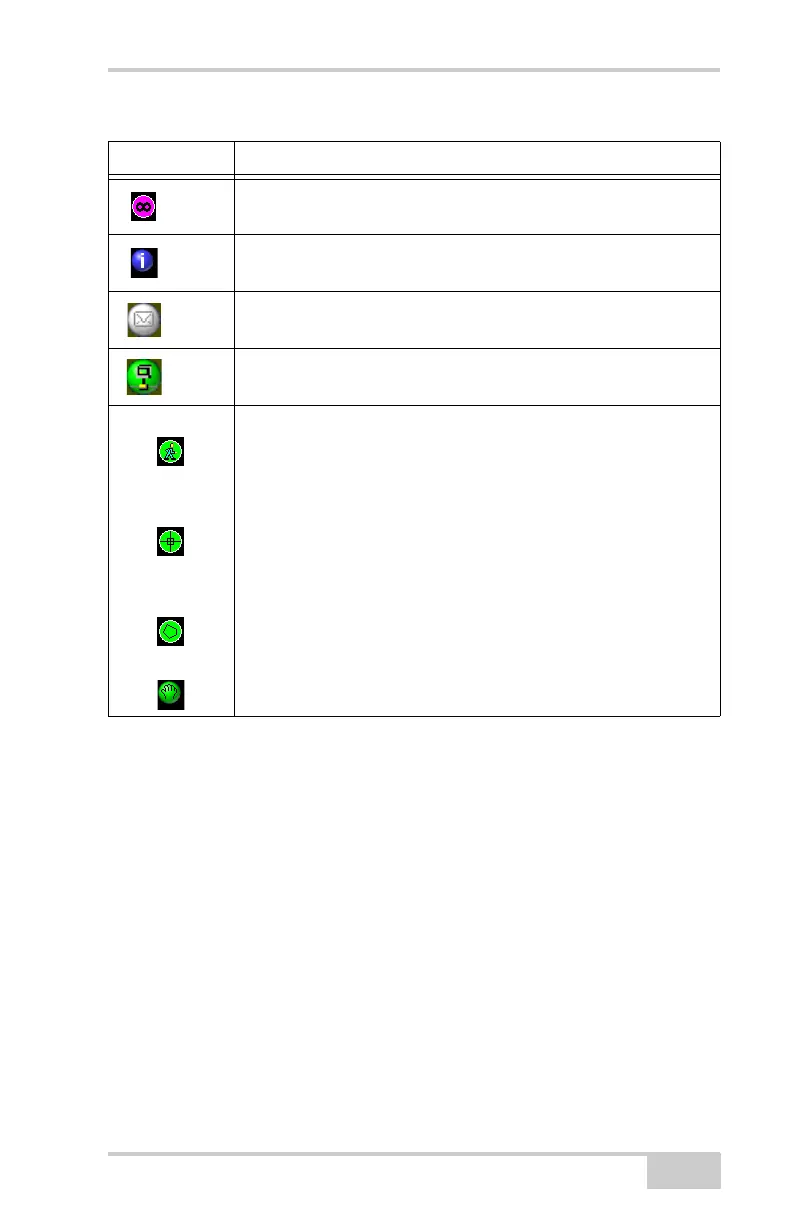
Zoom extents – displays the extent of the design view/area.
Info – displays information for selected points/polylines and a
dialog box to save the information as a text file.
New Message – press to send a new message to the machine
operator in the field.
Site-Link Connection – connects you to Site-Link
Auto-pan
Selection
window
Selection
polygon
Pan
Click to rotate through the four button options:
• Auto-pan – tracks the user’s current position in the field and
displays the position as a cross symbol in the middle of the
screen. Available only in GPS connection.
• Selection window – selects points/polylines on the screen when
drawing a box around them.
• Selection polygon – selects point/polylines on the screen when
drawing a polygon around them.
• Pan – moves the design view around when pressing down on
the screen and dragging.
Table 1-1. Pocket-3D Toolbar Icons (Continued)
Icon Description


 To Next Page