Installing Pocket-3D
Pocket-3D Reference Guide
1-6
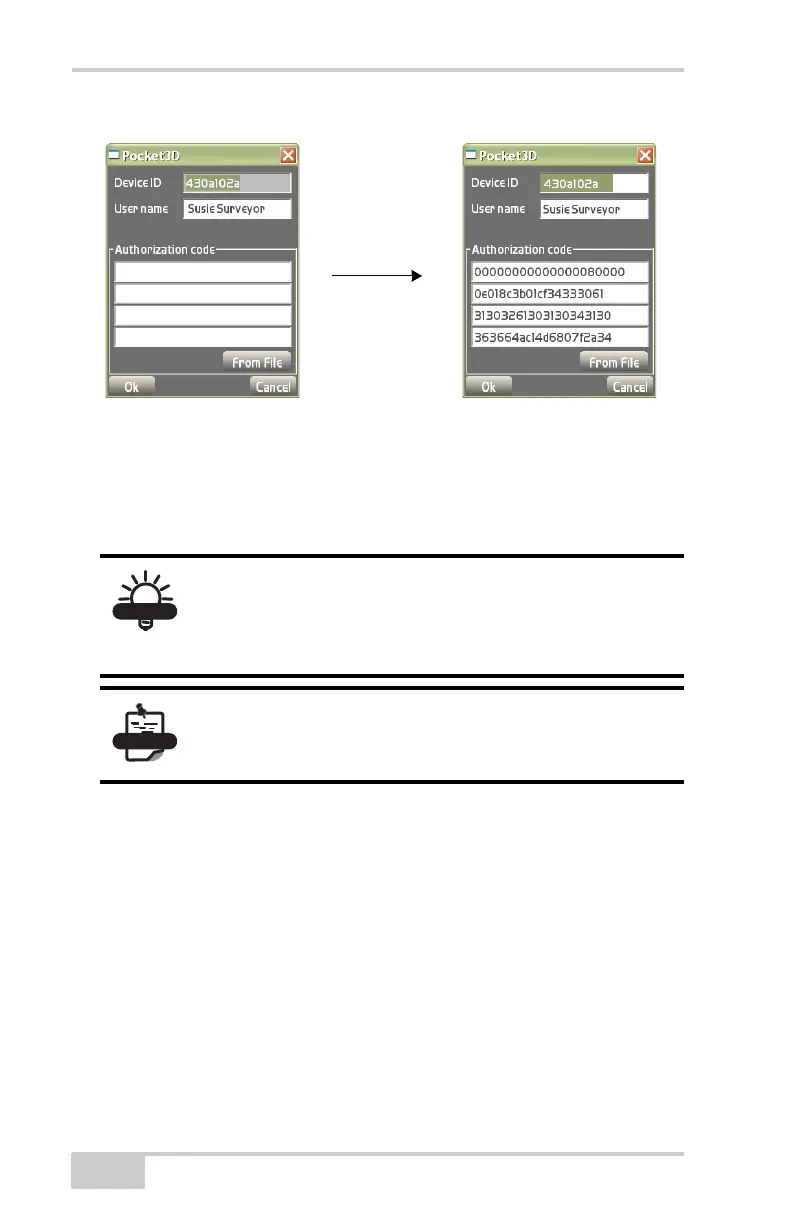
Figure 1-8. Enter Authorization Codes
Once entered, the authorization codes can then be located on the
about Pocket-3D screen for easy access. In v10.0, the authorization
codes no longer change due to new installations. To view updated
installed options, see
“Main Screen” below.
Main Screen
The Pocket-3D main screen (Figure 1-9 on page 1-7) has the
following components:
• Main Window – displays a graphical representation of the design
surface and machine. The display varies according to the selected
file and display options.
• Toolbar – provides icons for frequently used functions. See
“Toolbar” on page 1-12 for more information.
Authorization Codes: More options are now
available to provide better security. Because new
codes are much longer, you can now import them
directly from an option file onto a USB dongle, etc.
Existing installs of Pocket-3D will automatically be
upgraded to the new password protection
mechanism.


 To Next Page