Transport
Statistics
Category
Transport
Pattern
Pattern Error
Insertion
Choose whether the threshold is specified as an absolute value or a
percentage, using the Count, Ratio and Ratio [%] radio buttons, and then
specify the value in the Threshold field.
Select the check box to enable the transport-related parameters.
Interface
Select the item to evaluate from OTN, SDH, SONET, E4, E3, E1, DS3 or
DS1/J1.
Evaluation item
Select the item to evaluate. If selecting other than Any Alarm or Error,
another menu appears.
Evaluation type
Select the relevant type.
Pass & fail threshold
Touch the left-hand number to set the lower limit for "Warning". Touch the
right-hand number to set the lower limit for "Fail". The lower limit of "Fail"
must be equal to or greater than the lower limit of "Warning" (defining a
"Within limits" range in between them).
5.9.3 Test Results
5.9.3.1 Summary
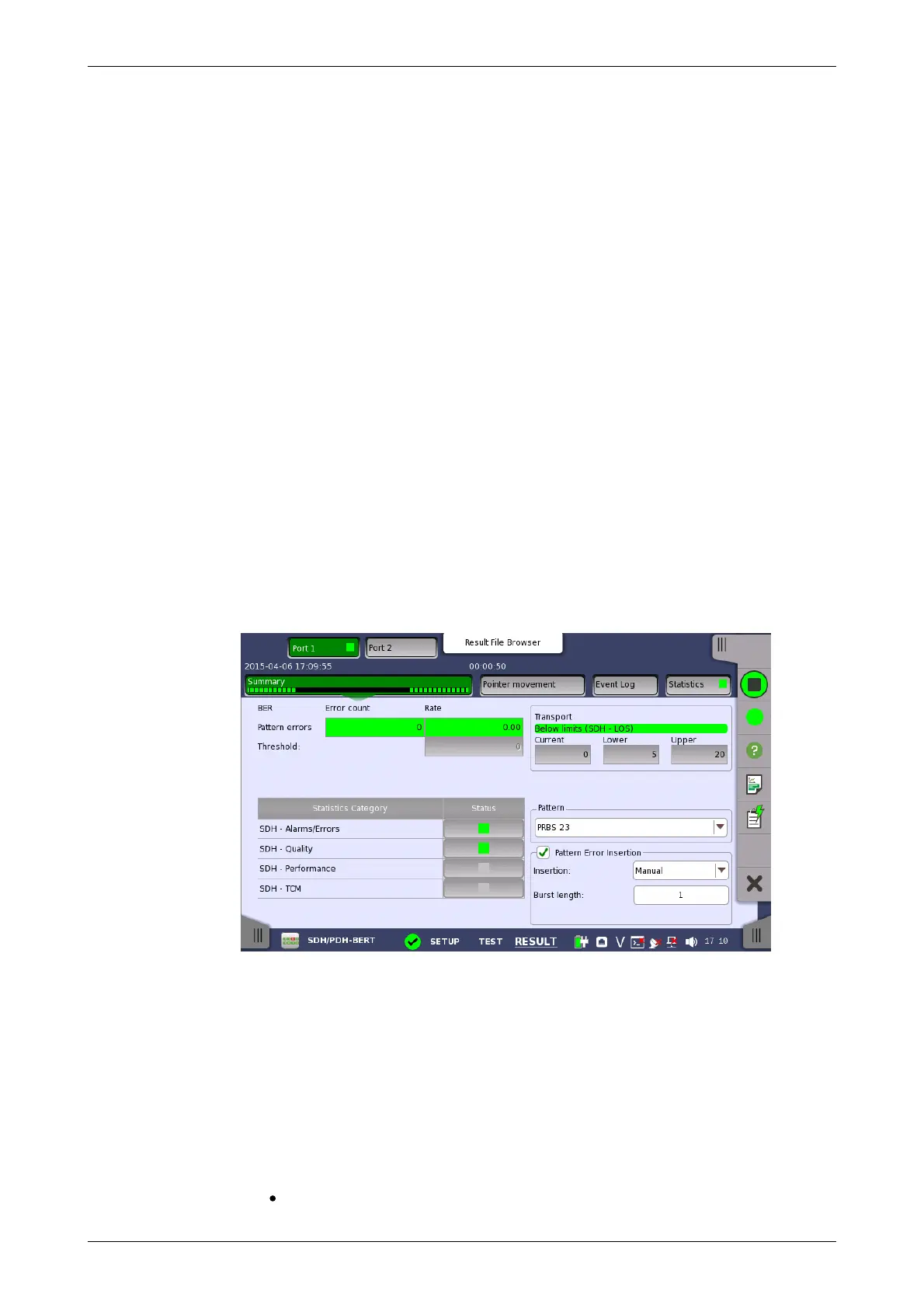
When you go to the test results of the SDH/SONET/PDH/DSn BERT application,
the following screen is displayed.
This screen contains a summary of OTN/SDH/SONET/PDH/DSn BERT results.
The lamp icon in Status column shows the Pass or Fail results for each
category. Touching the Status column displays the statistics results.
Displays the results of Transport test. This result appears if 'Transport' check
box is selected in the Test Setup screen.
Select the pattern.
Select the check box to enable the pattern error insertion.
Insertion
Select the timing of the error insertion from the drop-down menu.
Off: Stops the error insertion.














 To Next Page