4.3 Startup and Switch-off Sequences
This section describes what takes place when you switch the Network Master
on and off as well as when you start up and close down an application.
4.3.1 Instrument Startup
When you switch on the instrument, the first screen displayed is a splash
screen - introducing you to the GUI concept of the desktop/workspace and
the various screen types (see the figure in the GUI Concept section). Then
the Application Selector screen is displayed.
4.3.2 Application Startup
When you touch an icon on the Application Selector screen to start an
application, a workspace is created for that application and the relevant data
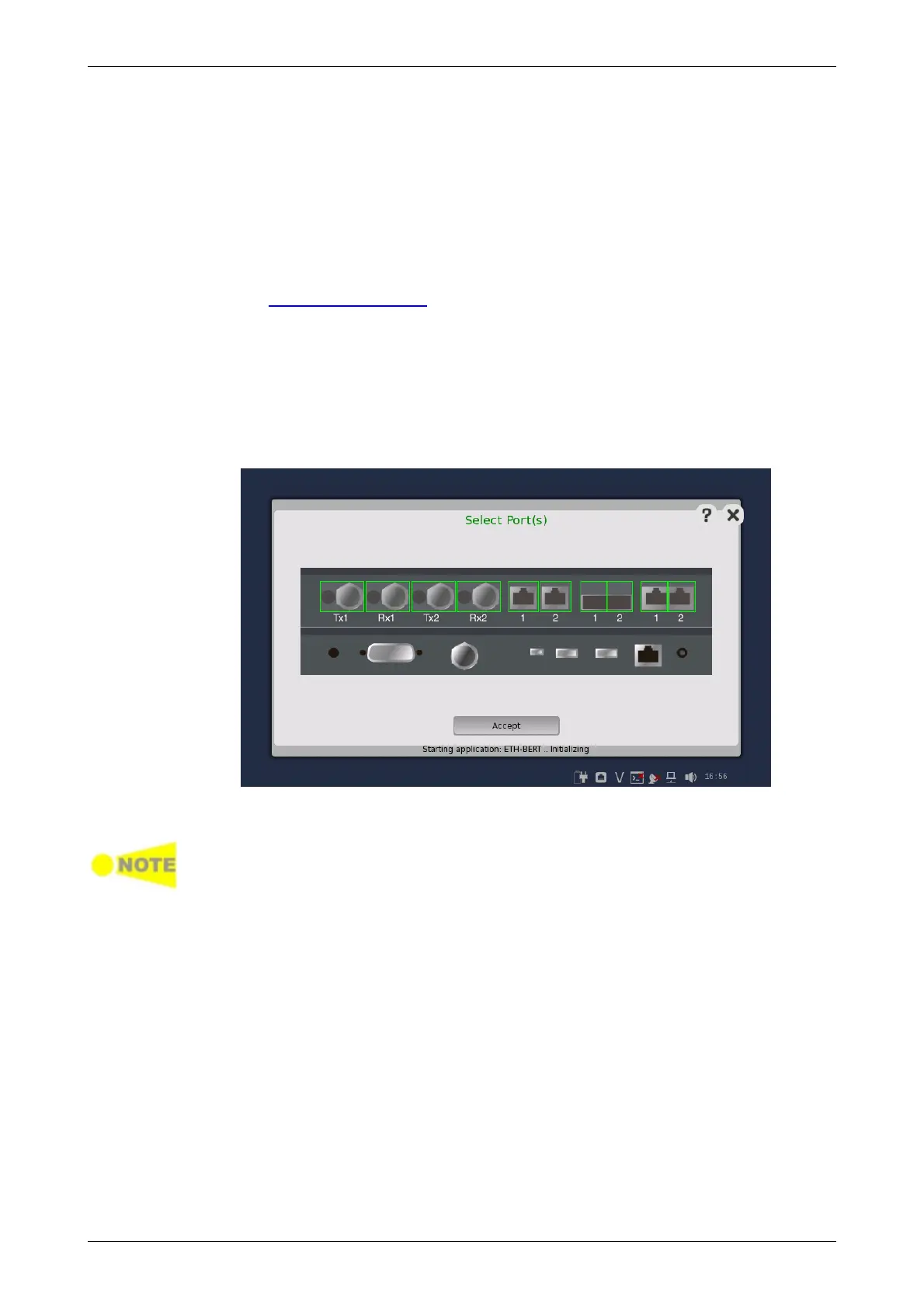
is loaded into it. When the loading is complete, you are prompted to select
the instrument resources (i.e. ports) that will be allocated to the
application/test.
After the selection of resources, the Ports Setup screen is displayed, with the
interface type(s) relevant for the selected application.
Some of the application icons are "double-icons", allowing you to start the
application with an OTN signal layer if relevant. Be careful to touch the correct
part of the icon when starting the application.
You can also start an application by selecting the result file on the Report
File Browser screen. Refer to the next section.
4.3.3 Accessing Previous Tests and Test Results
When you select test result files on the Report File Browser screen, you can
choose to create either a report from the results or a workspace containing
the test setup data and its results.














 To Next Page