Pointer source
Zoom
Manual
1E-04 to 1E-10
Alternate
Burst length
If 'Insertion' is set to Manual, touch the button and set the burst length to
insert.
Normal length
If 'Insertion' is set to Alternate, touch the button and set the normal length.
Error length
If 'Insertion' is set to Alternate, touch the button and set the error length.
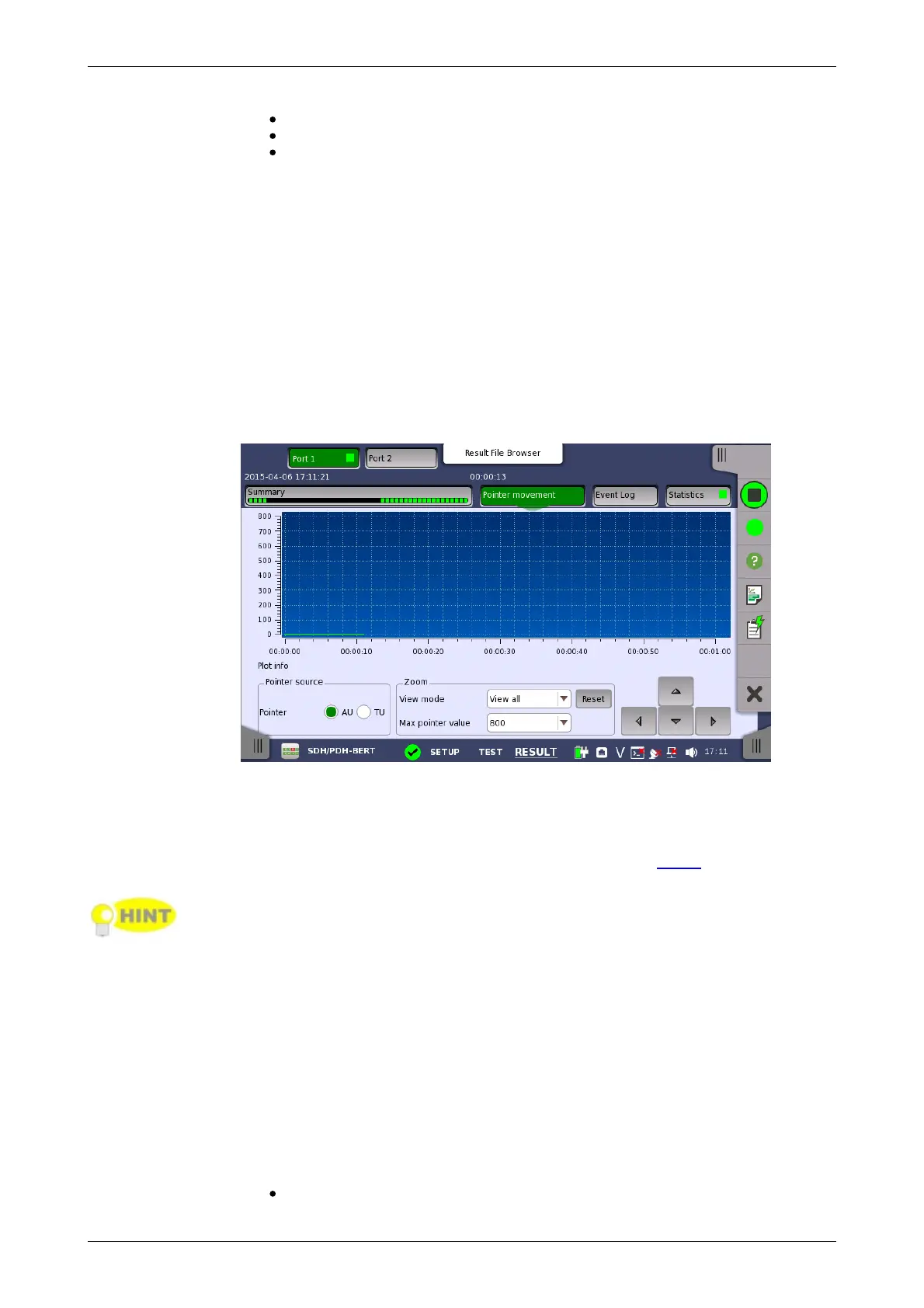
5.9.3.2 Pointer Movement
Touching the Pointer Movement button in the navigation area displays the
screen shown below.
This screen presents a detailed analysis of pointer movements in the
monitored signal. The results are displayed as a graph, showing the positions
of a specific pointer over time.
Using the graph area itself and the controls displayed below the graph, you
can specify which pointer's data is displayed as well as zoom in on specific
details of the graph.
In general, you use direct touch-manipulation of the graph area to zoom in and
use the controls to zoom out.
Pointer
Select the radio button corresponding to the pointer whose movements you
want to monitor.
To zoom in, select a zoom area directly in the graph area by drawing a
rectangle with a finger or the stylus (delivered with the instrument).
When releasing the finger or stylus, the graph area zooms in to show the
selected part of the graph.
To zoom out, use the view settings below the graph:
View mode
Used to set the x-scaling for the graph. The possible settings are:
Last 24H to Last 5m: Shows a sliding graph area with max. width of 24
hours to 5 minutes.














 To Next Page