Frame Field
Trigger Definition
Module Present
Transceiver
Information
Power monitor
Error Type
The possible values are: Any Type, Fragment, Oversized or undersized,
Oversized, Undersized and FCS error.
Touching the left field opens the Field offset dialog box, which enables you
to specify a value between 0 and 15999 in the field.
Touching the center field opens the Pattern Editor dialog box, which
enables you to specify the relevant pattern in the field.
Capturing frames
Start/stop capture
Touch the Start button to start the capturing. The button changes to the
Stop button. Capture progress is shown in Buffer Usage.
To stop the frame capture, touch the Stop button.
Save capture data
When the capture is complete, you can save the captured data as a PCAP
file, which can be used by a variety of open-source decoding tools. You can
also save the data and then view them on the Network Master.
Touching the Save button allows you to create a PCAP file and view the data
on the Network Master. Touching the View button allows you to view the
data on the Network master.
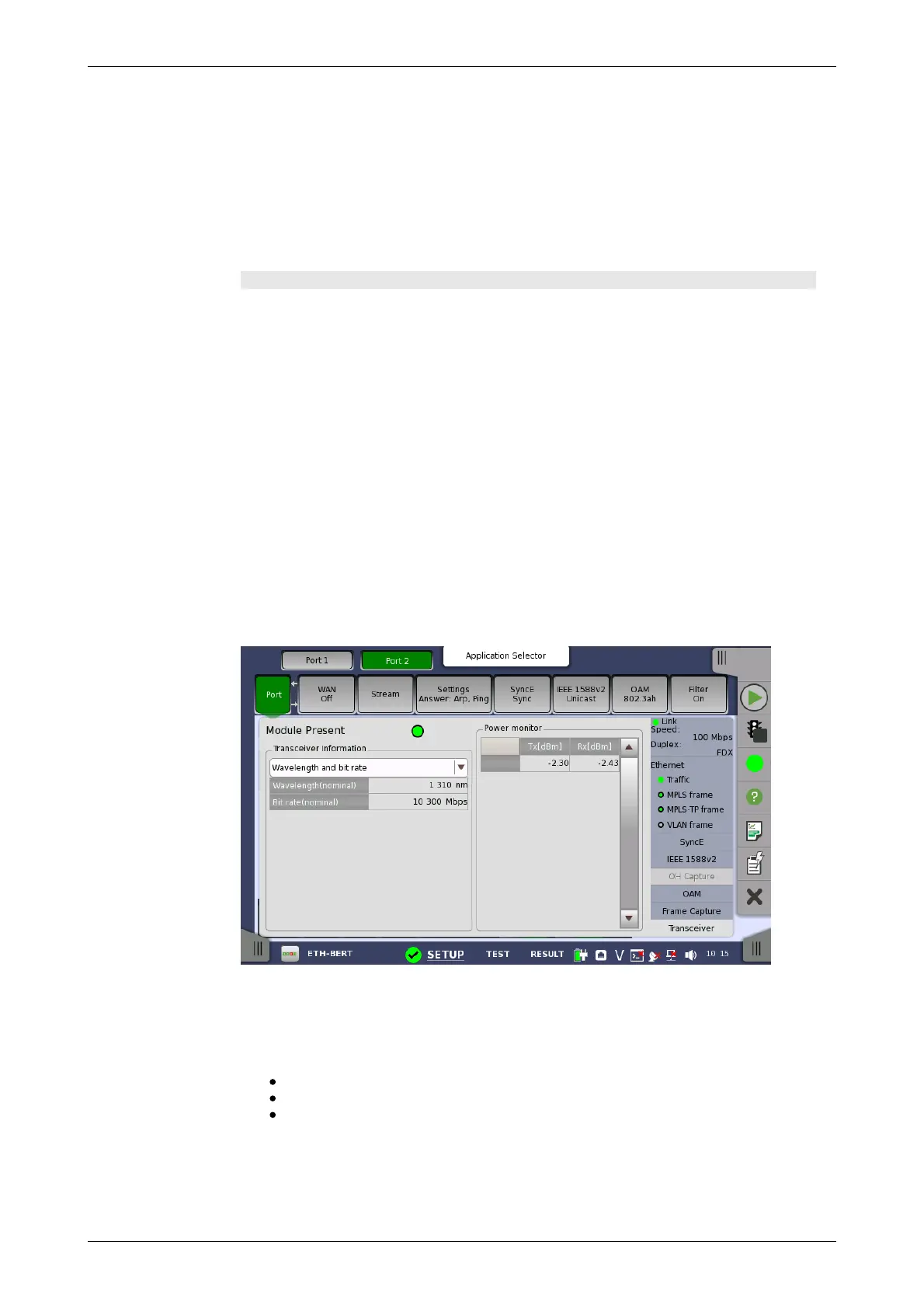
6.1.3.9 Transceiver
Touching the Transceiver button in the status area of the Ports Setup
screen displays the status shown below.
This screen presents status information about the optical transceiver
(Pluggable module installed on the connector panel).
Green indicates that an optical transceiver is currently mounted.
Select the information from pull down menu.
Wavelength and bit rate shows the nominal wavelength and bit rate.
Compliance shows the available standards.
Vendor information shows the data stored in the optical transceiver.
The optical power read out from the transceiver is displayed.
The transmitting optical power is displayed in left column. The received
optical power is displayed in right column.














 To Next Page