Moves to the Help list topic.
Back
Forward
Shows/hides the search box and buttons at bottom.
Searches backward.
Searches forward.
When Case Sensitive is selected, searches distinguishing the upper case
and the lower case.
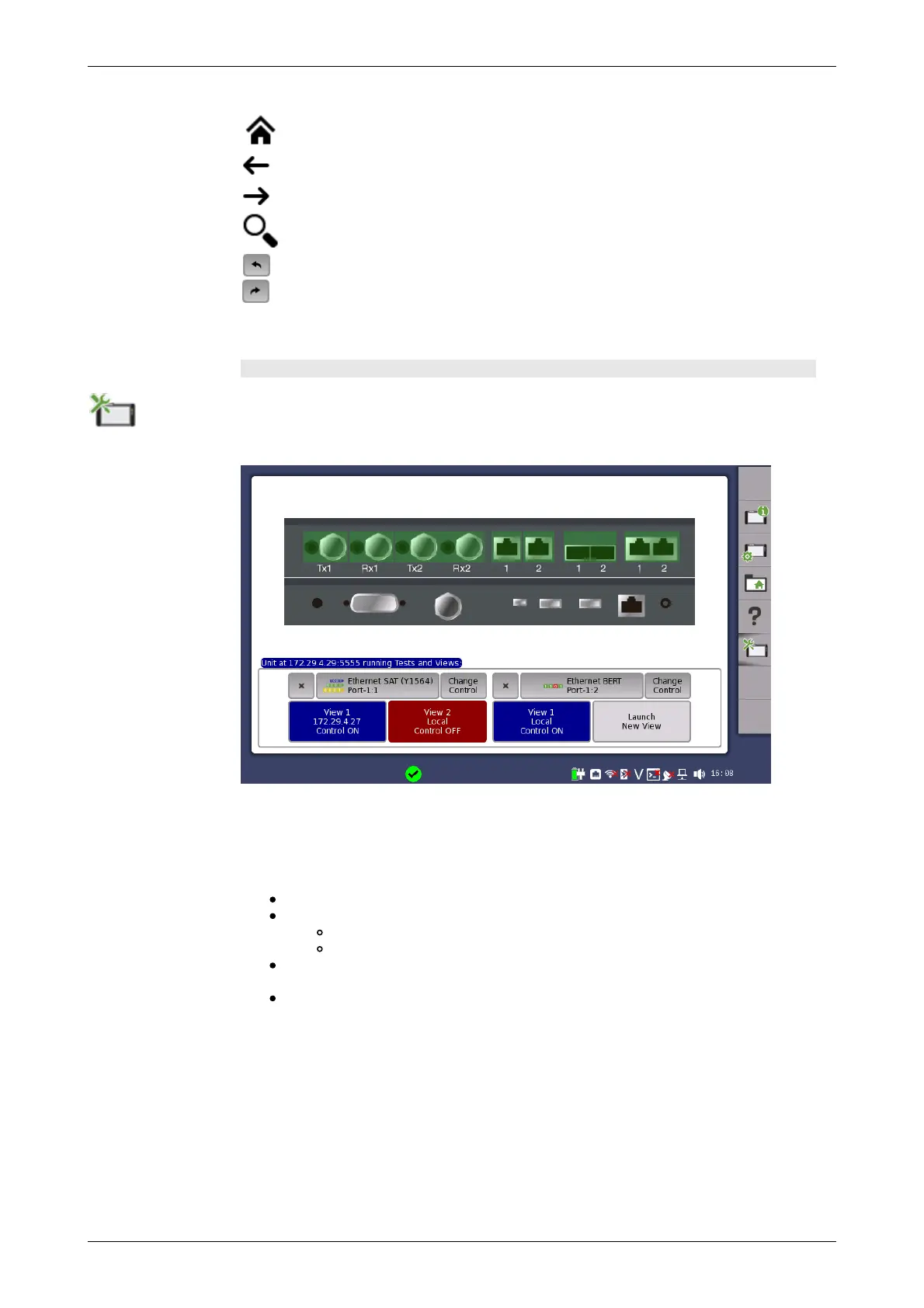
Resource monitoring
The Resource monitoring icon launches a screen showing which applications
are currently activated and which ports on the connector panel are assigned to
each of the applications.
Each application is associated with up to two Views, Only one View can have
control at a time. Having control gives user full access to all application
functions, including modification of setting parameters, load and save
functions, and running the test. Without control, users are only allowed to
browse the current application settings and results.
Touch Launch New View button to launch a new View.
Touch the Change Control button to pass control between Views:
Red background indicates a View that does not have control.
Blue background indicates the View in control.
Touching a View local to you, will automatically show the desktop of the
associated application.
Touch the 'X' to force termination of an application and its Views and the
release of the associated port resources. This is the only way to
terminate an application over which you do not have control.
4.2.2 Application Toolbar
The Application toolbar consists of two columns plus the Instrument toolbar.
You can expand/collapse the toolbar as shown in the figure below. The left-
most column, which is always displayed, contains the most commonly used
functions and status indicators.














 To Next Page