4.1 General Handling of the GUI
The Network Master is equipped with a touch screen display, except for the
key to switch the instrument on/off. The operating principle of the graphical
user interface (GUI) presented on the touch screen display is that it guides
you through all setup steps required for running a specific test and then
finally presents you with the test results. You can also navigate back and
forth between setup steps and result presentation to re-run a test with new
parameter settings if required.
4.1.1 GUI Concept
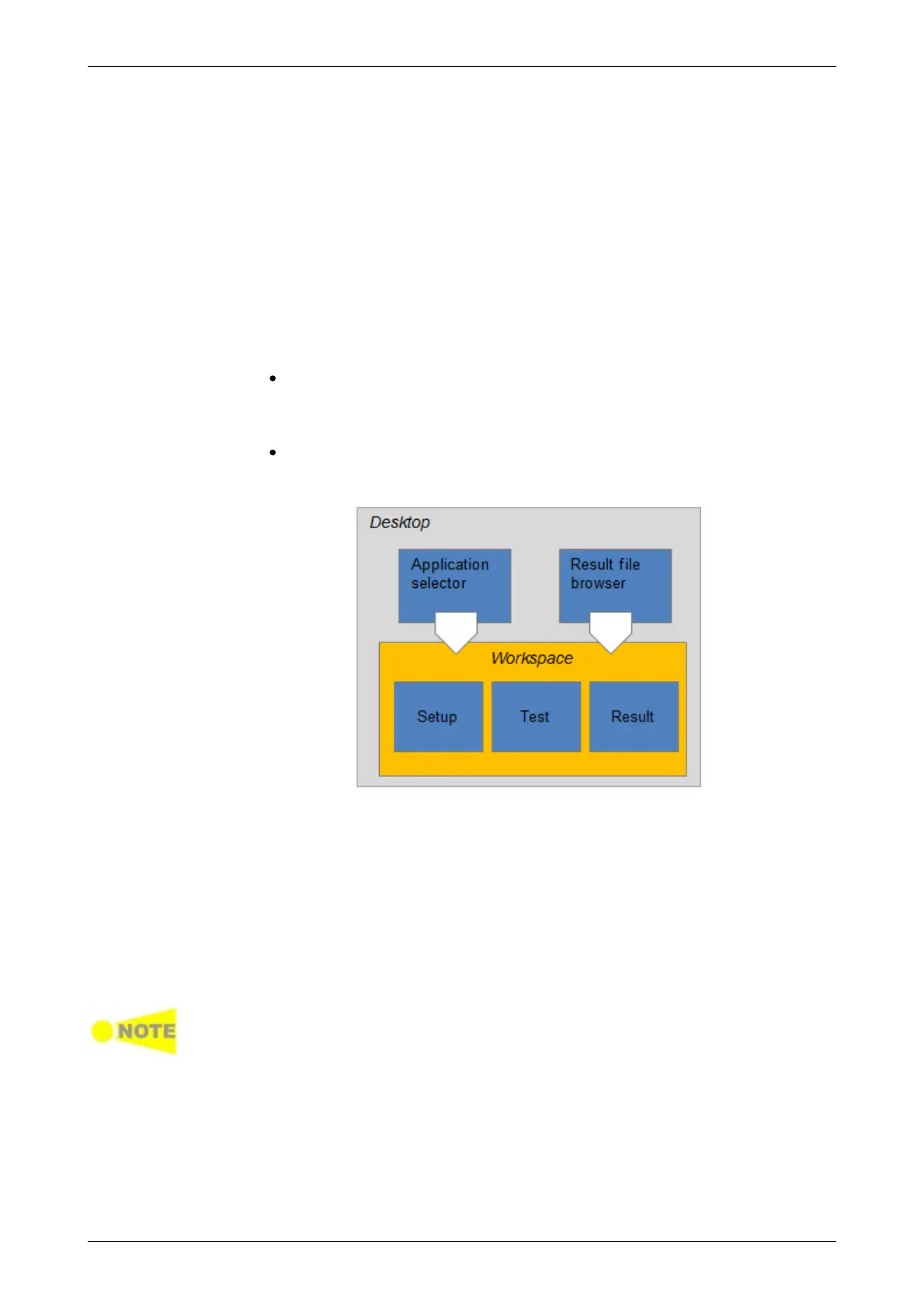
The GUI can be split up into two functional spaces or levels: the desktop and
the workspace.
The desktop is the entry level which appears after the booting. It consists
of the application selector, which allows you to start a new application,
and the result file browser, which allows you to access previously
created and stored test results.
The workspace is where you work with a specific application (i.e. set up
and run a test and inspect the test results). Your selection on the desktop
creates the workspace and loads relevant data into it.
Application selector
The application selector loads a new application into the workspace. A new
application can be either one of the standard applications provided with the
instrument or a previously saved application with partial or full configuration
of interface/test setup parameters.
Result file browser
The result file browser loads the results and configuration of a previous test
into the workspace. This allows you to generate reports from the results
and/or to rerun the test (either using the original configuration or with various
configuration modifications).
A specific set of resources (i.e. ports) are assigned to a workspace when it is
created. More than one workspace can therefore exist at the same time, each
assigned to different resources.
4.1.2 Navigating in the GUI
As shown in the previous figure, you can navigate from the application
selector to a specific application in the workspace vertically. You can
navigate between the application selector and the result file browser in the
desktop horizontally. In this way, you can switch screens in both horizontal
and vertical navigation.














 To Next Page