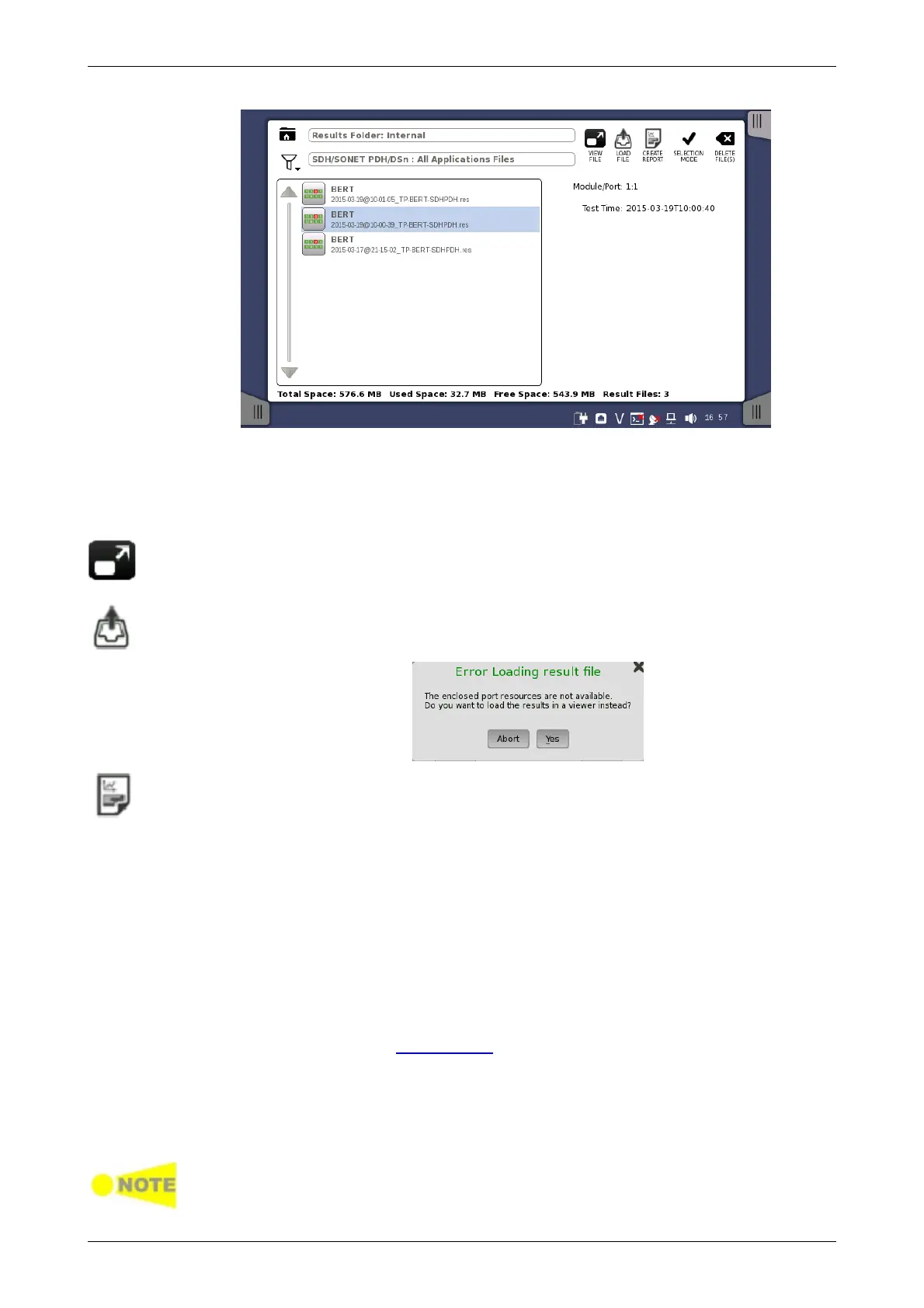
Creating a workspace for a previous test allows you to view the test results in
the GUI and also to rerun the test if required (either with the same setup or
with changed parameter settings). You are brought directly to the Test
Results screen when you touch the View/Load File button, but can
navigate to the other screens in the workspace from there.
When you touch the VIEW FILE button, an application starts in Viewer mode. In
this mode, you cannot start measurement. This mode is used to view the test
result.
When you touch the LOAD FILE button, an application starts using the setting in
the file. If other application is using ports, the following message appears. In
this case, you can start the application in Viewer mode.
When you touch the CREATE REPORT button, the file manager dialog box is
displayed, allowing you to name and save the report (in PDF format).
4.3.4 Closing an Application
When you touch the Close icon in the application toolbar, you are
prompted to confirm that you really want to close the current application. If
you touch "Yes", the workspace is closed and you are returned to the
desktop (i.e. the Application Selector screen). The resources previously
allocated to the application are freed to be used by another application if
required.
4.3.5 Switching Off the Instrument
When you press the Power button on the instrument, the power-off menu is
displayed. The menu contains the menu item Shut Down, and when you
select that, you are prompted to confirm that you really want to switch off
the instrument completely.
If you touch "Yes", the shutdown is announced, and then after a few
moments the power is turned off.
If you have any applications still active when you switch off the instrument,
these applications will be closed automatically without any configuration data
and/or test results being saved.














 To Next Page