Applications
Switcher
Ports Setup
screen
Browses the folder.
Sets the filter of files.
Loads the result and starts the application with view mode.
Loads the result.
Creating the report from the result.
Selects multiple files or folders.
Switches the GUI layout.
Deletes the selected file(s) or folder(s).
In addition to the buttons for accessing and handling test results, the result
file browser also contains a tab for showing/hiding the Instrument toolbar and
a navigation tab to the Application Selector screen.
4.1.3.2 Switching the Applications
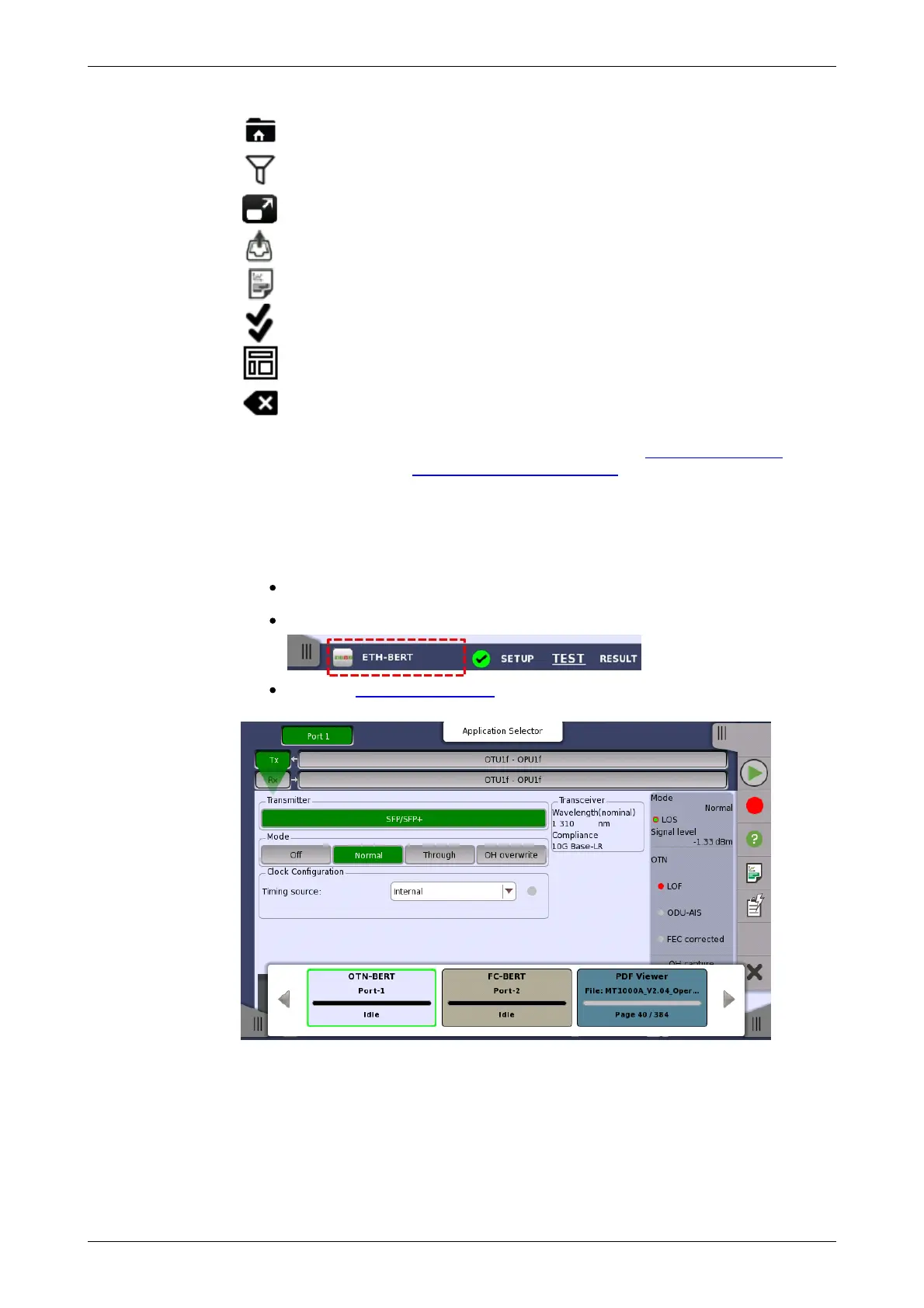
If running multiple applications, you can switch the application display by
Application Switcher. There are three ways to display Application Switcher:
In the desktop level, if two or more applications are running, touch and
hold the workspace navigation button in the bottom center of the screen.
In the workspace, touch the application in the left side of status bar.
From the Power Button menu.
The running applications appear in the Applications Switcher. Touching the
button switches the application on the screen.
4.1.3.3 Operating the Application
The Ports Setup screen is the first screen in the workspace. It may contain
one or more setup pages, with a row of buttons at the top of the screen
allowing you to switch between the pages and between ports (when
relevant).














 To Next Page