Using the Camera to Connect Patterns
219
Advanced Embroidery
5
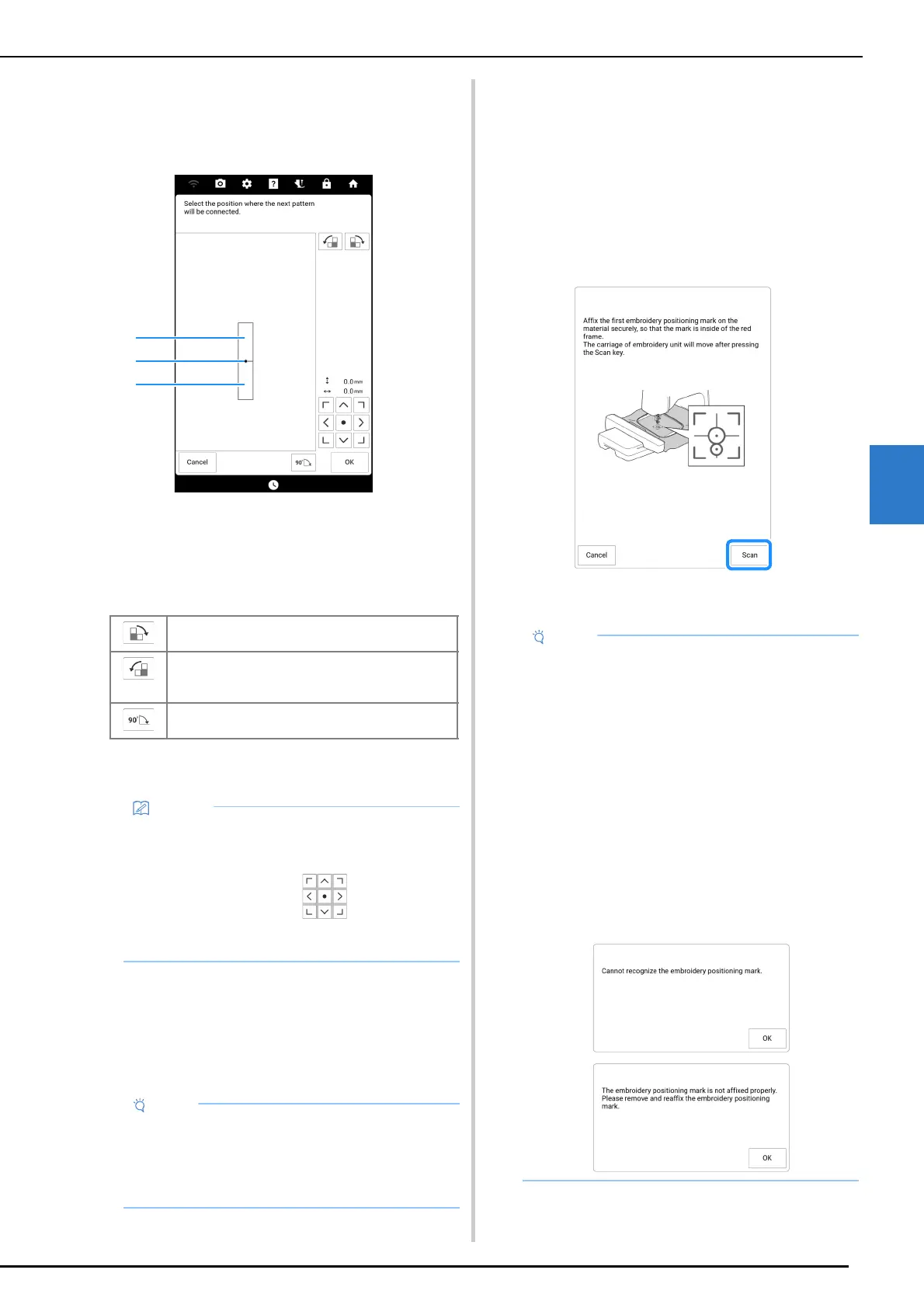
12 Select the position of the second pattern
by touching on the screen. Touch [OK]
after specifying the position.
a Connecting point
b First pattern A
c Second pattern B
* You can adjust the position of the second pattern
using the keys described below.
Message appears on screen and carriage will
move after touching [OK].
13 Prepare two embroidery positioning
stickers. Follow the on-screen
instructions to affix the two stickers to
the fabric so that the positioning marks
can be detected by the camera.
14 Affix the first embroidery positioning
sticker onto the fabric within the red lines
that now appear on the screen of the
machine by using both hands to press
down on each corner of the sticker. Affix
the sticker with the large circle to the top
as shown on machine. Then, touch
[Scan].
The camera detects the first embroidery
positioning sticker.
Touch to rotate the second pattern in a clockwise
arc referring the first pattern as a center.
Touch to rotate the second pattern in a
counterclockwise arc referring the first pattern as a
center.
Rotate the second pattern 90 degrees in a
clockwise arc.
• The second pattern will be automatically
connected to the first pattern without
adjustment. Change the position of the second
pattern manually using .
• The position of the second pattern can also be
moved by dragging on the screen.
• Use the embroidery positioning stickers
included with this product or purchase
replacement stickers from your authorized
Brother dealer. If any other sticker is used, the
camera may not recognize it.
• Do not peel off the first embroidery positioning
sticker to use it for the second embroidery
positioning mark.
• Use new embroidery positioning stickers. If a
sticker is reused, it may easily peel off. If the
sticker peels off during this procedure, the
patterns cannot be connected.
• Use your fingers to apply pressure to the
corners of the embroidery positioning sticker
to firmly affix it to the fabric. If the sticker is not
firmly attached, the camera may incorrectly
detect the sticker.
• If any of the following messages appear,
reattach the embroidery positioning sticker in
the correct position. Make sure that the sticker
is affixed with the large circle at the top.



 To Next Page