13
4. Front Panel Operations
4-1. Powering ON
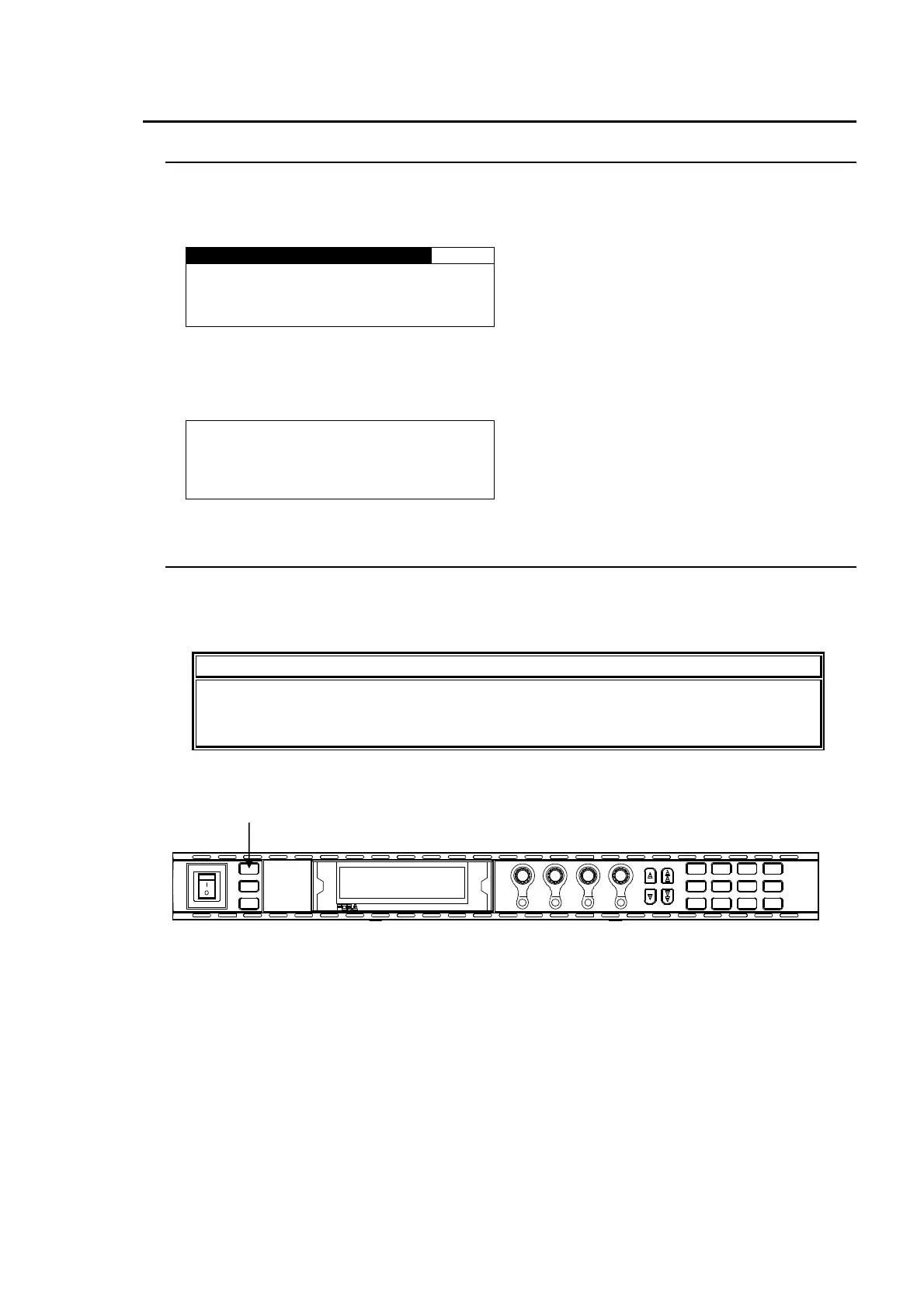
Turn the power ON after all system connections are complete. The indicators on the front panel
light up during startup. When startup is complete, the indicators will go off and the VIDEO
STATUS menu showing the current input video and reference signal formats will be displayed.
VIDEO IN STATUS 502
SDI1:1080/59i
SDI2:525/60
COMPOSITE:525/60
REFERENCE:525/60
If Logo data is stored:
A loading progress message is displayed in the menu display as shown below.
Logo data may take up to 2.5 minutes to load.
LOADING LOGO DATA...
00% COMPLETE
4-2. Basic Operations
This section explains how to select menus and parameters.
Most of the menus can be controlled by these basic operations. However, some menus work
differently. See the descriptions given for each menu for details.
IMPORTANT
Make sure that all indicators on the front panel are turned off before starting an
operation. If the LOCK indicator is lit, all operations on the front panel except the
LOCK button are disabled. Press and hold the LOCK button to enable the operations.
LOCK button
MA S TE R
CO NV2
OU T S E L
MO DE
VIDEO
AU DIO
AN ALOG
CO NV1
IN SE L
DOWNMIX
STA TUS
OTH E R
C C
AES AUDIO
CLIP
DE LAY
AUDIO SYS
VIDEO SYS
AU DIO OP
VID EO OP
MA P P ING
A V O
PROCESS
SDI AUDIO
F4
F3F2F1
F A - 9 5 0 0HD / SD FRAME SYSNCHRONIZER
VIDEO IN
AUDIO IN
GE NL OCK
REMOTE
FAN ALARM
DC POWER
BY- PASS
LOCK
EVEN T
ON
OFF
POW ER
F1
F2
F3
F4


 To Next Page