152
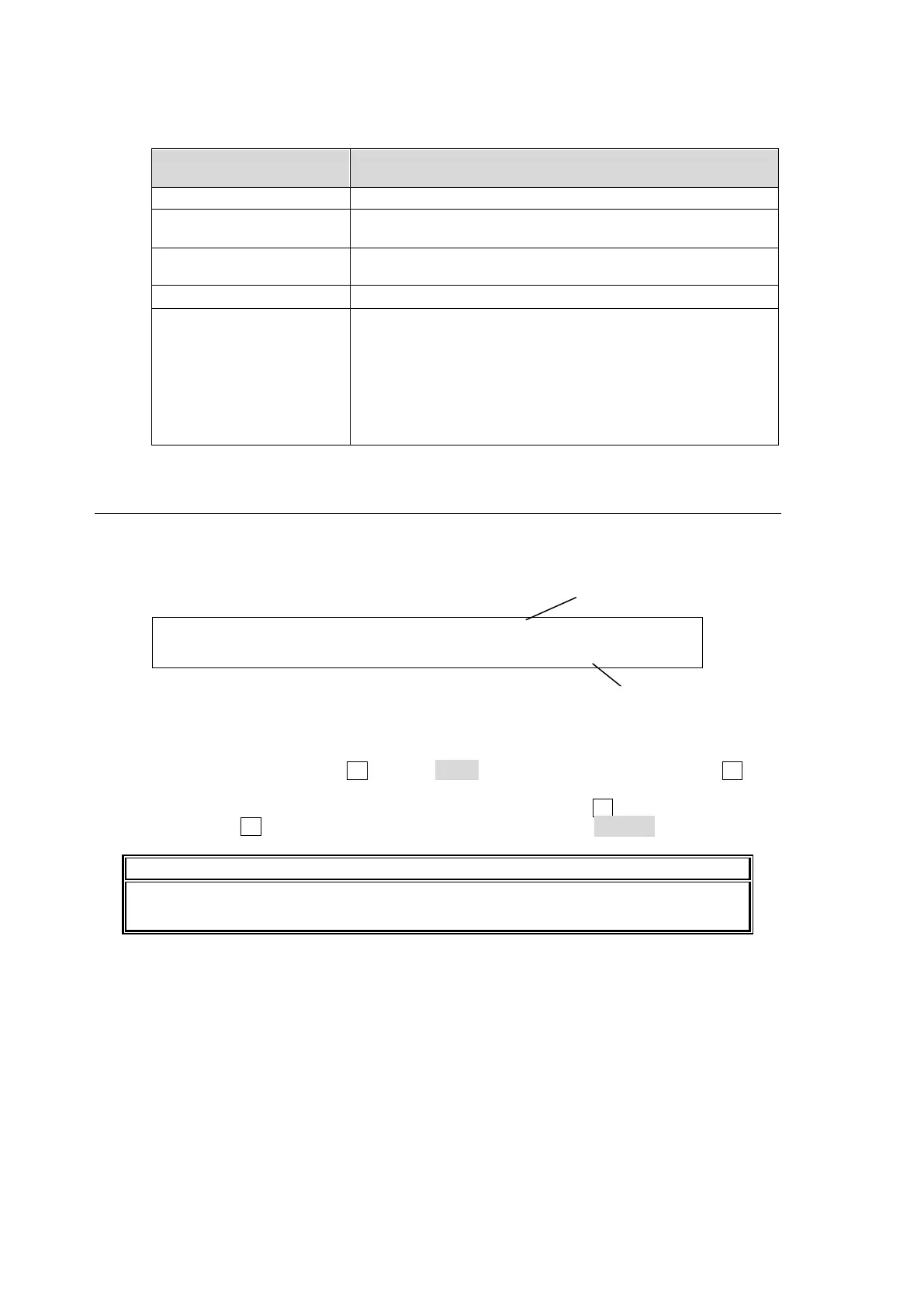
Image files can be uploaded to the following memory buffers in the switcher:
Upload destination
(LOAD setting using F2)
Uploads an image file to a still memory buffer.
Uploads an image file to a still memory buffer in a centered
format.
Uploads an image file to a still memory buffer in a tiled
format.
Uploads image files to a still backup memory buffer.
IN01 to IN08
(INPUT STILL)
Uploads an image file to an input frame memory (a frame
buffer ordinarly used by the Frame Synchronizer) Once an
image is stored to an input buffer, instead of input video, the
uploaded still image will continue to be displayed from this
input.
To display the input video again on the input bus, perform
CLEAR in the [INPUT STILL] menu.
See section 5-4. "INPUT STILL (Freezing Input Video)."
17-5. Moving between USB Flash Drive Directories
USB flash drive directories are displayed after "<DIR>", e.g. <DIR>JPEG, toward the upper right
of the FILE menu as shown below.
FILE : EXT : LOAD : <DIR>JPEG : 1/2
LOAD : =JPG : =STIL1: sample: 101MB
In all FILE menus you can move to other directories in a USB flash drive in the following way.
(1) In the [FILE - SAVE] menu, turn F2 to select PATH in the FILE menu, and then press F2. The
menu display changes to the directory menu.
(2) If you want to go to a subdirectory of the current directory, turn F3 to select the directory
name and press F3. If you want to go to a higher directory, select <DIR>...
New directories cannot be prepared in the switcher. If necessary, prepare a new
directory in the computer beforehand.



 To Next Page