65
8-5. DSK Transitions
DSK images are displayed on the M/E (background) or an AUX output screen. This chapter
explains how to perform DSK transitions using DSK1 as an example.
See section 8-5-1. "Where DSK Images Appear."
1. Perform key setup for the DSK1.
See section 9. "KEY/DSK."
2. Perform a desired transition referring to the below procedures.
MIX Transition
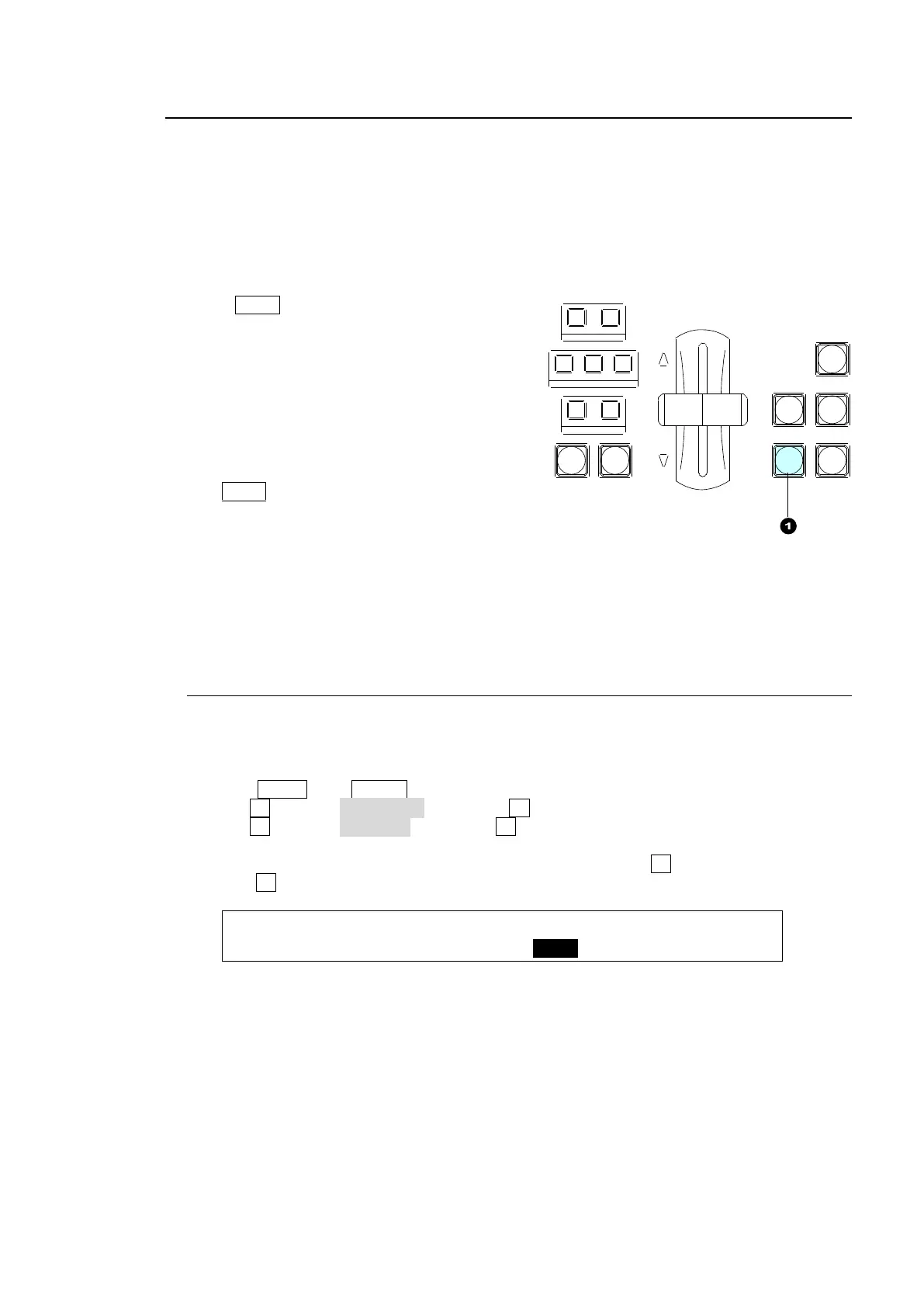
Press DSK1.
The transition rate can be set.
See section 8-11-2. Transition Rate."
CUT transitions are also available.
See section 8-10. "KEY/DSK Transitions."
The DSK1 button can also perform CUT transitions
by changing the button function in the menu.
See section 8-10-1."Setting the KEY/DSK Transition Button Function."
USER Transition
Press a user button, to which a DSK1 effect transition (scaler, slide in/out, etc.) is assigned, to
insert the DSK1 image on the M/E program video.
See section 8-10-2. "USER Transitions" for details.
8-5-1. Where DSK Images Appear
The DSK1 and DSK2 images appear on the program screen as a factory default setting.
Users can change the destination of DSK images to AUX1 to 8. To do this, follow the
procedure below.
(1) Press MENU, then SETUP in the SELECT/KEYPAD block to display the [SETUP] menu.
(2) Turn F1 to select FUNCTION, and press F1 to open the [SETUP - FUNCTION] menu.
(3) Turn F1 to select M/E_KEY, and press F1 to open the [SETUP - FUNCTION - M/E KEY]
menu.
(4) To display the DSK1 image on the AUX1 program video, turn F3 to select AUX1 and then
press F3. Select the destination for DSK2 in the same way.
FUNCTION:TRSEDGE:KEY LNK: DSK ASSIGN : 1/1
M/E KEY : =ON : =ON :1=AUX1 2=M/E :
REV NOR/REV
DIRECTION
BLACK
TRANS
BKGD KEY1 KEY2
NEXT TRANSITION
MIX WIPE
KEY1 KEY2
TRANSITION TYPE
AUTO CUT DSK1 DSK2



 To Next Page