Data Menu
Pocket-3D Reference Guide
3-106
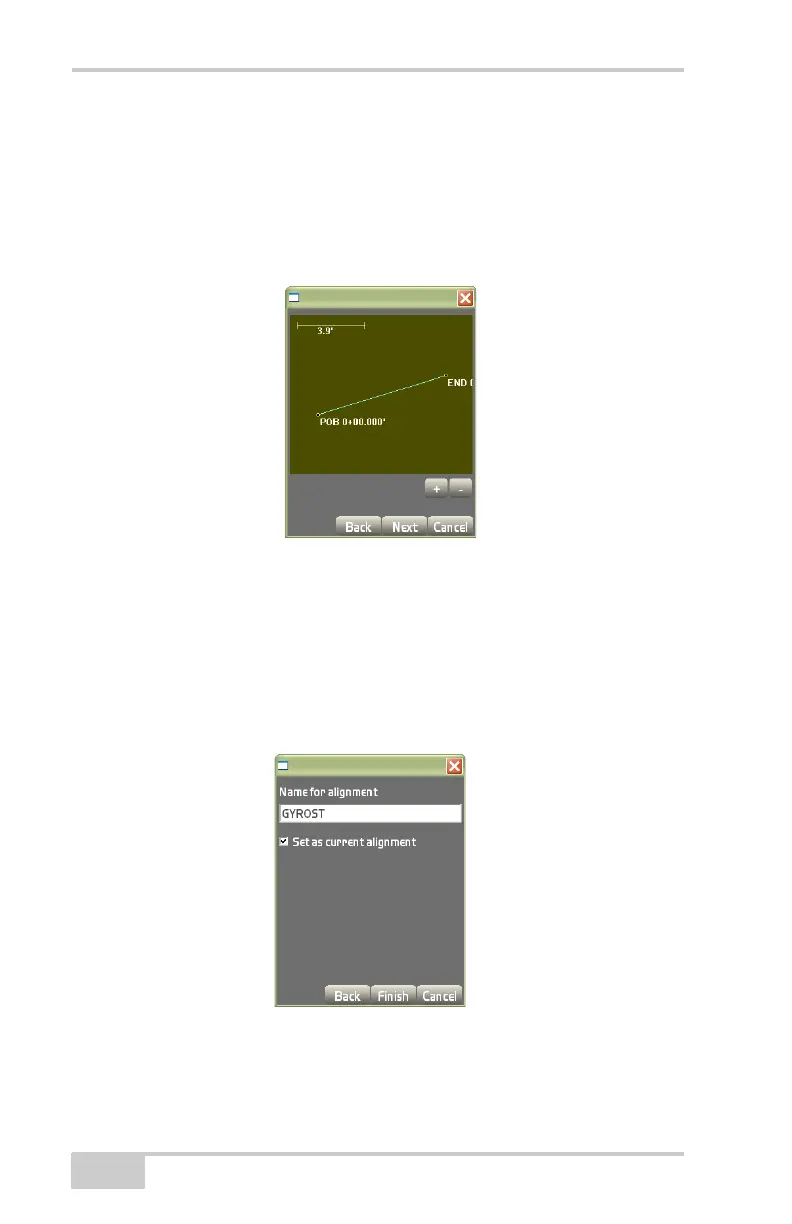
The view screen will display the alignment created from the selected
polyline (
Figure 3-161).
1. Press the +/- buttons to zoom in or out on the image, or press
down on the screen and drag the image around.
2. Press Next to continue.
Figure 3-161. View Screen for Polyline to Alignment Conversion
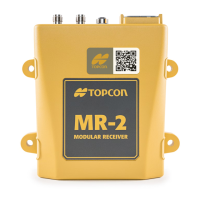
On the alignment properties dialog box (Figure 3-162), enter the
following parameters for the alignment, then press Finish.
• Name for alignment – enter a name for the alignment.
• Set as current alignment – enable to set the alignment as the
current alignment.
Figure 3-162. Alignment Properties Dialog Box


 To Next Page