Survey Menu
Pocket-3D Reference Guide
4-56
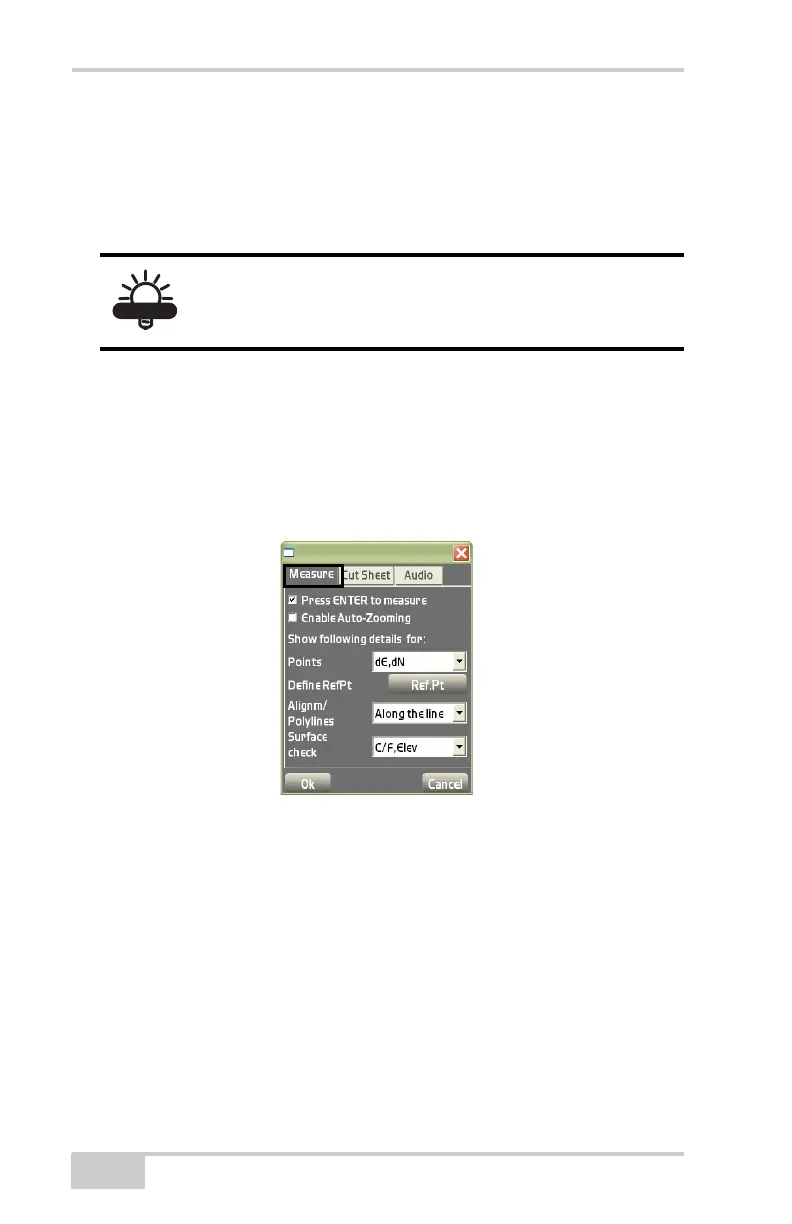
• Enable Auto-Zooming – enable to zoom in so that the target point
and the current location of the rover will always be seen on the
main screen. If the rover comes closer to the target point, Pocket-
3D will automatically zoom in to get a closer look. The scale bar
will turn red to signify that Pocket-3D zoomed in or out.
• Show following details – select the desired details to show on the
main screen during a stake-out.
– Points: select to show either Dist,Az, In/Out,L/R, or dE,DN
from the drop-down list.
– Alignments/Polylines: select to show either along the line,
Dist,AZ, or dE,dN from the drop-down list.
Figure 4-84. Stake Out Measurement Options
Cut Sheet tab – collects user-defined data for measured points,
alignments, etc.
• Enable cut sheets – check mark this box to enable cut sheet
collection.
• Target text file – press the browse button to store the cut sheet.
• Append to target file – check mark this box to add the current
target file.
• Logging format – select the format you want for the cut sheet
from the drop-down list.
If zoom in or zoom out is selected separately, auto
zooming will be disabled for the current target and
will be activated again at the next target.


 To Next Page