Report
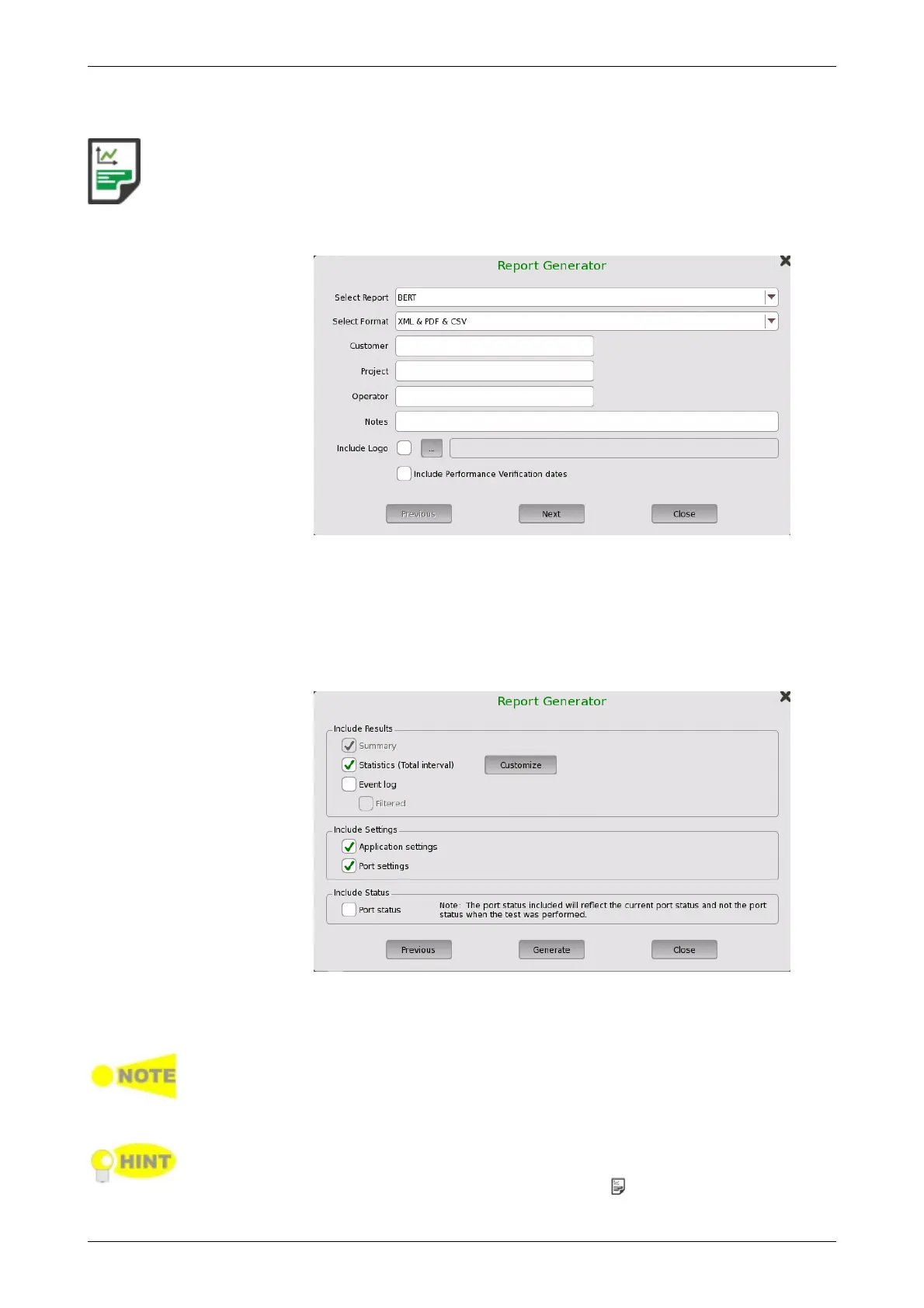
Touch this icon to create a report containing the current application results and
settings.
1. Touch the Select Format field to select the format of the report file.
The application name is shown in Select Report field.
2. Touch fields of Customer, Project, Operator and Notes to set strings.
These contents are output in the report.
3. To print a logo in the report, select the Include Logo check box.
Touching ... button launches the dialog box selecting a file.
4. Select Include Performance Verification dates check box to print
Performance Verification dates in the report.
5. Touch Next button.
6. Select check boxes of items outputting to the report. Touching
Customize button launches the dialog box selecting items of statistics.
7. Touching Generate button starts the report generation.
Adobe® Reader® is recommended as a PDF viewer to open or print out the
report.
"Include Performance Verification dates" check box appears in version 3.01 or
later.
Creating reports from the Result File Browser will not take up port resources on
the system. From the Result File Browser, select the result file for which you
want to create a report and touch the Report icon ( ).














 To Next Page