SkyView Display Installation and Configuration
SkyView System Installation Guide - Revision AA 4-3
Displays only support a landscape viewing orientation; do not mount in portrait orientation.
There are a total of three USB connectors (ports) on a SkyView display. One USB
port is included on a cable as part of the Dynon Avionics SV-HARNESS-D37. The
other two USB ports are on the rear of the SkyView display (see Figure 21 – SV-
D600 and SV-D700 Dimensions and Figure 23 – SV-D900, SV-D1000 and SV-D1000T
Dimensions).
The two USB ports on the rear of the SkyView display are used for:
SkyView Wi-Fi Adapter, P/N 201211-000
SkyView Video Input Adapter, P/N 102211-000
(Third party) Panel mount USB extension cable
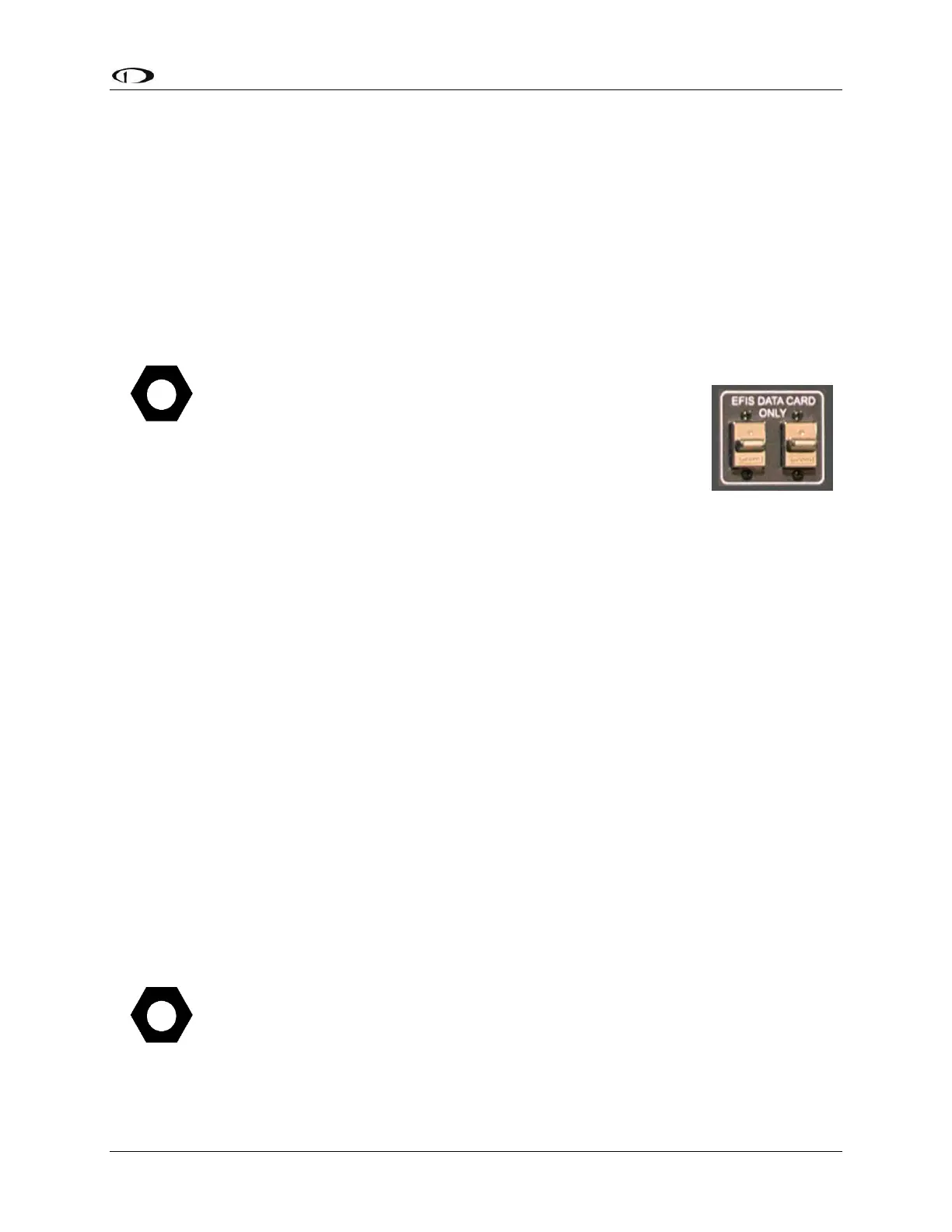
If you will not be installing both of these options, you may want
to install a “panel mount USB extension cable” as shown in
Figure 21 at right (excerpted from the Advanced Flight Systems
[AFS] Quick Panel System). A USB connector installed on the
panel provides convenient access to a USB port for your
SkyView display, used updating Software, updating databases,
and displaying electronic charts (for which the USB flash drive is
semi-permanently connected).
Thus if panel space allows, we recommend that you install at least one panel mount
USB connector for each SkyView display. Suitable panel mount USB cables can be
found by searching on the Internet for “panel mount USB”.
Figure 21 and Figure 23 on the following pages show the mechanical dimensions of the SkyView
displays. Use the dimensions (in inches) found in the appropriate diagram to plan for the space
required by the display.
To mount a SkyView display, cut an appropriately sized rectangular opening in your panel, drill
out the mounting holes, and use the included mounting screws to fasten the display to the
panel.
SkyView Classic and SkyView SE displays are shipped with #6-32 hex-drive round head
fasteners. Fasteners are 5/8” in length and require a 5/64” hex drive tool. Dynon Avionics
recommends fastening the included mounting screws to nut plates installed behind the panel. If
access behind the panel allows, standard #6-32 lock nuts or nuts with lock washers can be used.
Do not rivet SkyView displays to the panel as this will hinder future removal if necessary.
SkyView Classic and SkyView SE Display / Panel Unit Screws
A package of 30 black button head #6-32 5/64” hex screws that are included with
SkyView Classic and SkyView SE displays and SkyView panel units can be purchased
from Dynon Avionics – P/N 102487-000. Note that these screws are not intended
for use with SkyView HDX displays.


 To Next Page
 Loading...






