Replacing an ECM-2
5. Place the malfunctioning FTM-4 on a static-dissipative mat.
6. Hold the replacement FTM-4 upright with the faceplate toward you (Mod LEDwill be
in the bottom right).
7. Gently apply pressure to the faceplate while pushing the module into the slot.
8. Push on the faceplate to fully seat the module. The module is completely inserted
when its faceplate is flush with the back plate of the SH4R.
9. When the FTM-4 is inserted completely, hand tighten the two retaining screws to
prevent inadvertent dislodging.
10. Use a Torx T10 screwdriver to gently tighten the retaining screws as needed. Do not
overtighten.
11. Observe the Mod LED. When the replacement FTM-4 is inserted completely, the
Mod LED turns green and the fans start working. This indicates that the FTM-4 is
functioning properly. If there is an error, the Mod LED turns yellow or red.
12. Reinstall the front cover as described in Removing and Installing Front Covers.
13. Return the defective FTM-4 to ADVA Optical Networking as described in Returning
Equipment
If the replacement FTM-4 does not work or the Mod LEDis red or yellow,
remove and reinstall it. If it still does not work, immediately install another
replacement or reinstall the defective fan unit until a new one is available.
Do not operate the SH4R without having an FTM present and in the slot.
l Electrostatic Discharge Damage Prevention and Warning
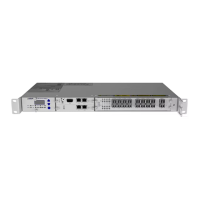
l FTM-4
l Handling Modules
l FSP 3000 C Troubleshooting Guide
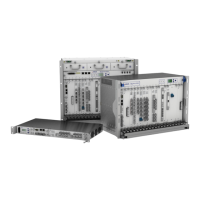
Replacing an ECM-2
Required Tools and Equipment 283
Replacing an ECM-2 284
A malfunctioning ECM-2 can be replaced while the shelf is in service. It is
recommended to have a spare ECM-2 available at all times.
Required Tools and Equipment
l ESD-preventive wrist strap or other personal grounding device
l Suitable grounded surface or a static-dissipative mat
l Replacement ECM-2
l Torx T10 screwdriver
FSP3000 C Hardware Guide - R1.1 - Issue:A (12/09/2016) 283


 To Next Page