Copy frame
content to other
stream(s)
The quick selection menu contains a number of predefined frame
configurations (e.g. ETH/VLAN/IPv4). The detailed mode dialog box allows
you to specify the frame configuration yourself and also provides you with
access to all configuration parameters available for the individual layers.
The detailed mode (Stream Setup) dialog box is described in detail below.
Follow another port
It is possible to let the Port 2 copy the setup from Port 1 by touching the Follow
button. When this button is displayed in green, Port 2 continues to follow Port 1
change. This button appears when the Port 1 settings can be copy to Port 2.
Multistreams
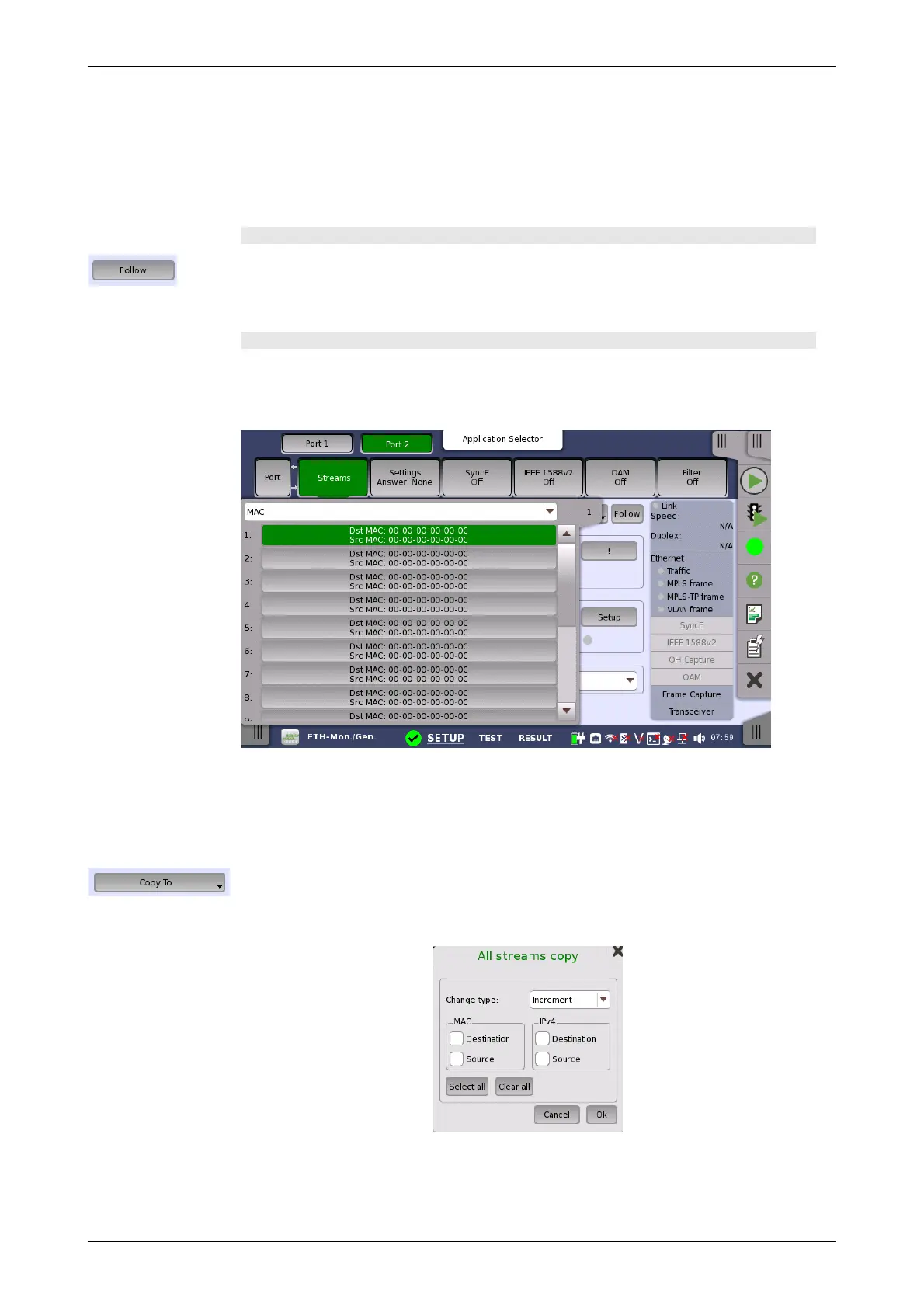
When the Multistream is active, the screen contains a Stream slide-out,
which allows you to select the relevant stream to view/configure. The name
of the slide-out control indicates which stream is currently being displayed.
At the top of the slide-out list you can switch between MAC, IP, and VLAN
information as stream identification.
This feature allows you to copy the frame content of the stream that you are
currently configuring to all streams in another port or to a single stream.
Touching the Copy To button opens a drop-down menu from which you can
select the relevant port and all or a specific stream.
If selecting All streams, All streams copy dialog box appears.
When copying settings to all streams, it is available to change MAC or IP
address with specifying Change type and selecting check boxes. If the
check box is not selected, same address is copied to all streams.
It takes a few moments to copy settings to all streams.














 To Next Page