Frame Setup
Frame Header
Frame Setup setting is not used in FC BERT.
In Fibre Channel Reflector mode you should activate connection to a FC Switch,
after you have selected framing as SOF:Header:Data:CRC:EOF. If activating
connection to a FC Switch when framing is set to SOF:Data:EOF, all frames
outputted from the FC Switch are reflected to it. This phenomenon may cause
malfunction of the FC Switches on the connected port.
9.1.2.2 Frame (only used in FC BERT)
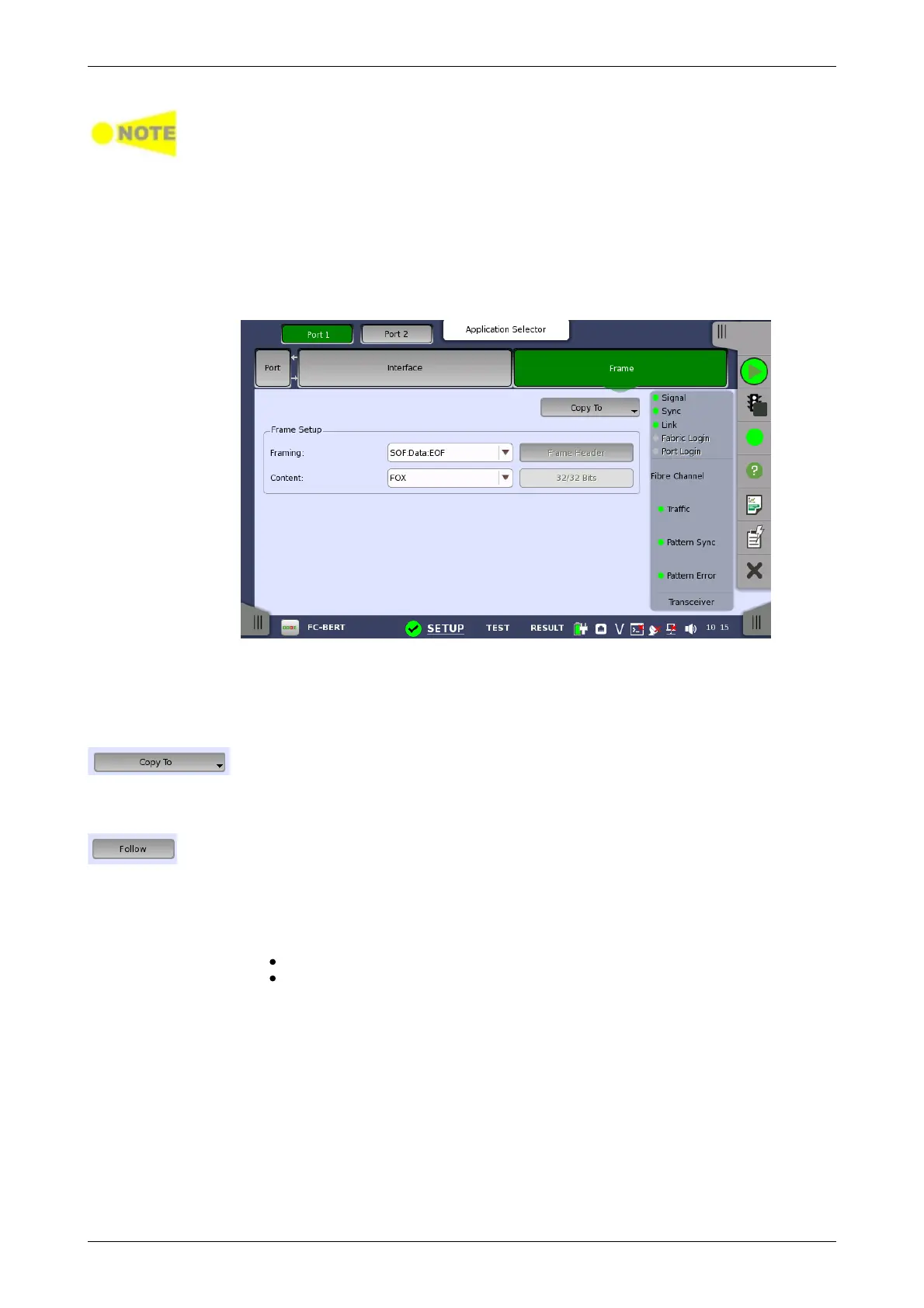
Touching the Frame button in the navigation area displays the following
screen.
Copy frame content to other ports
This feature allows you to copy the frame content that you are currently
configuring to frame content in another port.
Touching the Copy To button opens a drop-down menu from which you can
select the relevant port.
Follow another port
It is possible to let the Port 2 copy the setup from Port 1 by touching the Follow
button. When this button is displayed in green, Port 2 continues to follow Port 1
change. This button appears when the Port 1 settings can be copy to Port 2.
Framing
Select the frame structure in the drop-down menu.
SOF:Data:EOF: Start of Frame - Data - End of Frame
SOF:Header:Data:CRC:EOF:
Start of Frame - Frame Header - Data - CRC - End of Frame
Content
Select a predefined pattern or define a user pattern.
Touching the Frame Header field launches the dialog box shown below.














 To Next Page