Analyzing an
image
File Prefix
Touch the field and set the string used in the file name.
Start Number
Touch the field and set the start number of value used in the file name.
Include Date
If selecting the check box, date will be appended in the file name.
The file name to be generated first is displayed under this item.
10.2.4 Test Results
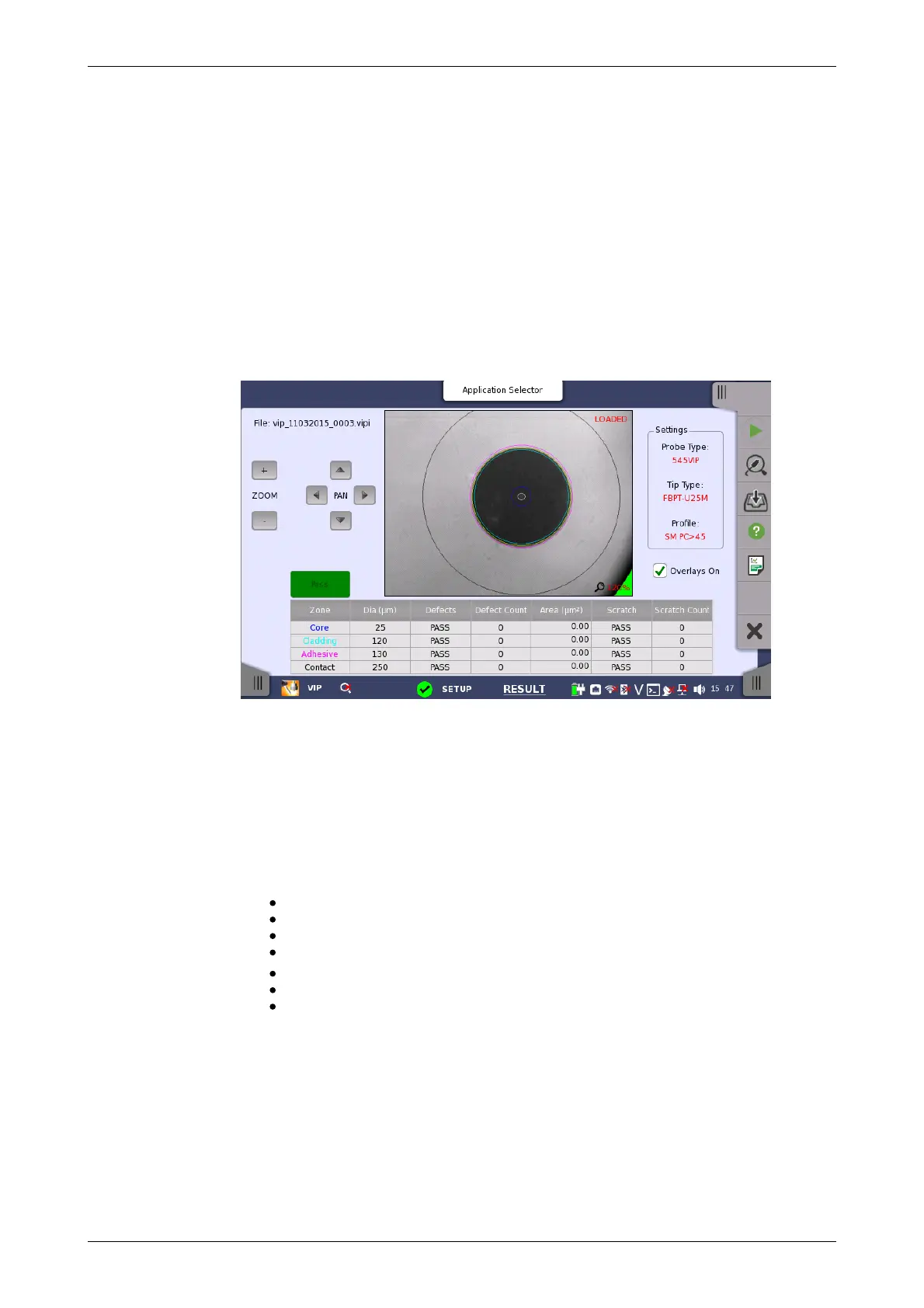
When you go to the test results of the VIP application, the following screen is
displayed.
This screen displays the image captured by the Video Inspection Probe.
Analyzing an image of the fiber edge surface is also available.
1. Capture the live image, or load the image from the file.
2. Touch the Analyze icon.
3. After the analysis finishes normally, the results appear in the table.
If Overlays On is selected, the circles showing the analysis area
appear.
4. Adjust the view by touching Zoom buttons or PAN buttons.
The items in tables are:
[Zone]: Name of the analysis area
[Dia. (μm)]: Diameter of the analysis area
[Defects]: Judgement result of defects
[Defect Count]: Number of measured defects
[Area (μm
2
)]: Area of the analysis area
[Scratch]: Judgement result of scratches
[Scratch Count]: Number of measured scratches
Overlays On
If selecting the check box, the circles showing the analysis area appear.
10.3 Wireshark














 To Next Page