1248 Matrix ETERNITY NE System Manual
Network Diagnosis
SARVAM UCS provides you an option to check the Internet/Ethernet connectivity using Ping and Traceroute as the
diagnostic tools. You can allows check the connectivity between the system and the APNS Server.
How to configure
• Login as System Engineer.
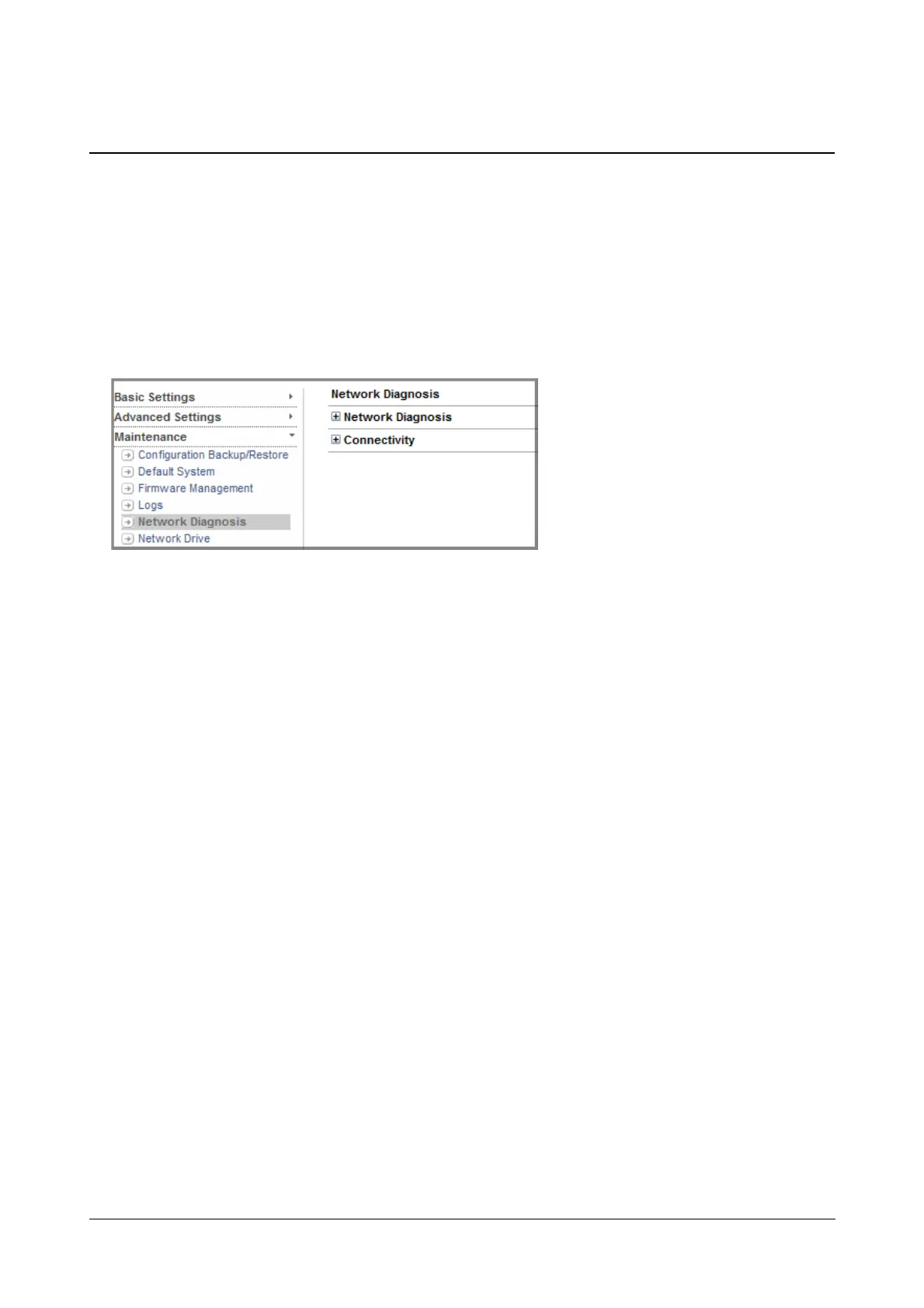
• Under Maintenance, click Network Diagnosis.
• Click Network Diagnosis to expand.
•In Diagnostic Utility, select the diagnostic tool — Ping or Traceroute — to check the Internet/Ethernet
connectivity.
•In IP Address/Domain Name, enter the IPV4 or IPV6 Address or the Domain Name of the system whose
connectivity you wish to test. Default: Blank
If you have selected Ping as the Diagnostic Utility option, configure the following parameters:
•In Ping Packet Size, enter the number of bytes you want the system to send for Ping test. Valid
Range: 4 to 1024. Default: 0032 bytes.
•In Ping Count, enter the number of times you want system to send the request message for Ping test.
Valid Range: 1 to 50. Default: 4 times.
•In Ping Timeout (sec), enter the time for which you want the system to wait to get the response for
each request message sent. Valid Range: 1 to 9. Default: 3 sec.
If you have selected Traceroute as the Diagnostic Utility option, configure the following parameters:
•In Traceroute Max TTL, enter the maximum number of hops (Time-To-Live value) you want the
system to take in the path to find the IP Address configured. Valid Range: 1 to 255. Default: 30.
•In Traceroute Protocol, select the protocol — ICMP or UDP — which you want the system to use for
traceroute functionality.
• To start the Network Diagnosis, click Start button.
The Diagnostic result will appear on the screen.


 To Next Page