Matrix ETERNITY NE System Manual 391
Configuring VMS General Parameters
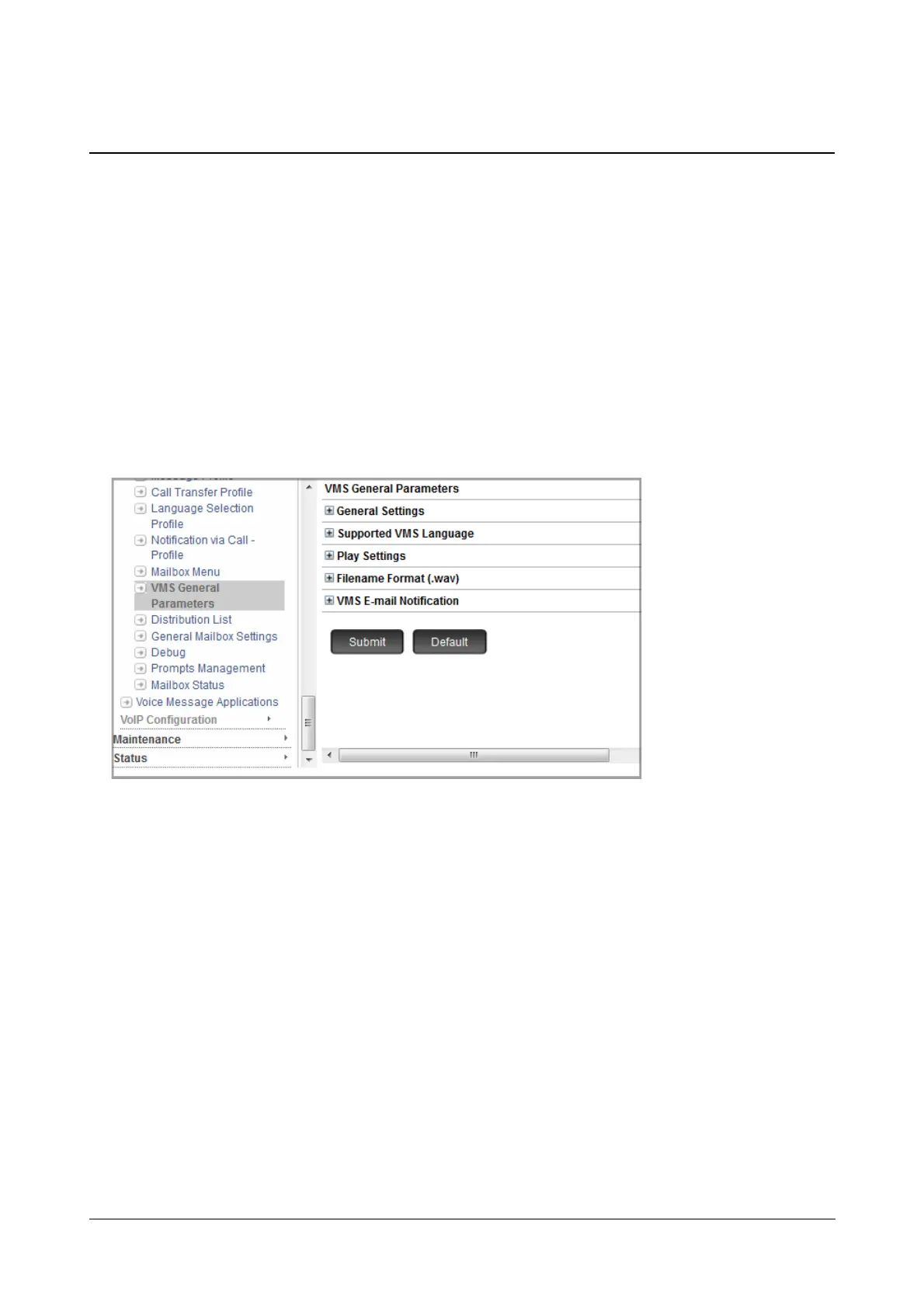
VMS General Parameters allows you to customize VMS settings as per your requirement. You can:
• configure the VMS General Settings
• set the default language
• configure the Play Settings
• define the Filename format
• customize Voice Mail Notification Messages
Configuring VMS General Parameters using Jeeves
• Login as System Engineer.
• Under Advanced Settings, click VMS Configuration.
• Click VMS General Parameters.
• Check the default values of the following parameters, and change them, if required, to the desired values.
General Settings
• Enable Extension Number Validation: The VMS Auto Attendant allows callers to directly reach the
desired party in an organization, by giving them the option of dialing the extension number.
When the Extension Number Validation check box is enabled, the VMS compares the extension number
dialed by the external caller with the extension numbers configured in the system. If no match is found, the
VMS responds with a message “Invalid Number”.
By default, Extension Number Validation is enabled when SARVAM UCS is operating in the Enterprise
mode.
• Use SMTP Account: Select the SMTP Account you wish to use for VMS Notifications.
The SMTP Account you configure will be used for all VMS Email Notifications — Message Notifications
and Memory Usage Notifications.
You may add a new SMTP Account. To do so,



 To Next Page