1250 Matrix ETERNITY NE System Manual
Network Drive
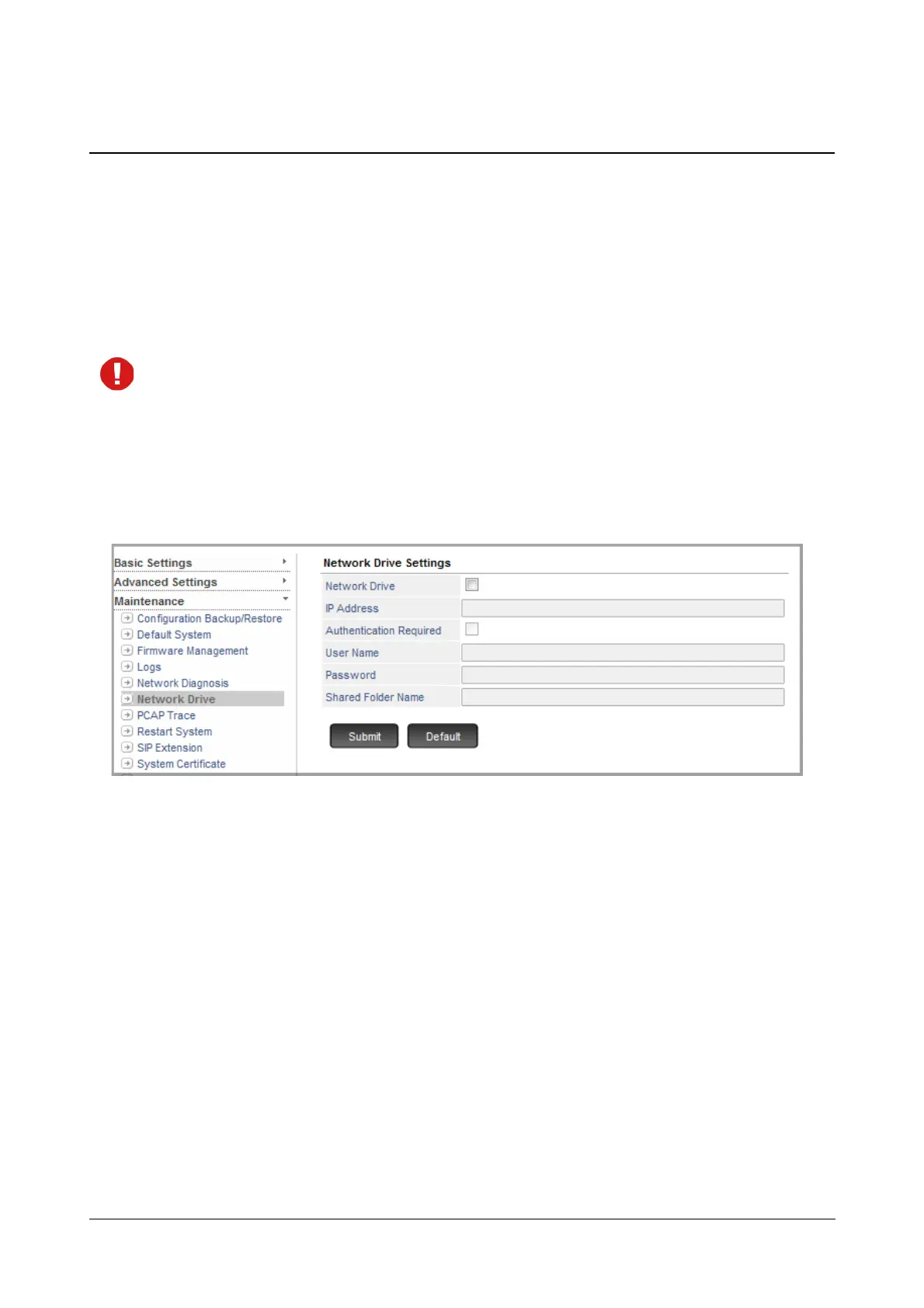
The Network Drive allows you to test the connectivity between the system and the Network Drive where
you wish to save the mailbox backup files. The authenticity to access the shared folder is also verified by the
Network drive for security purpose.
Backup on Network Drive provides you the facility to retrieve valuable information in case internal USB is full.
For information regarding the voicemail backup, see “Voicemail Backup”.
Make sure the System and the Network Drive are in the same Local Network.
How to configure
• Login as System Engineer.
• Under Maintenance, click Network Drive.
• Select the Network Drive check box to enable the Network Drive.
Clear the check box to disable the Network Drive.By default, it is disabled.
•In IP Address, enter the IP Address of the Network Drive where you wish to store the mailbox backup
files.
• Select the Authentication Required check box to enable the authentication process. Enable this
check box if the Network Drive folder requires authentication for accessibility.
•In User Name, enter the authentication ID set for the Shared Folder of the Network Drive.
•In Password, enter the authentication password set for the Shared Folder of the Network Drive.
•In Shared Folder Name, enter the name of the Shared Folder where you wish to store the mailbox
backup files.
• Click Submit.


 To Next Page