Matrix ETERNITY NE System Manual 377
So, if you restart the SARVAM UCS frequently, chances are that DDNS server may block the hostname of
your system. This will in turn affect the ability of the system to receive the calls using DDNS hostname
since the entry (mapping between hostname and IP Address) in the DNS server will be deleted in such
scenarios.
SARVAM UCS updates the WAN IP Address in the DDNS server at each Power ON. You can also update
the WAN IP Address at any time you want, as required.
• Enter the User ID you created on DynDNS.org in the User ID. A maximum of 40 characters, including all
ASCII characters are allowed.
• Enter the password you created for the User ID on DynDNS.org in the Password. The password may be
not more than 24-characters long.
• Enter the Host Name you created on DynDNS.org. The host name must be under 40 characters. All ASCII
characters except < > and “ (double quote) are allowed.
• Define the Retry Trials. This is the number of attempts SARVAM UCS will make to send the WAN IP
Address Update Request to the Dynamic DNS Server. The Retry Count may be set from 1 to 9. By default
the count is set to 5.
• Whenever you want to update the WAN IP Address on the DDNS server, press Click to Update IP
Address.
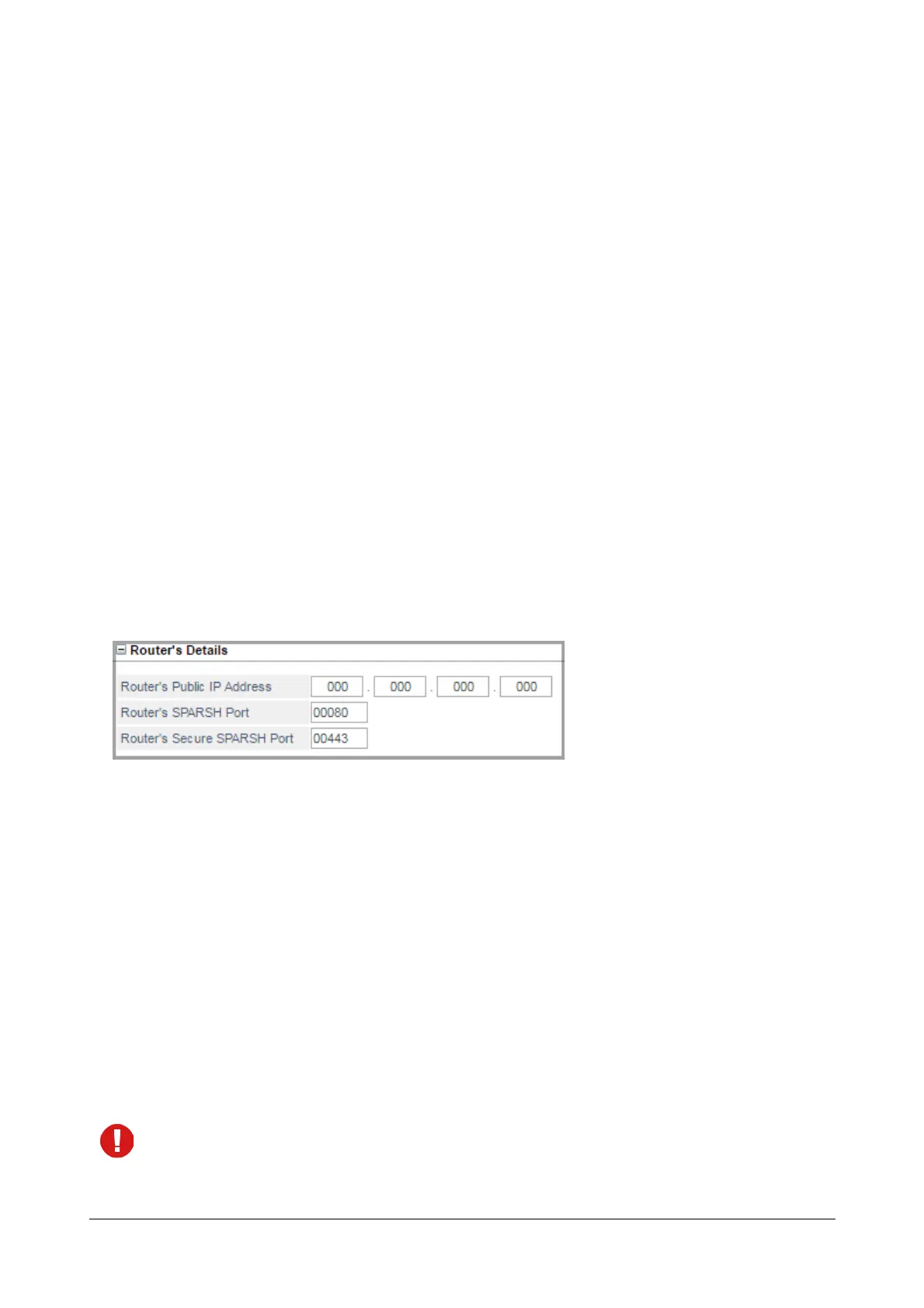
Router’s Details
This parameter is of relevance if the Ethernet WAN of SARVAM UCS is located behind a NAT Router and
configuration request (HTTP/HTTPS) are to be forwarded to the public internet.
Router's Public IP Address specifies the fixed IP Address of your NAT router required for NAT Traversal in SIP
messages.
• Click Router’s Details to expand.
• Enter the Router’s Public IP Address.
• Enter the Router’s SPARSH Port number. The system will listen for the configuration request (HTTP/
HTTPS) of Matrix Extended SPARSH clients on this port only. If you want any SPARSH Extended client to
register with the system, you must configure the SPARSH port value as the Server Port along with the
Server Address in the SPARSH client.
Valid range: 80 or any value ranging from 1025 to 65535. Default: 80.
When the system is set to default, the Router’s SPARSH Port value will not be set to default.



 To Next Page