Matrix ETERNITY NE System Manual 531
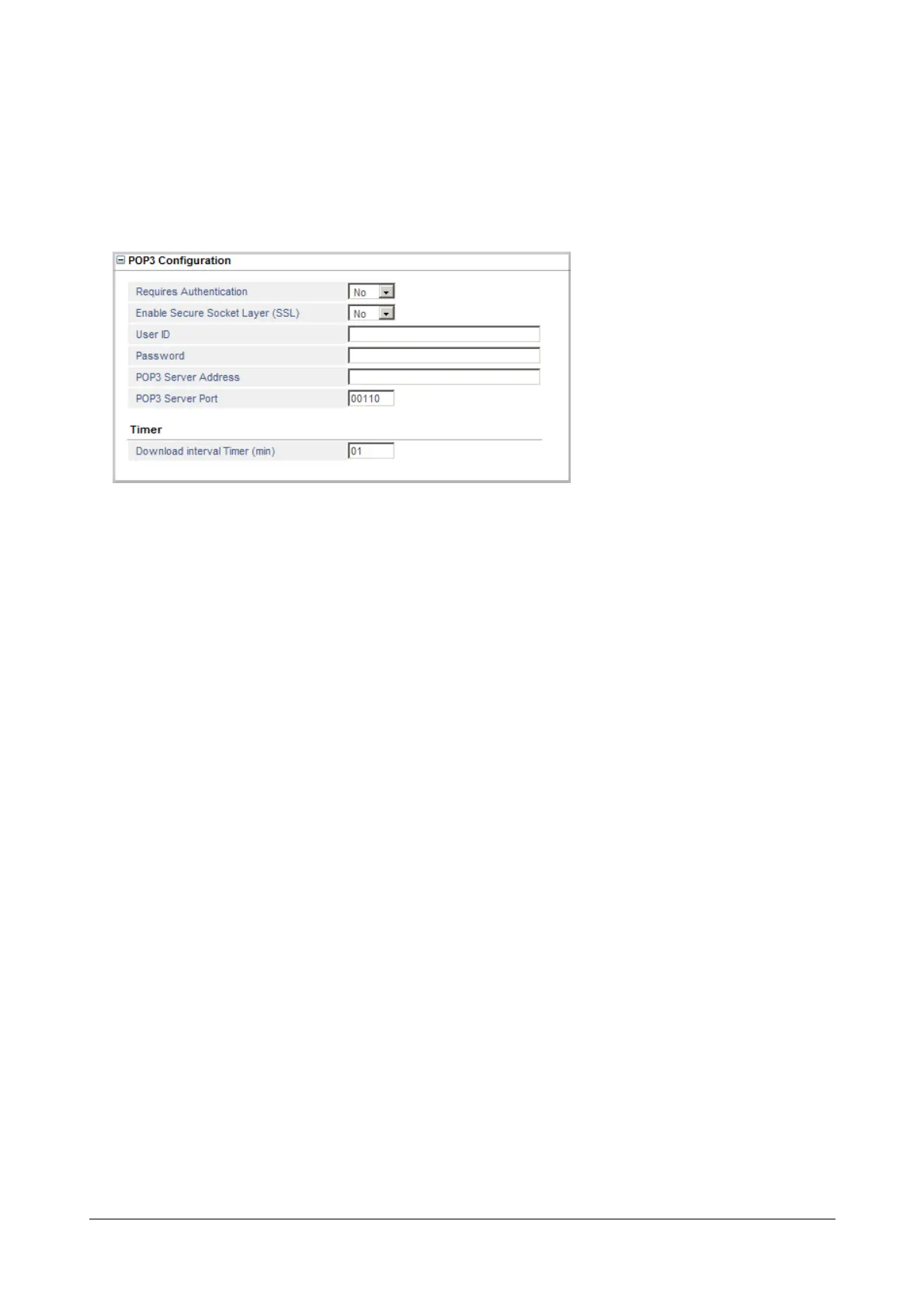
POP3 Configuration
Contact you Network Administrator for the following information and configure the parameters as per the
configurations done in the Email Server to register the SMS Server as a POP3 Client.
• Click the POP3 Configuration to expand.
• If the Email Server uses authentication, select Requires Authentication as Yes. Default: No. If your
Email Server uses authentication, you must also configure the User ID and the Password.
• To transport all data in a secure manner, select Enable Secure Socket Layer (SSL) as Yes. All the
data to the Email Server will be transported over secure layer. Default: No.
• If you have enabled authentication, configure the User ID and the Authentication Password as
provided to you by your network administrator. The User ID may consist of a maximum of 40 characters
and the Password can be a maximum of 24 characters. Default: Blank.
• Configure the POP3 Server Address and POP3 Server Port. This is the Server’s IP Address and Port
number that is used to download incoming mails. For example, Email Server address is 192.168.1.1
and port is 1400, then configure the Server Address as 192.168.1.1 and port as 1400. If port is not
programmed, use the default port value equal to 110. The Server Address can be a maximum of 46
characters.
• Click Submit.
Timer
• Download interval Timer (min) is the time interval after which the POP3 Client of the SMS Server
retries to fetch new mail from the Email Server. Valid Range is 01 to 99 minutes. Default: 01 minute.
Test POP3 Settings
• After you have configured the POP3 parameters and submitted them, the Click to Test POP3
Settings button appears.
• Click the 'Click to Test POP3 Settings’, to check if the POP3 parameters have been configured
correctly.
When you click this button, the alert message appears: "Testing POP3 can take up to 99 seconds.
Would you like to continue?" Click OK.



 To Next Page