1. In the Project Wizard dialog enter a name for the project and the storage location.
2. Click Next: the HMIdevice selection dialog is displayed.
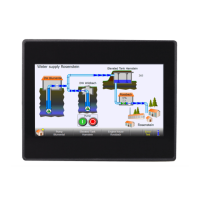
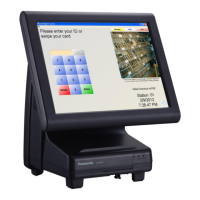
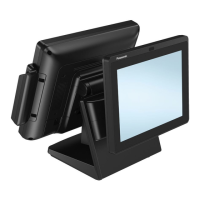
3. Choose one device from the list of the available models.
4. Choose device orientation.
5. Click Finish to complete the Wizard.
Portrait rotation exceptions
The following elements are not rotated in portrait mode.
Element Description
Operating system dialogs System settings and system dialog
ContextMenu and related dialogs Project Manager, About, Settings, Logging, Backup
Video IPCamera, MediaPlayer
JavaScript Alert and Print function
Dialog pages “Title” of dialog pages
Scheduler Dialogs for data entry
Macro ShowMessage, LunchApplication, LunchBrowser
External applications , VNC
HMI devices based on Linux platform can be rotated from the BSP (see "Displays" tab from the "System
Settings" on page379"Linux Devices" on page387page) without these limitations.
Changing the device model
Once you have developed your project you can still change the device model, from the Project Properties pane. This will
not resize the widgets, but will relocate them on the screen. A warning will be displayed if some objects cannot be
relocated.
HMWIN Studio |User Manual| v206 (2017-06-30) | EN| © 2014-2017 Panasonic Electric Works Europe AG
15
3 My first project



 To Next Page