Table widget
Path: Widget Gallery> Basic> Table
Use this widget to create a table with data provided from a data source.
To configure a table:
1. Put a table widget on the screen and configure the template of the table.
2. Add widgets into cells to configure one or more rows that will be used as row templates when the table will be filled
with data provided from the data source.
3. Select a data source that will be used to fill the rows of the table
4. Define the links from widgets and data source.
Configure the table widget
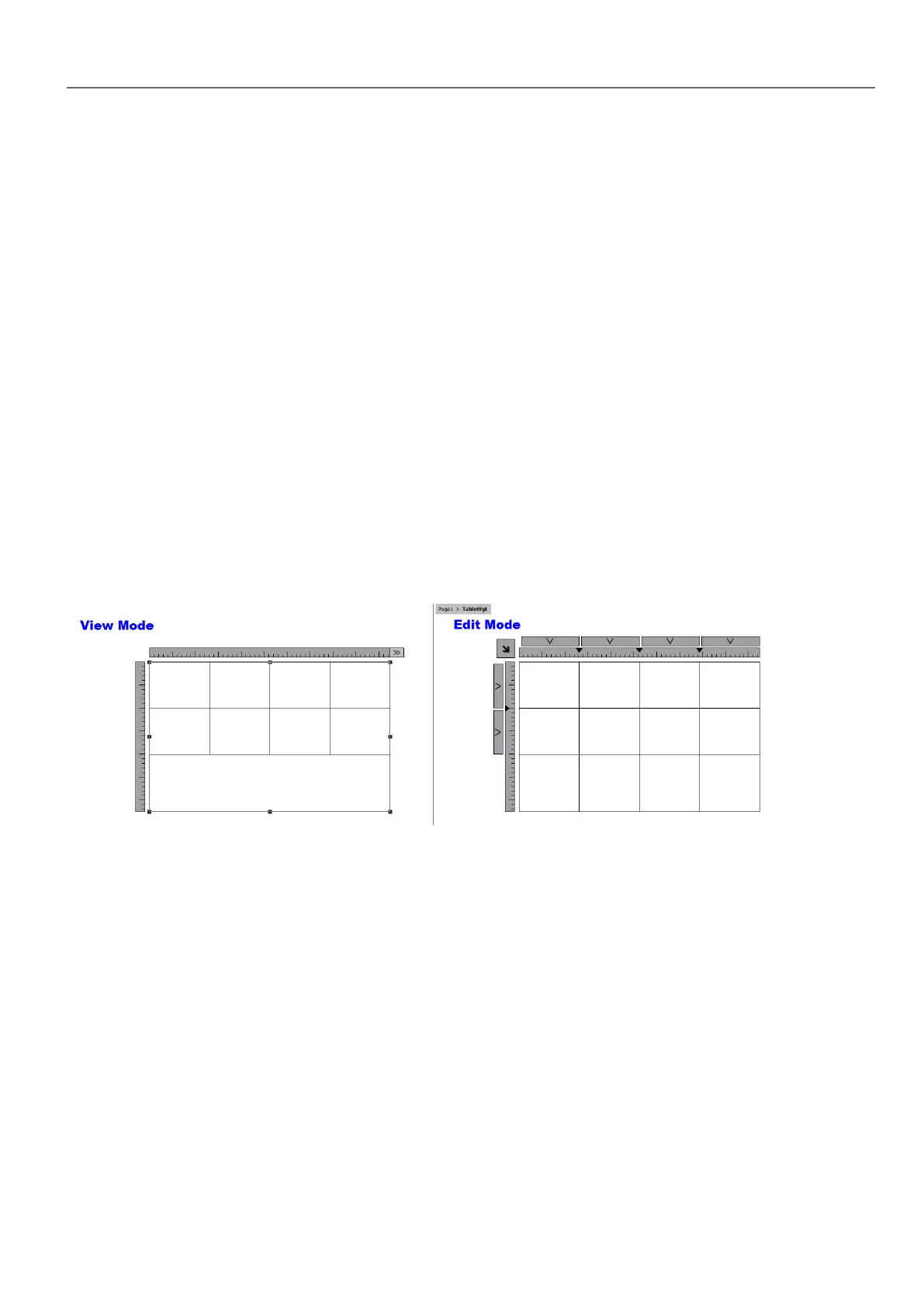
Table widget has two states:
l View mode
l Edit mode.
Click on the table to manage the widget in view mode, double click to enter in the edit mode. To exit and return to view
mode click outside the table.
View Mode
In view mode, you can configure the table layout. Drag and drop the table onto the page, resize the table, define number of
template rows, number of columns and the main table properties.
HMWIN Studio |User Manual| v206 (2017-06-30) | EN| © 2014-2017 Panasonic Electric Works Europe AG
307
32 Special widgets



 To Next Page