Note: Alarms can be configured to be enable/disable even from the PLC.
See Alarm Configuration Editor for details.
Displaying live alarm data
Path: ProjectView> Config > double-click Alarms
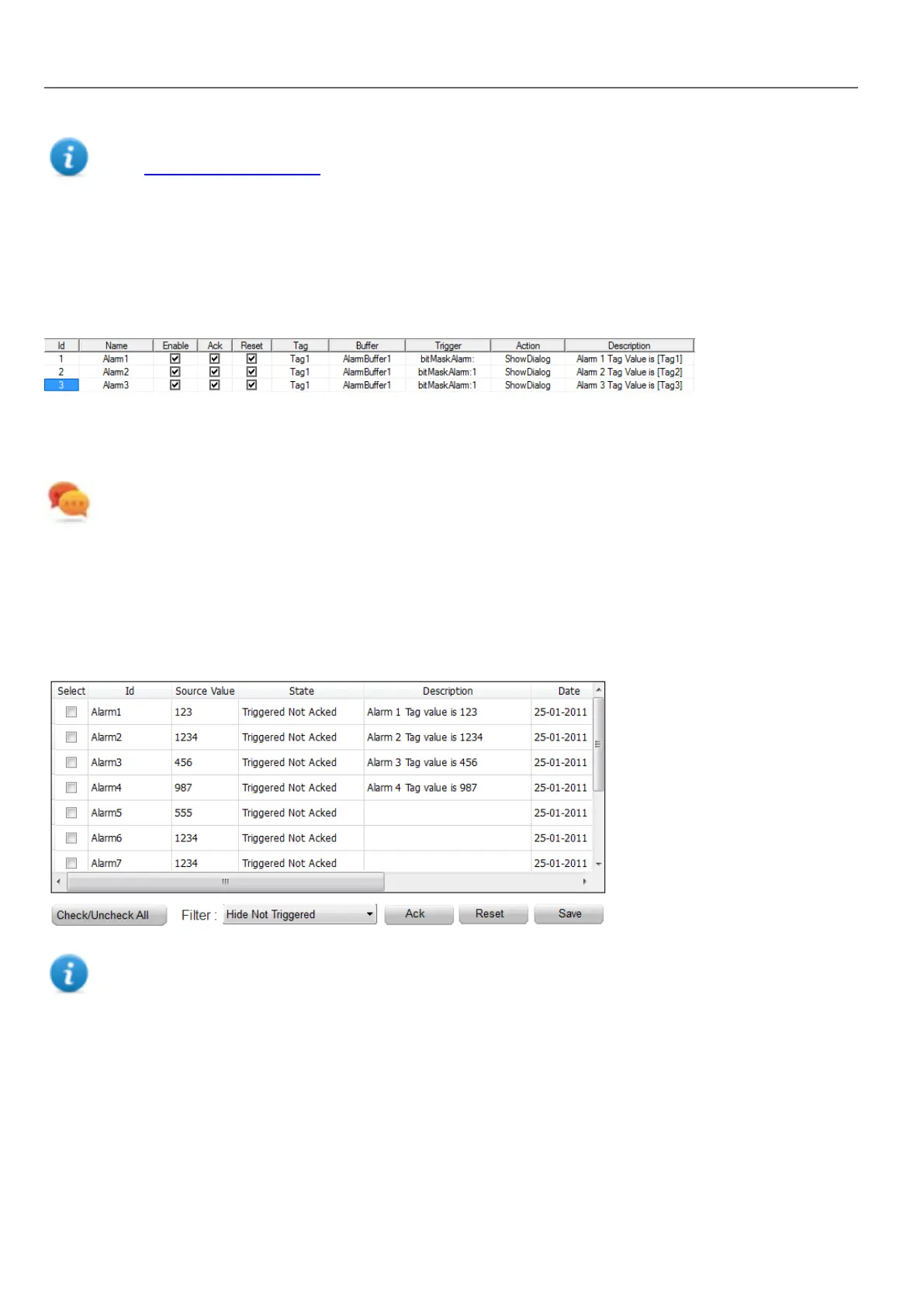
Both in the Active Alarms and in the History Alarms widget you can set the alarm description to display live tag data.
To show the tag value, set a placeholder in Description entering the tag name in square brackets, for example "[Tag1]". At
run time, in Description column of Active Alarms widget the current value of the tag will be displayed. In History Alarms
widget or in .csv file the value at the time the alarm was triggered is displayed
Use '\' before '[]' if you want to show the '[]' in the description string, for example: \[Tag\[1\]\] will display the
string "[Tag[1]]".
Use '\', even when the tag label contains square brackets. For example, to display the live tag value of tag
“TAG]3” or “TAG[3]” use:
l TAG\]3 = [TAG\]3]
l TAG\[3\] = [TAG\[3\]]
Example of Alarm widget
Note: The csv file resulting from the dump of the alarm events list will also display the tag value in the description
column.
Exporting alarm buffers to .csv files
To export an event buffer containing an history alarms list, use the DumpEventArchive action.
See "System actions" on page135 for details.
178
HMWIN Studio |User Manual|v206 (2017-06-30) |EN|© 2014-2017 Panasonic Electric Works Europe AG
Displaying live alarm data



 To Next Page