1. Assuming you have stored the package in the root folder of a USB drive, remove the drive from the computer, plug it
in the HMI device, display the context menu by holding your finger for a few seconds on the screen and select
Update.
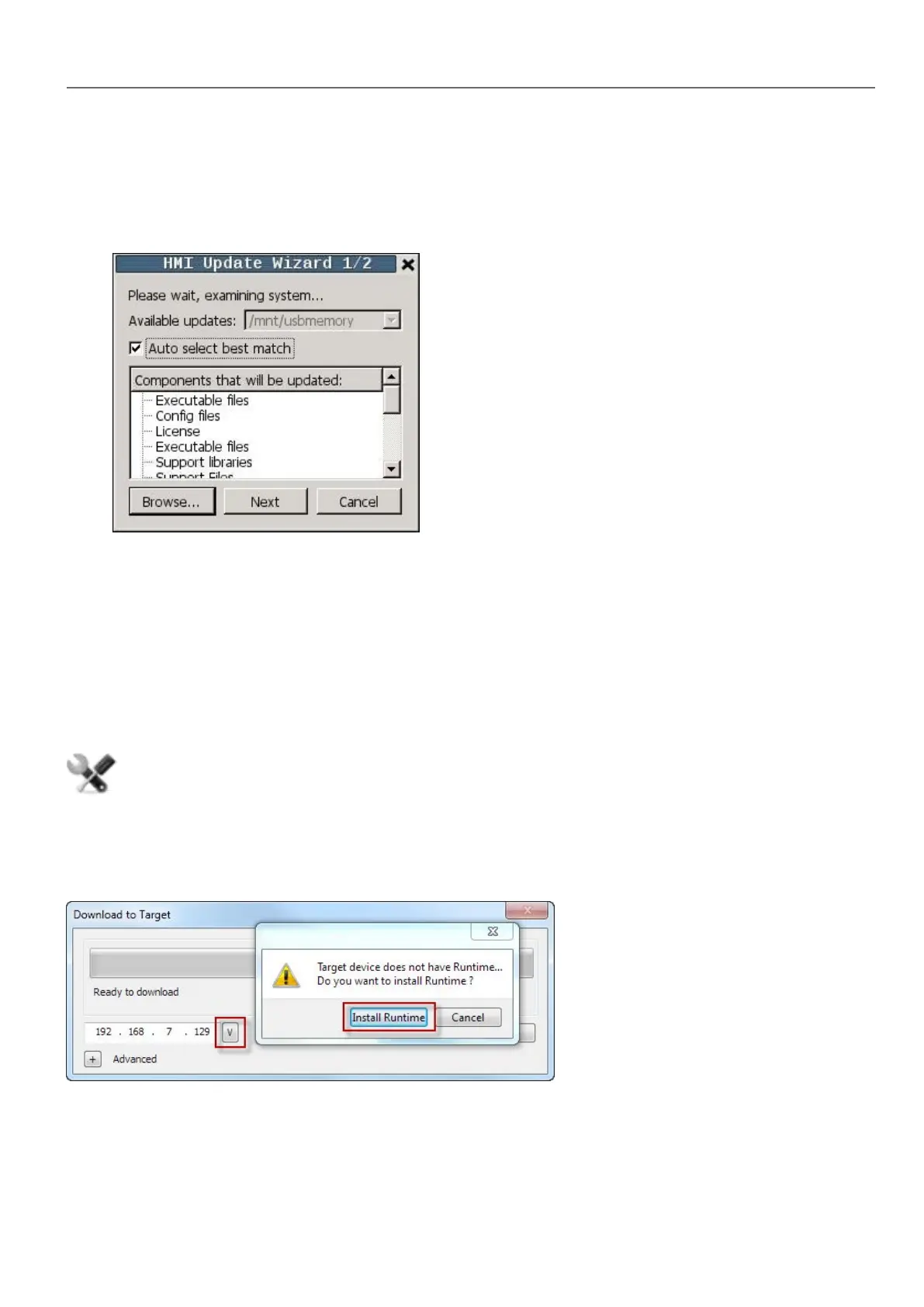
2. The system will check for the presence of the update package in the USB drive root and ask confirmation to proceed
with the update.
3. Select Auto select best match and click Next: the procedure is completed automatically. Alternatively use the
browser button to select the file to use.
The Runtime loader
HMI devices are delivered from factory without Runtime.
When you power up the device for the first time, the Runtime Loader window is displayed (see "System Settings" on
page379for details)
The Runtime Loader presence depends on the device Operating System and may not be available on all the
units. Old versions of HMI devices may not include the Runtime Loader. Contact technical support if you need
further information.
Installing Runtime from HMWIN Studio
When you download a project the Runtime is automatically installed if needed.
See "Transferring the project to HMI device" on page67 for details.
1. Click Install Runtime: the procedure is run automatically.
HMWIN Studio |User Manual| v206 (2017-06-30) | EN| © 2014-2017 Panasonic Electric Works Europe AG
73
7 Transferring the project to HMI device



 To Next Page