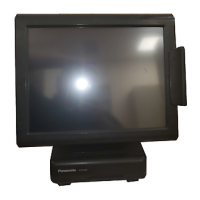
Activate the device
On each HMIdevice you need to activate the corresponding license. To do this you need an Internet connection.
Important: HMI Runtime must be installed in the device before you can activate your license.
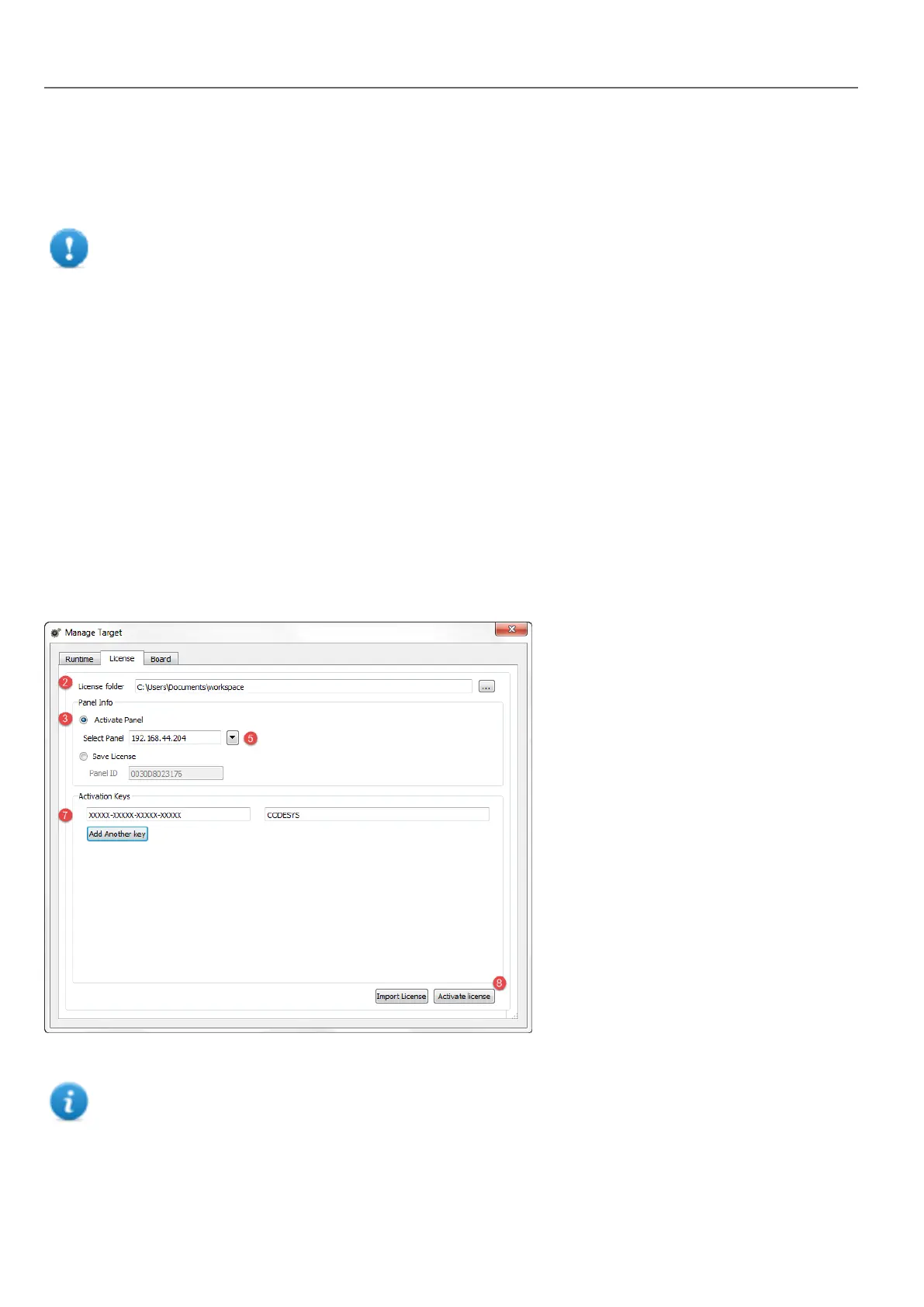
Path: Run> Manage Target
1. In the Manage Target dialog, click the License tab.
2. In License folder select the location of your backup license files.
3. Choose the Activate Panel option.
4. Select the panel.
5. Click Select IP button: all of the devices connected to the network are listed.
6. Select the device on which the license is to be activated.
7. Enter Activation Key.
Once you have entered an activation key, the Add Another Key button is enabled, and you can add another
activation key.
8. Click Activate license: if the activation key is valid, the license file is downloaded to the HMIdevice and the license
is activated.
The enabled features or status of the activation keys is displayed in the Feature/status list box.
Note: You need to restart the HMIdevice to enable the activated license.
414
HMWIN Studio |User Manual|v206 (2017-06-30) |EN|© 2014-2017 Panasonic Electric Works Europe AG
Activate the device



 To Next Page