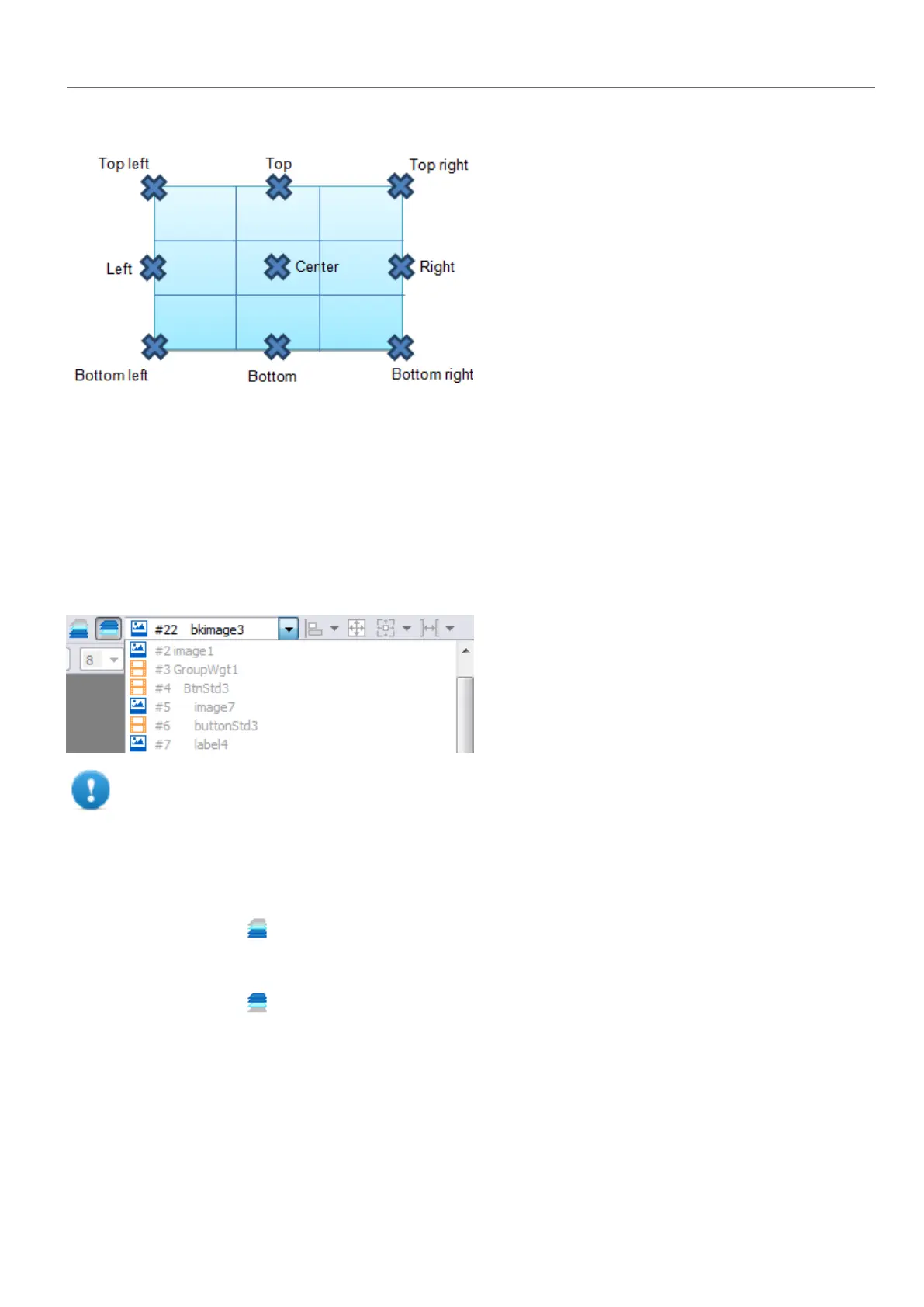
An algorithm finds a matching hot point among the near widgets hot points matching either the x or the y coordinates of the
source snap point. For line widgets, the source snap points are the terminal points of the line.
Managing overlapping widgets
When one or more widgets on the page overlap, you can manage their order so that one is displayed on top of the other.
The order of the widget on the page is shown in the combo box. A widget with greater z-order number is in front of an
element with a lower z-order number. A picture icon identifies static objects, a movie frame icon identifies dynamic objects.
Important: Correct ordering of widgets is essential for run time performance since overlapping
dynamic widgets can invalidate static optimization and reduce performance of HMI applications.
Hiding/showing widget on z-order
To hide widgets above a selected widget:
l
On the toolbar click and select a widget: all widgets above this one are hidden
To hide widgets below a selected widget:
l
On the toolbar click and select a widget: all widgets below this one are hidden
The toolbar allows to:
l hide widgets stacked above and/or below selected widgets
l work on different widgets using the combo box which lists all the widgets in their z-order.
HMWIN Studio |User Manual| v206 (2017-06-30) | EN| © 2014-2017 Panasonic Electric Works Europe AG
39
4 Programming concepts



 To Next Page