Save a license
You may need to create a license file for later activation oh the HMI device.
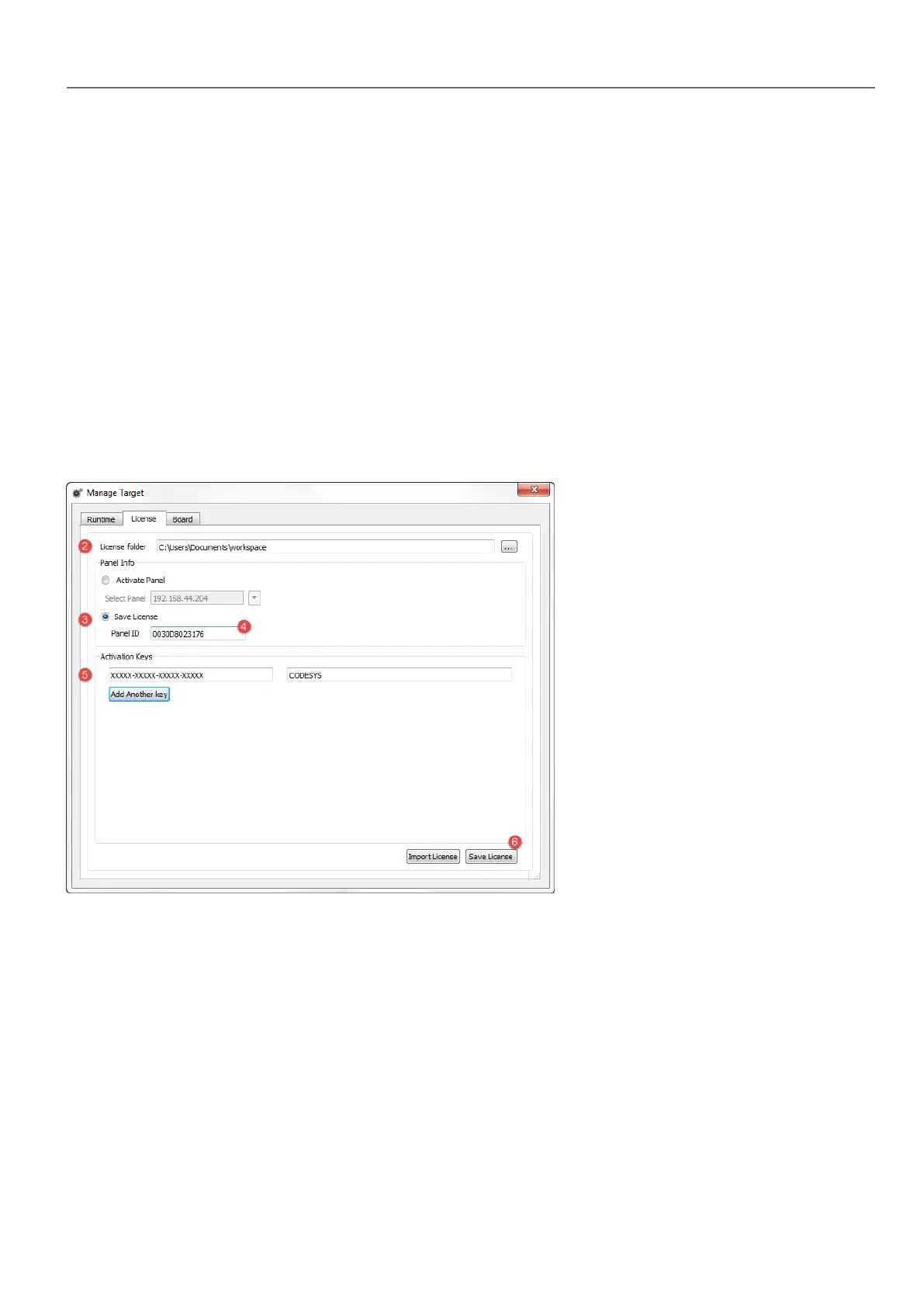
Path: Run> Manage Target
1. In the Manage Target dialog, click the License tab.
2. In License folder select the location of your backup license file.
3. Choose the Save License option.
4. Enter Panel ID.
5. Enter Activation Key.
Once you have entered an activation key, the Add Another Key button is enabled, and you can add another
activation key.
6. Click Save License: if the activation key is valid, the license file is stored in the selected folder.
The enabled features or status of the activation keys is displayed in the Feature/status list box.
Import a license
If no working Internet connection is available on the computer running HMWIN Studio, you can neither save or activate a
license. You must therefore import your license from another computer where you where able to download it.
This is a two-step procedure:
1. First you download and activate your license on a computer connected to the internet
2. Then you import the downloaded license to the HMI device.
HMWIN Studio |User Manual| v206 (2017-06-30) | EN| © 2014-2017 Panasonic Electric Works Europe AG
415
39 License activation of HMI device software modules



 To Next Page