Parameter Description
Bar Duration
Bar Duration
Units
Time period represented by each bar in the graph
Time Periods Assigns a specific color to highlight the increment of the monitored resource in a specified
time period (minimum resolution = 1 hour).
Color
Bar Width
Bar color and width
Bar Value Show/Hide the value of each bar
Consumption
Meter
Number of labels to be displayed on graph.
Example: how to monitor energy consumption
In the following example a widget is design tho monitor energy consumption with a weekly scale and a daily unit.
1. Attach a tag to the physical variable to monitor. In this example, to the total energy consumed (Tag KWh). This tag
contains an incremental number that indicates how many KW/h have been consumed from when energy
consumption started.
2. Add a Trend and link it to the tag to be monitored, Tag KWh.
3. Add a Consumption Meter widget to a page.
4. Attach the Value property of the Consumption Meter to the Trend you created in step 2.
5. Set Graph Duration/Units to 1 week: this will give you a weekly graph of consumed energy.
6. Set Bar Duration/Units to 1 day, this is the time range when energy consumption is calculated.
7. In Consumption Meter set the number of labels to show in the bar graph, in this case 7 to display a weekly graph.
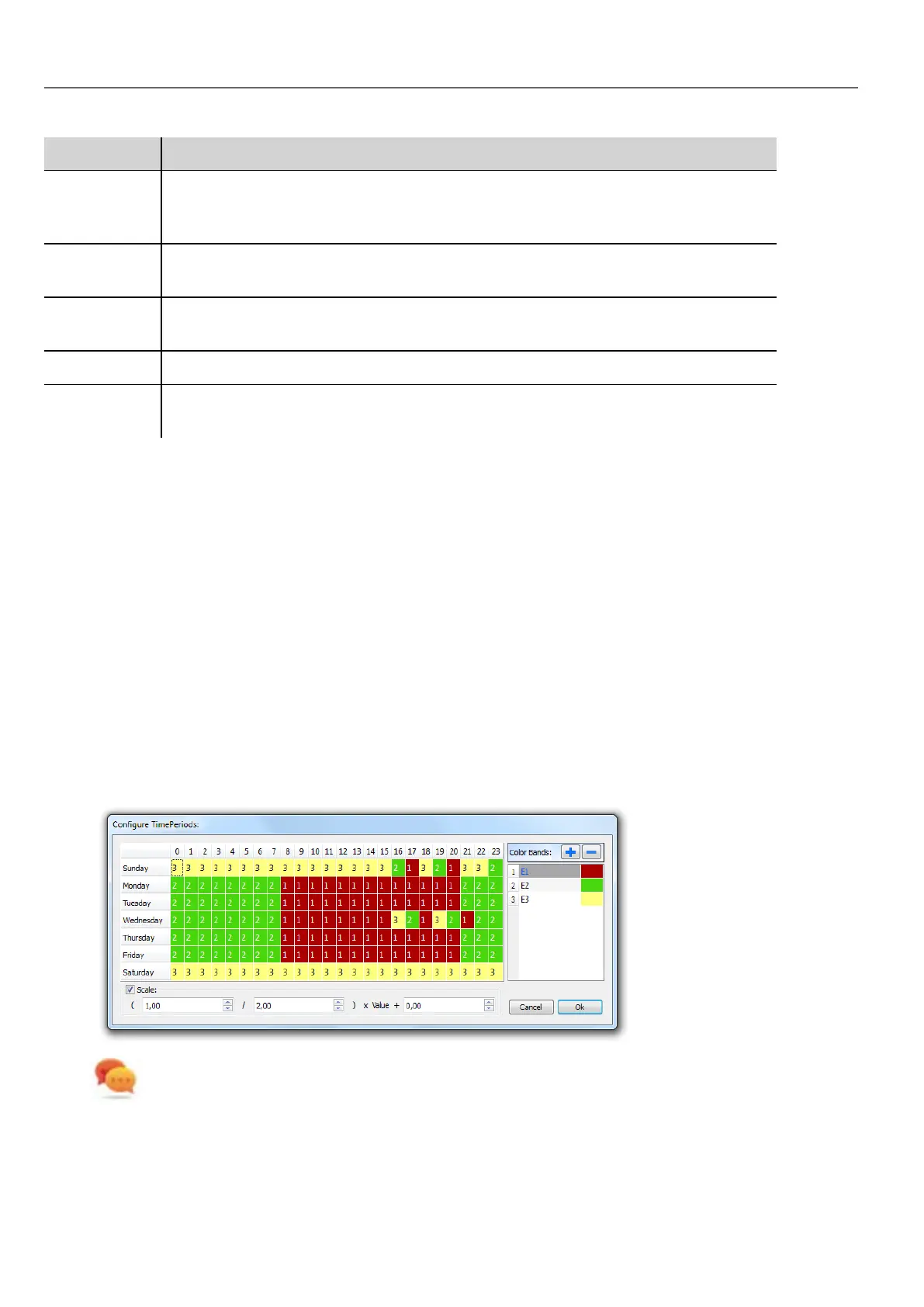
8. From the Time Periods property open the Configure Time Periods dialog: set the different colors for different
values of Tag KWh in each bar.
Tip: To assign the color to the cells of the table, select the cells and click on the desired color, or enter the
index value of the band (1, 2, 3) into the cell.
290
HMWIN Studio |User Manual|v206 (2017-06-30) |EN|© 2014-2017 Panasonic Electric Works Europe AG
Consumption Meter widget



 To Next Page