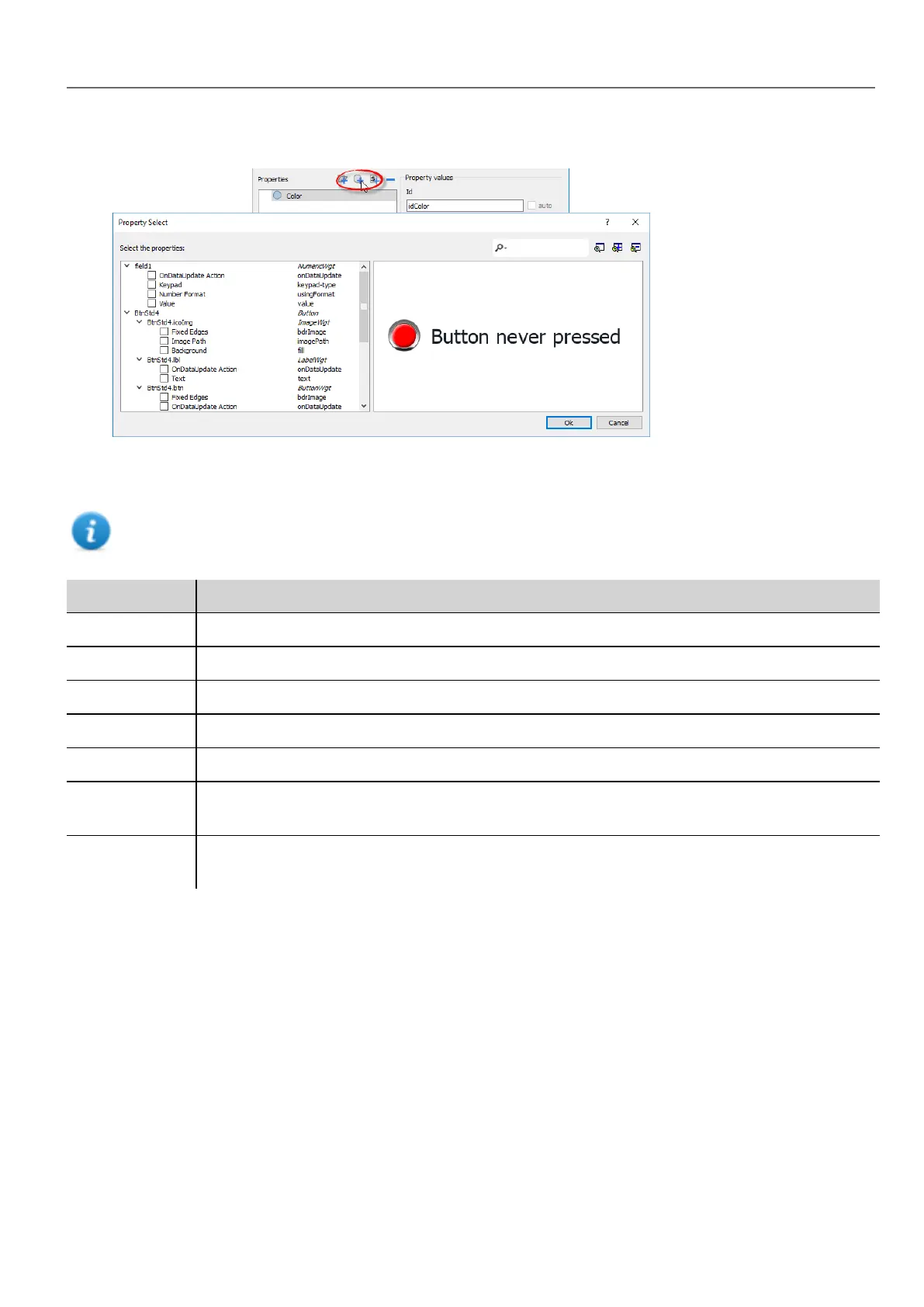
2. Click + to open the Property Select dialog: this lists all the properties of all the grouped widgets.
3. Select the properties you want to define for your custom widget.
4. Define each property's details.
Note that you can create folders and use drag & drop to move or reorganize the Properties list
Parameter Description
Properties Name shown in the Properties pane.
Description Any comment on the property to be displayed in the Properties pane.
Id The name exposed by HMWIN Studio, to JavaScript functions and Attach Tag dialog.
Support Tags Specifies if the property supports the “Attach to" attribute.
Read only Property exposed only in read mode
Advanced Specifies whether each property should appear in the advanced, or in the simple view mode of the
Properties pane.
Aliased
properties
Internal properties linked with the exposed property
Combining properties
To combine two or more properties:
1. Select the primary property in the Properties list dialog.
2. Click + in the Aliased properties toolbar: the Property Select dialog is displayed.
3. Select the properties you want to combine.
4. Click OK: the combined attributes will be shown in the Aliased properties list box.
Example
If you insert into a “Color” property the fill color of all widgets (e.g. filed1.fill and BtnStd4.btn.fill) when you set the exposed
Color property of the custom widget all colors of the included widgets will changes.
HMWIN Studio |User Manual| v206 (2017-06-30) | EN| © 2014-2017 Panasonic Electric Works Europe AG
323
33 Custom widgets



 To Next Page