CAPINTEC, INC. CAPTUS
®
4000e
November 16 WIPE TESTS 8-7
• To move between data fields, use the Tab key and to select Type of wipe location, use
the or arrow keys.
• To better organize your wipe test routine, sort the added locations into groups
depending on their functionality. Refer to ADDING WIPE LOCATIONS TO PRESET
GROUPS below for details.
ADDING WIPE LOCATIONS TO USER DEFINED GROUPS
To organize routine measurements, group the Preset Group wipe locations according to your
needs. You may then perform various functions on any set of wipe locations or group as
defined by you.
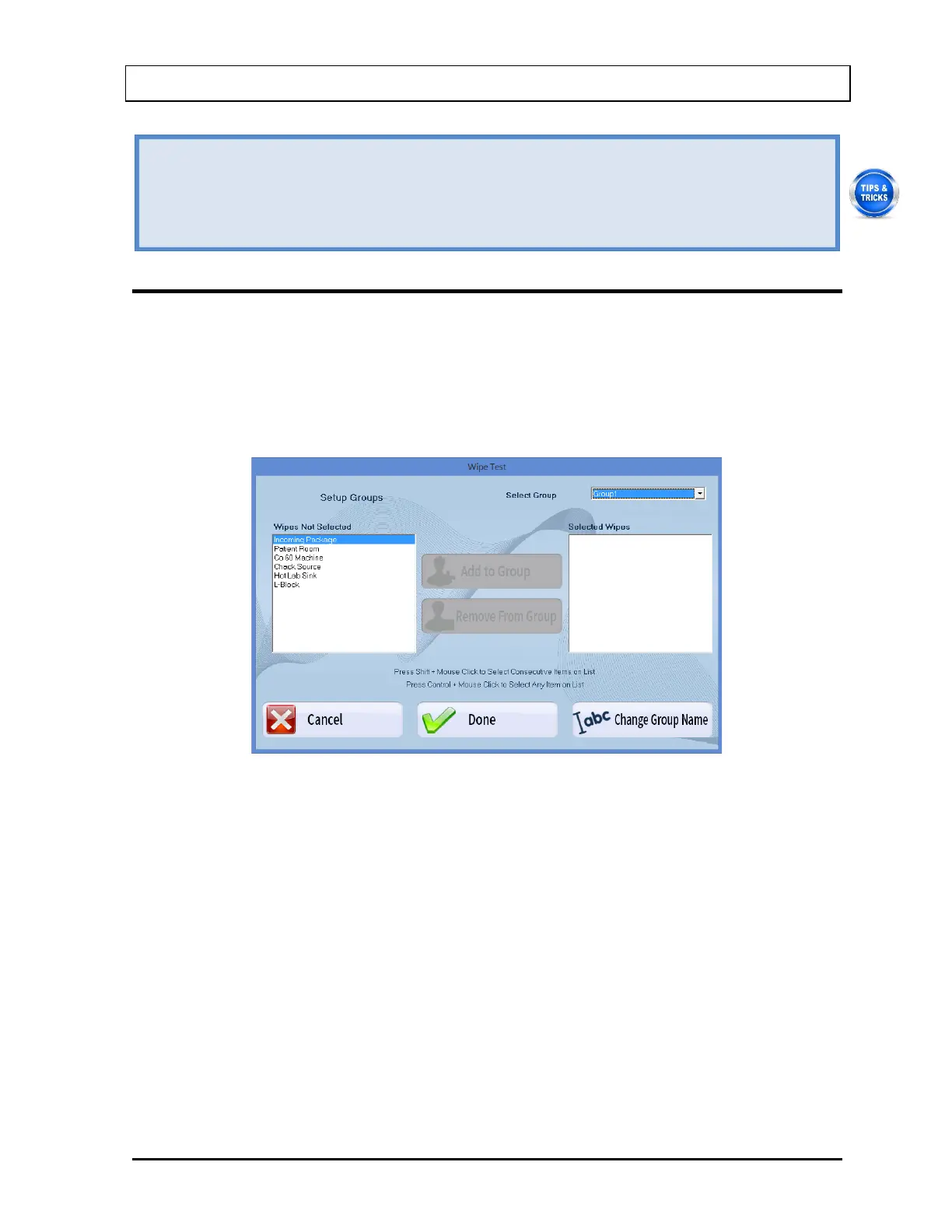
1. Select the Setup Groups button or press Alt+G on Figure 8-2 Wipe Test Main Screen.
Figure 8-6 will appear.
Figure 8-6 Setup Groups Screen
2. Click in the Select Group drop-down box and click on a group to define or make
changes. The Selected Wipes box indicates any existing wipe locations that are included
in that group. You may define up to five different groups.
3. To add wipe locations to the selected group,
a. Click on the wipe location you want to add in the Wipes Not Selected box.
Note: To select a range of locations, click on the first location. Then, hold down the
Shift key while clicking on the last location. Or click and hold the pointing
device’s button down on the first location in the range and then drag the
pointer to the last location and release the button.
To make non-contiguous selections, press the Ctrl key while clicking the
pointing device on locations to be selected.



 To Next Page