CAPINTEC, INC. CAPTUS
®
4000e
November 16 LAB TESTS 10-37
Deleting Patient Information
Note: If you wish to save patient information before deleting, refer to CHAPTER 14:
ARCHIVE.
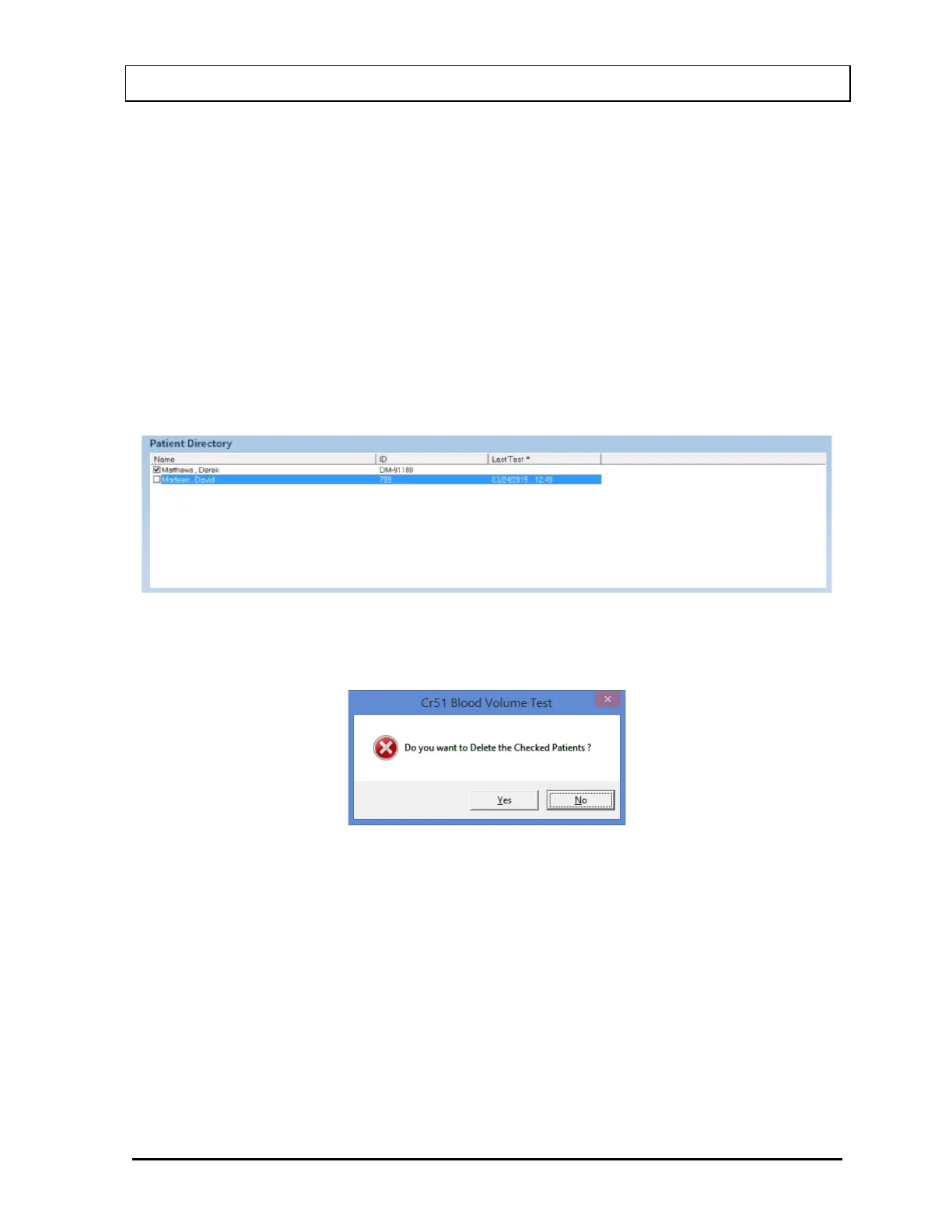
1. To select one or more patients for deletion, click in the check box to the left of the patient
name in the Patient Directory box on the main Cr51 Blood Volume Test screen (Figure
10-51). A check mark should appear in the check box to indicate it has been selected.
The patient can also be selected by first highlighting the desired patient by clicking and
then double-clicking anywhere in the grid to place a check in the box. To deselect a
patient, click in their check box again or double-click anywhere in the grid while the
desired patient is highlighted and the check will be removed from the check box.
Note: The status of a check box can be toggled by quickly double-clicking the desired
item.
Figure 10-51
2. Select the Delete button. Figure 10-52 will appear.
Figure 10-52
3. Select the Yes button or press the Y key to confirm the deletion or select the No button or
press the N key to cancel.
4. To delete all the patients at once, simply select the Delete All button. You will be
prompted to confirm the deletion. Figure 10-53 will appear.



 To Next Page