CAPINTEC, INC. CAPTUS
®
4000e
August 15 ARCHIVE 14-3
DOING SYSTEM BACKUP (CREATING AN ARCHIVE)
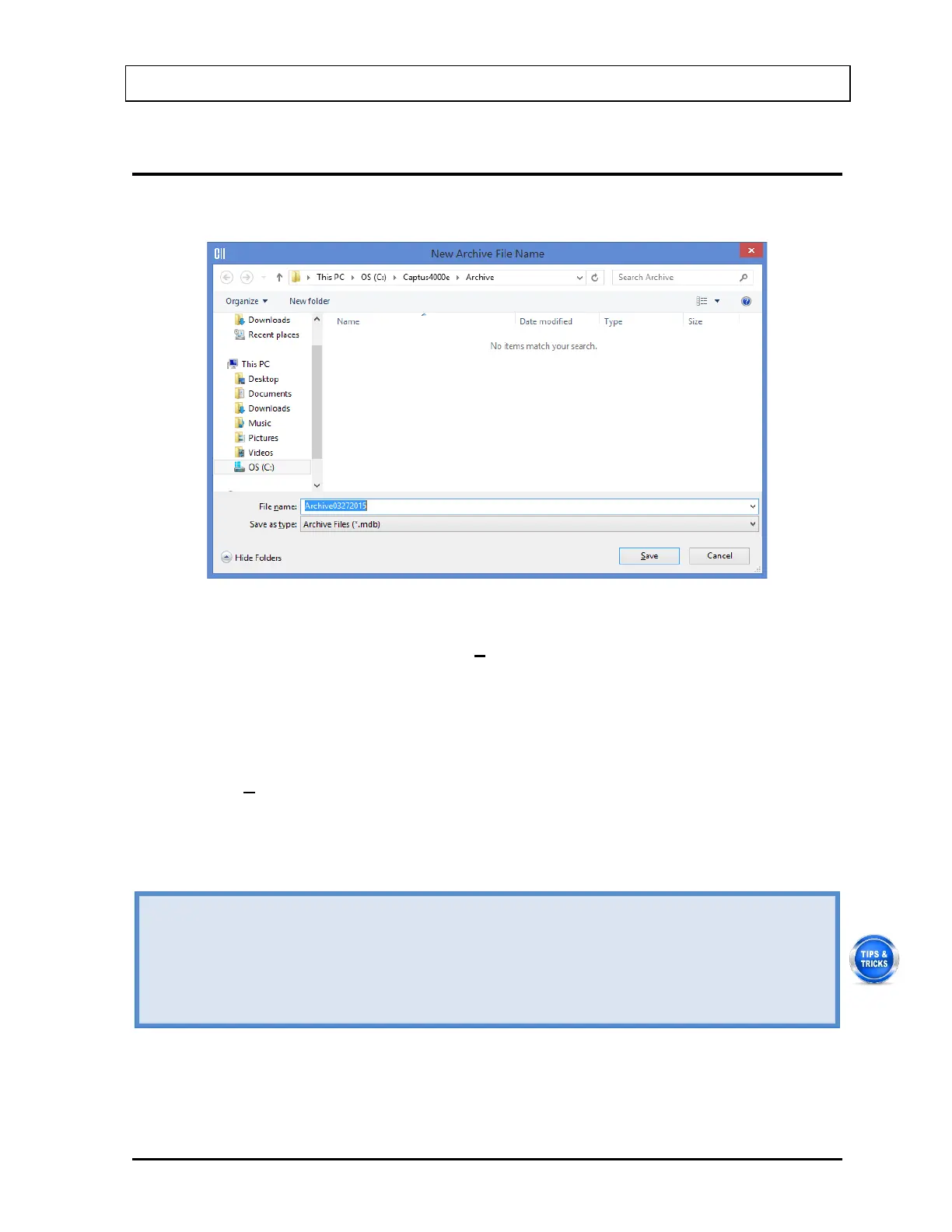
1. Select the Create Archive button. The screen appears as shown in Figure 14-2.
Figure 14-2
2. The default file name appears in the File name box as ArchiveMMDDYYYY (if the default
for date format in system setup is MMDDYYYY), where MMDDYYYY is the current date
or the date of archive creation. For example, in the archive above, Archive03272015, is
being created on 03/27/15. The file is saved as a database file with a .mdb extension.
The default folder for saving archive files is C:\Captus4000e\Archive\. The file name and
default folder can be changed by clicking in the respective boxes.
3. Select the Save button or press Alt+S to create the archive or select the Cancel button to
return to Figure 14-1 Main Archive Screen without creating an archive. Once an archive
has been created, all data collected in all test modules will be saved under the given file
name and folder. After saving the archive, Figure 14-1 Main Archive Screen will re-
appear with the box populated with the archived data similar to that shown in Figure 14-4.
• The default file name and folder are designed to make record keeping easy. It is
recommended not to change these defaults.
• Once system backup is performed, the archive files now contain all the data collected
in all the modules (except Time Activity Analysis). To discard old records from module
screens, go to each module and use the Delete or Delete All buttons as desired. The
archived data will not be affected.



 To Next Page