CAPINTEC, INC. CAPTUS
®
4000e
4-12 GENERAL SETUP November 16
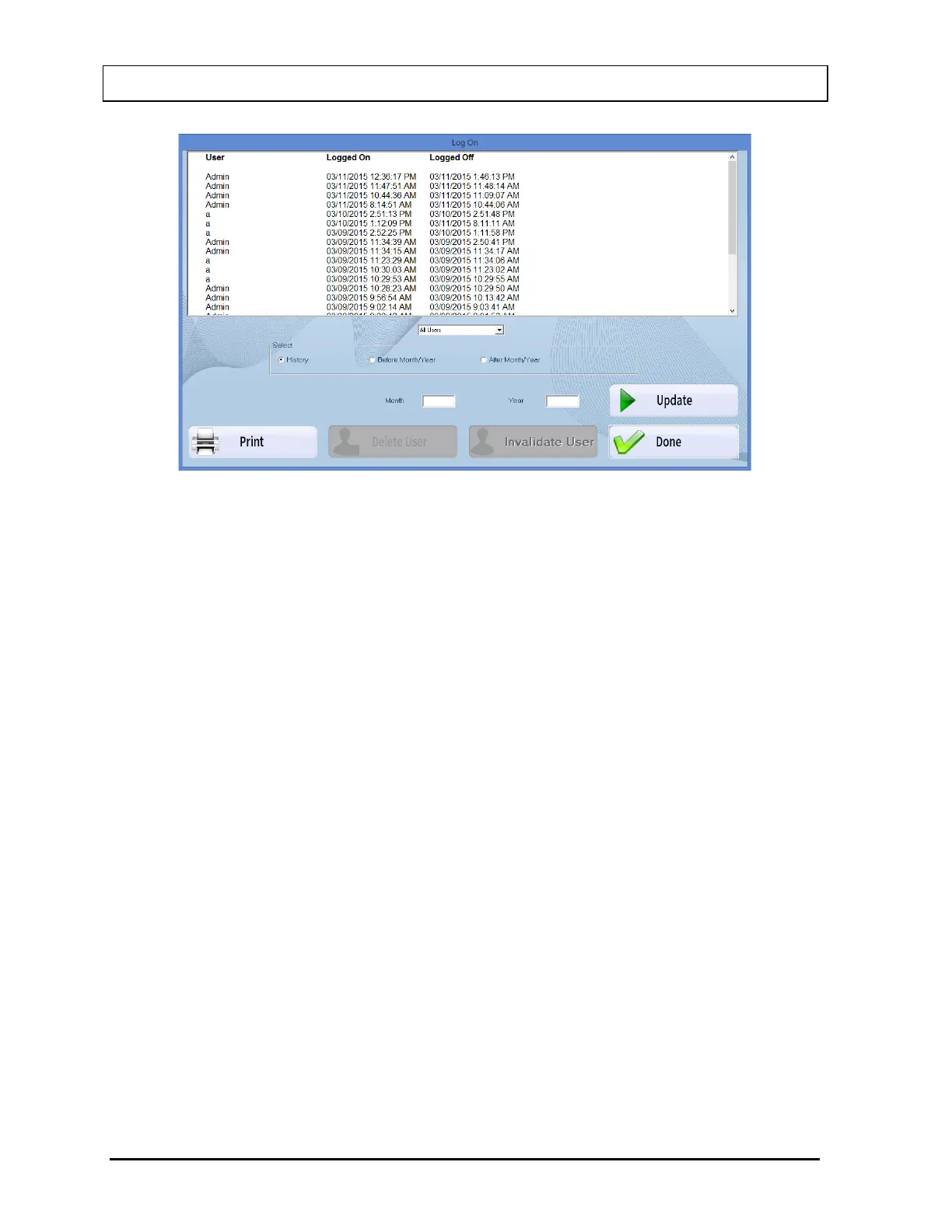
Figure 4-9 Log On Report Window
The User, Log On Date/Time and Log Off Date/Time are displayed in reverse chronological
order.
When All Users are displayed, the Delete User and Invalidate User buttons are disabled
(grayed-out).
Displaying Selected User
The Drop-Down List box contains the names of all the users.
To select a user, click the Drop-Down List box and select the desired User Name. Select the
Update button. The Log On Report window will be updated to show only the log on data for
that user. The Delete User and Invalidate User buttons will now be enabled.
Note: The Delete User and Invalidate User buttons are not enabled if Admin is the
selected user, since Admin may not be deleted or invalidated.
Delete User
To delete a user and all log on data for the user, select the User Name from the Drop-Down
List box and select the Update button. Select the Delete User button. A verification message
window will appear asking if you want to delete the user and the user log.
Select the No button to abort the delete. Select the Yes button to delete the user and log.



 To Next Page