CAPINTEC, INC. CAPTUS
®
4000e
10-52 LAB TESTS November 16
sample)HCT(each hours) 24rate(at count blood Net whole
100hours) 24HCT(at sample)rate(each count blood Net whole
Remaining %
×
××
=
Patients Reports
1. Click on a patient in the Patient Directory box on the main RBC Survival Test screen
to select for viewing or printing the report.
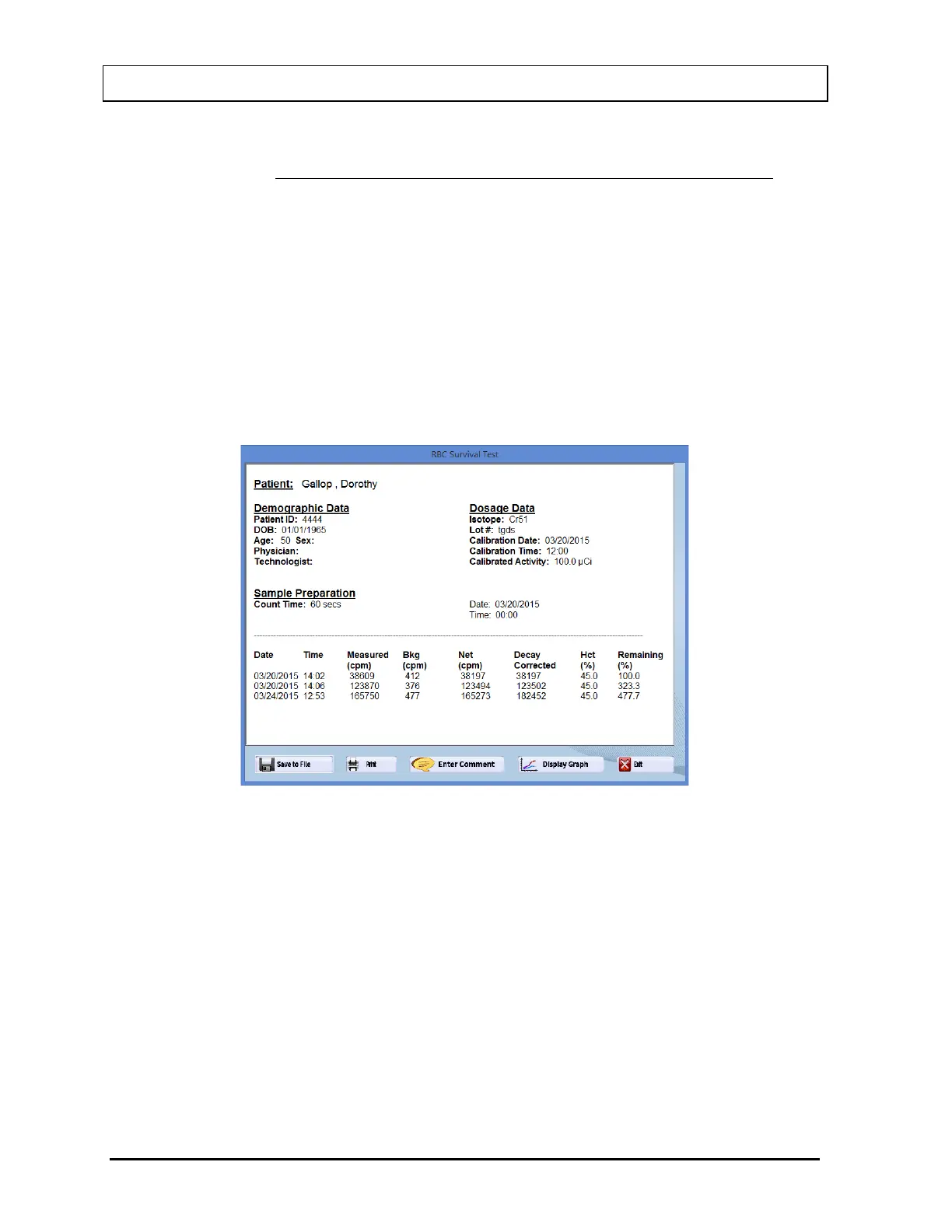
2. Select on the Report button. The screen appears as in Figure 10-79, showing a
typical patient report. It contains the patient’s demographic data, dosage and sample
information, count data and calculated results (HCT % and RBC Remaining %) for
each measurement made. If Normal Range values have been entered in the setup,
any results outside of these limits will be flagged.
Figure 10-79
3. To save the report on the screen, select the Save to File button or press ALT+S. The
Save As box appears as in Figure 10-80. Reports are saved as an RTF file in the
C:\Captus4000e\Reports\ directory by default.



 To Next Page