CAPINTEC, INC. CAPTUS
®
4000e
10-44 LAB TESTS November 16
Setup Counting Parameters
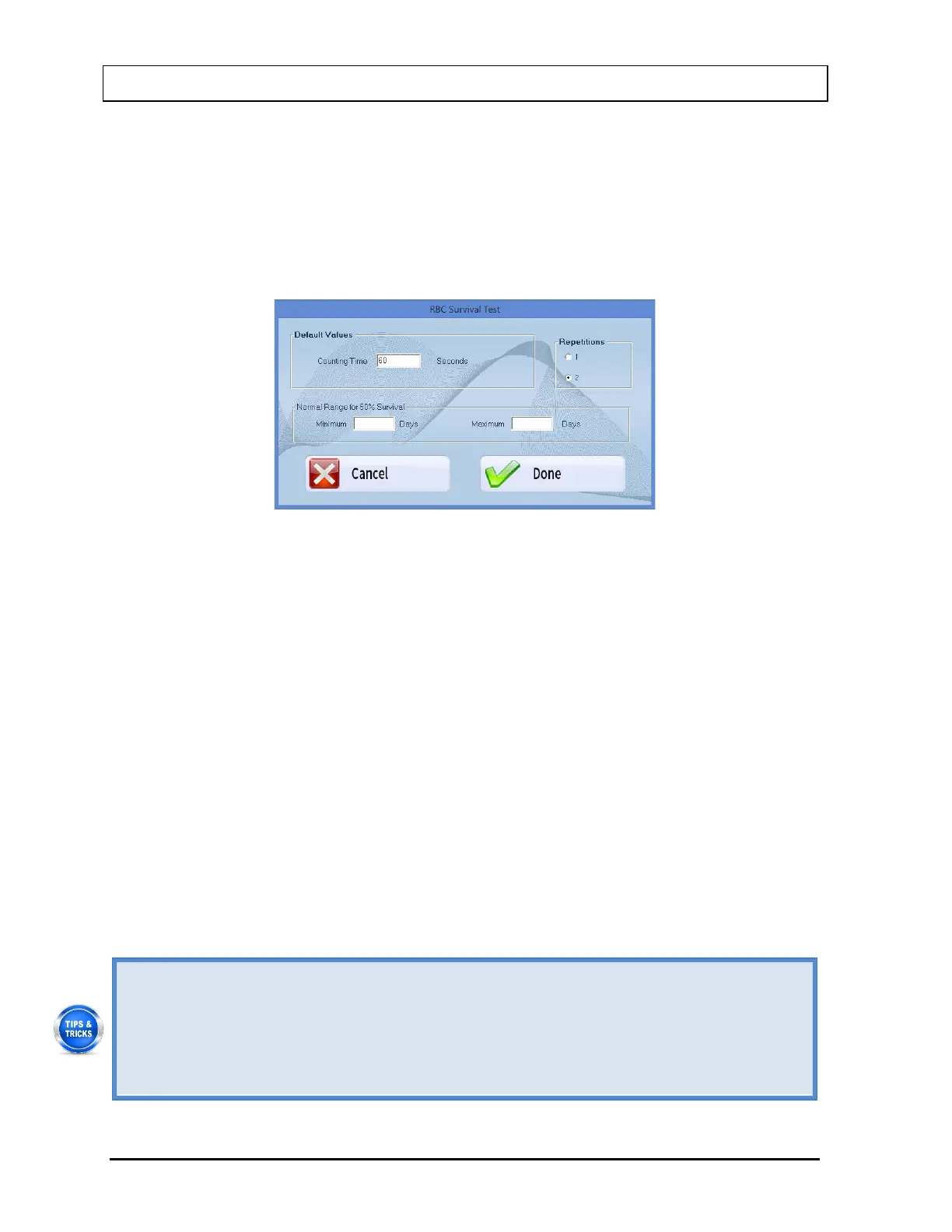
1. Select the Setup button on the RBC Survival Test screen. The screen appears as shown
in Figure 10-65. This screen allows the user to enter counting parameters that will appear
as default settings each time a patient is entered into the RBC Survival Test patient
directory. These settings may be changed as needed for any individual patient or
patients.
Figure 10-65
Default Values frame – Counting Time – This is duration for counting in seconds each
time a measurement is done. The default is set to 60 seconds.
Repetitions frame – This is number of repetitions each time a measurement is made.
For two repetitions, the average value is used in calculations. The second repetition may
be skipped during the measurement procedure if so desired.
Normal Range for 50% Survival frame – Minimum and Maximum Days – These
numbers will define a range for number of days over which 50% RBCs surviving can be
considered as normal. They are entered as seen fit by the doctors. Out of range results
indicate a medical condition and will be flagged in the report. Entering these values is
optional.
2. To enter new values in any frame, click in the appropriate text box or radio button or use
the Tab key to move from one selection to another.
3. Select the Done button to save changes or select the Cancel button to discard the
changes and return to Figure 10-64 RBC Survival Test Main Screen.
• Counting Time field appears again, while adding a patient for the RBC Survival Test.
Any changes made on the Add Patient screen will override the default values entered
in the Setup.
• For greater flexibility, set Repetitions to 2, as the second repetition may be skipped if
desired, while performing the measurements.
• To return to previous screen without saving changes press the Esc key.



 To Next Page