CAPINTEC, INC. CAPTUS
®
4000e
November 16 LAB TESTS 10-15
To stop the counting midway and save collected data and move to the next step,
select the Stop and Save button or press Alt+S.
To stop the counting midway and quit without saving, select the Cancel button or
press Alt+C. The abort procedure screen appears as shown in Figure 10-19.
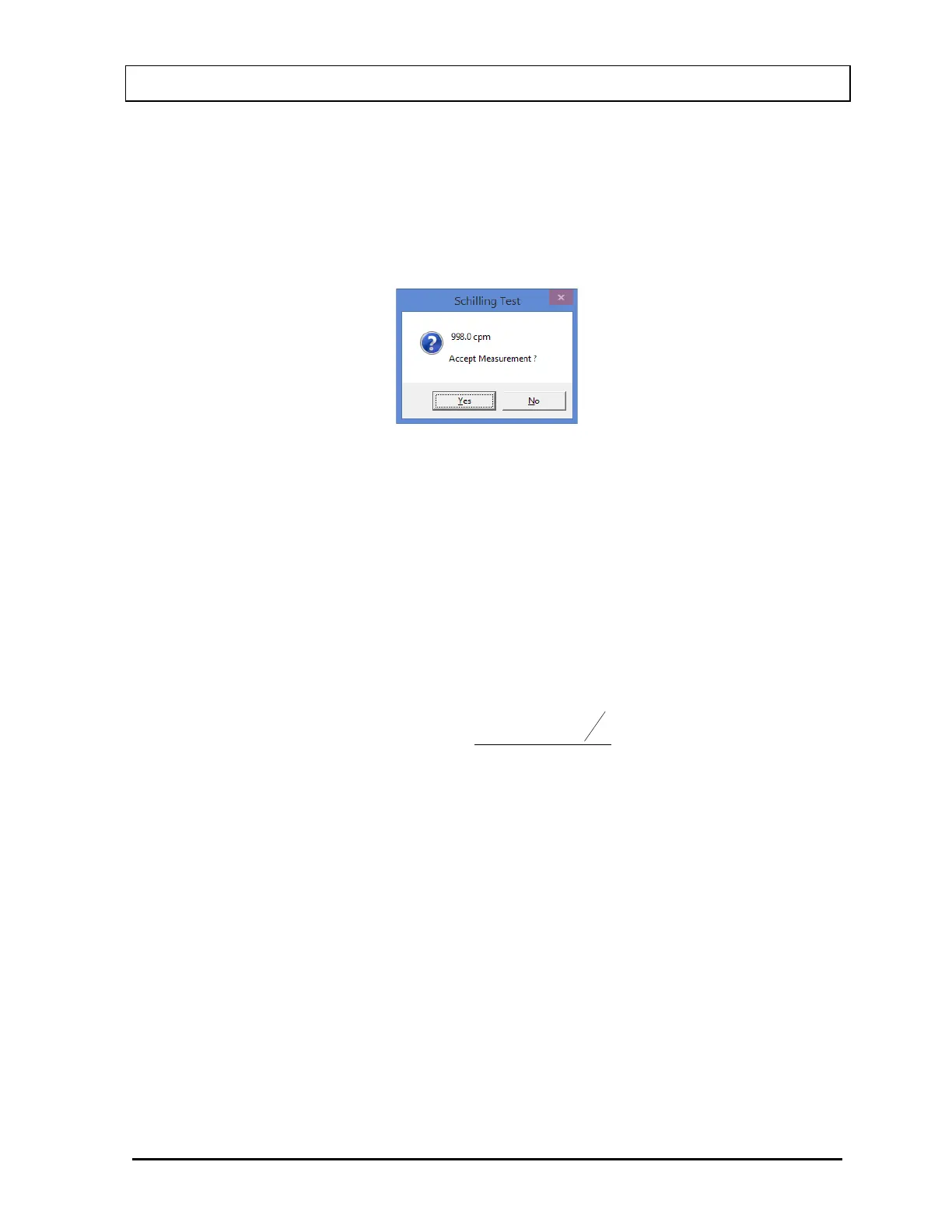
After count collection is completed, the screen appears as shown in Figure 10-22.
Figure 10-22
To accept the measurements and continue with the next step, select the Yes button
or press the Y key. To discard and recount the current measurement, select the No
button or press the N key.
Test Results
Once the measurement process for a patient is complete, clicking on the patient in the
Patient Directory on Figure 10-2 Schilling Test Main Screen will show the latest test result in
the Patient Status box. Test results are expressed as percent excretion, which is calculated
as follows:
( )
( )
DB-S
A
V
B-U100
Excretion %
×
××
=
where U = Urine sample count rate
B = Background (either room or patient blank)
S = Standard count rate
V = total urine Volume
A = urine Aliquot
D = Dilution of the standard
Patients Reports
1. Click on a patient in the Patient Directory box on Figure 10-2 Schilling Test Main
Screen to select a patient for viewing or printing the report.
2. Select the Report button. The screen appears as shown in Figure 10-23, showing a
typical patient report. It contains the patient’s demographic data, dosage and sample
information, count data and calculated results. If Normal Range values have been



 To Next Page