CAPINTEC, INC. CAPTUS
®
4000e
12-8 TIME ACTIVITY ANALYSIS August 15
7. To exit the Time Activity Analysis module and return to the CAPTUS
®
4000e Main
screen, select the Exit button or press Alt+E.
Saving the Results
1. To save the measured data, select the Save Results button or press Alt+S on the Time
Activity Analysis screen. A pop-up menu (Figure 12-8) with two options is displayed:
Figure 12-8
• Save – This option saves all the results and the spectrum on the screen as a TAA file
(.taa file). These files can be reopened in the Time Activity Analysis module by
selecting the Open Previous Results button on the menu bar or pressing Alt+O.
• Export – This option saves the raw and corrected results in tabular form in a
Microsoft Excel file (.xls file). These results can be viewed and plotted through
Microsoft Excel only.
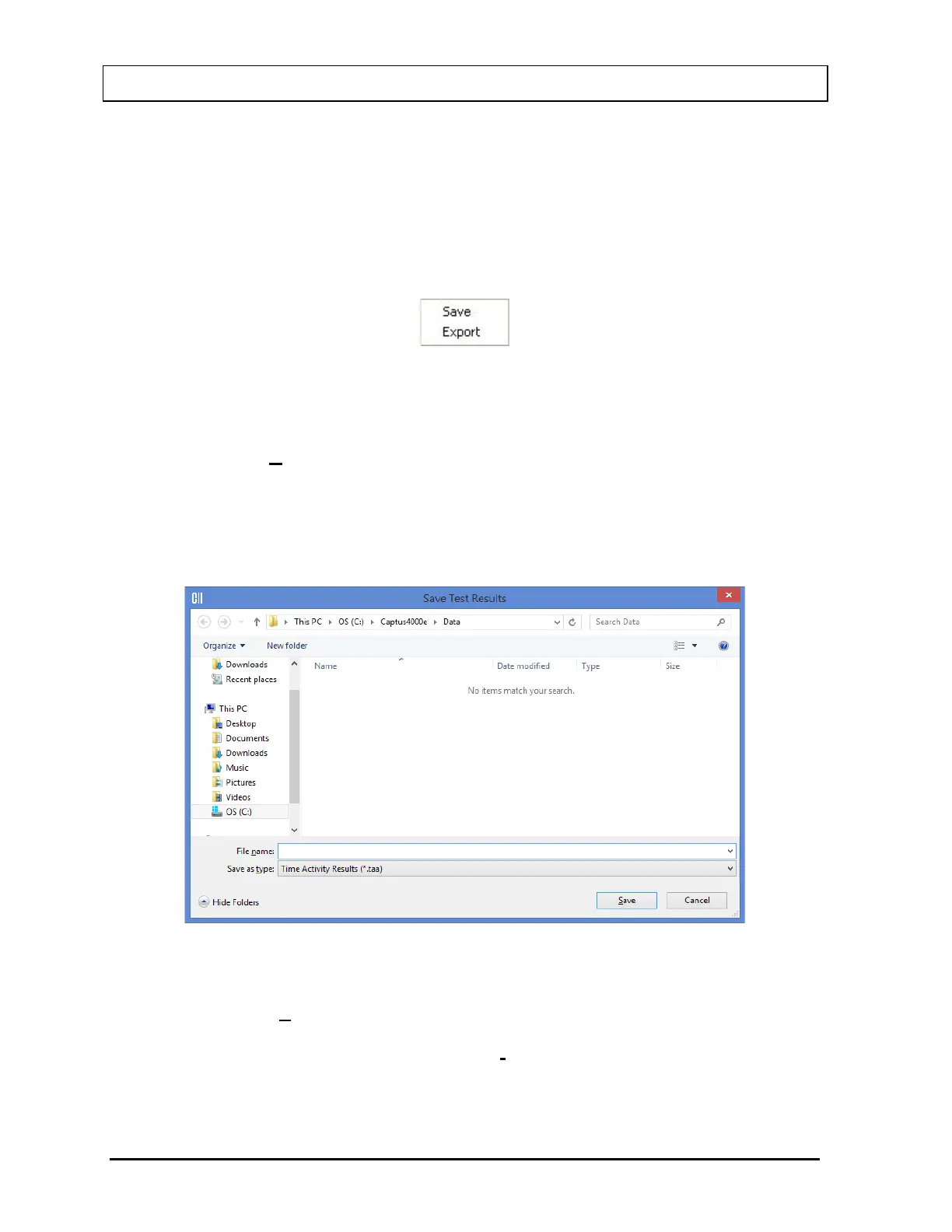
a. If Save is selected, the screen appears as shown in Figure 12-9.
Figure 12-9
The default folder for saving the file is C:\Captus4000e\Data\. Type in the file name
and select the Save button or press Alt+S to save as .taa file.
Note: It is recommended that the Save as type: is not changed from Time Activity
Results (*.taa)
b. If Export is selected, the screen appears as in Figure 12-10.



 To Next Page