CAPINTEC, INC. CAPTUS
®
4000e
August 15 GENERAL OPERATING INSTRUCTIONS 3-5
Left Arrow .................. Moves one character to the left
End ........................... Moves to the end of the input
Home ........................ Moves to the beginning of the input
Some text input boxes provide input verification. If the information typed in the box is
invalid, i.e. does not match the requested format (for example, an input in a box
requesting a date of 13/45/92) or falls outside the range of valid values, a warning
message will be given and the user will be forced to edit or re-input the information.
When the information in a text box is shaded, it indicates that the data is provided by
the system and cannot be edited by the user.
There is one special type of text box that is used in the CAPTUS
®
4000e for input of
comments that will appear on test reports. In these boxes, up to 8,000 characters of
text may be entered. Within the box, text will automatically wrap from one line to the
next as it is typed in. The user may also move to the next line by using the Enter key.
Ctrl+Tab causes a tab to be entered into the text and the cursor to move to the next
tab position (remember pressing just Tab will move you to the next control).
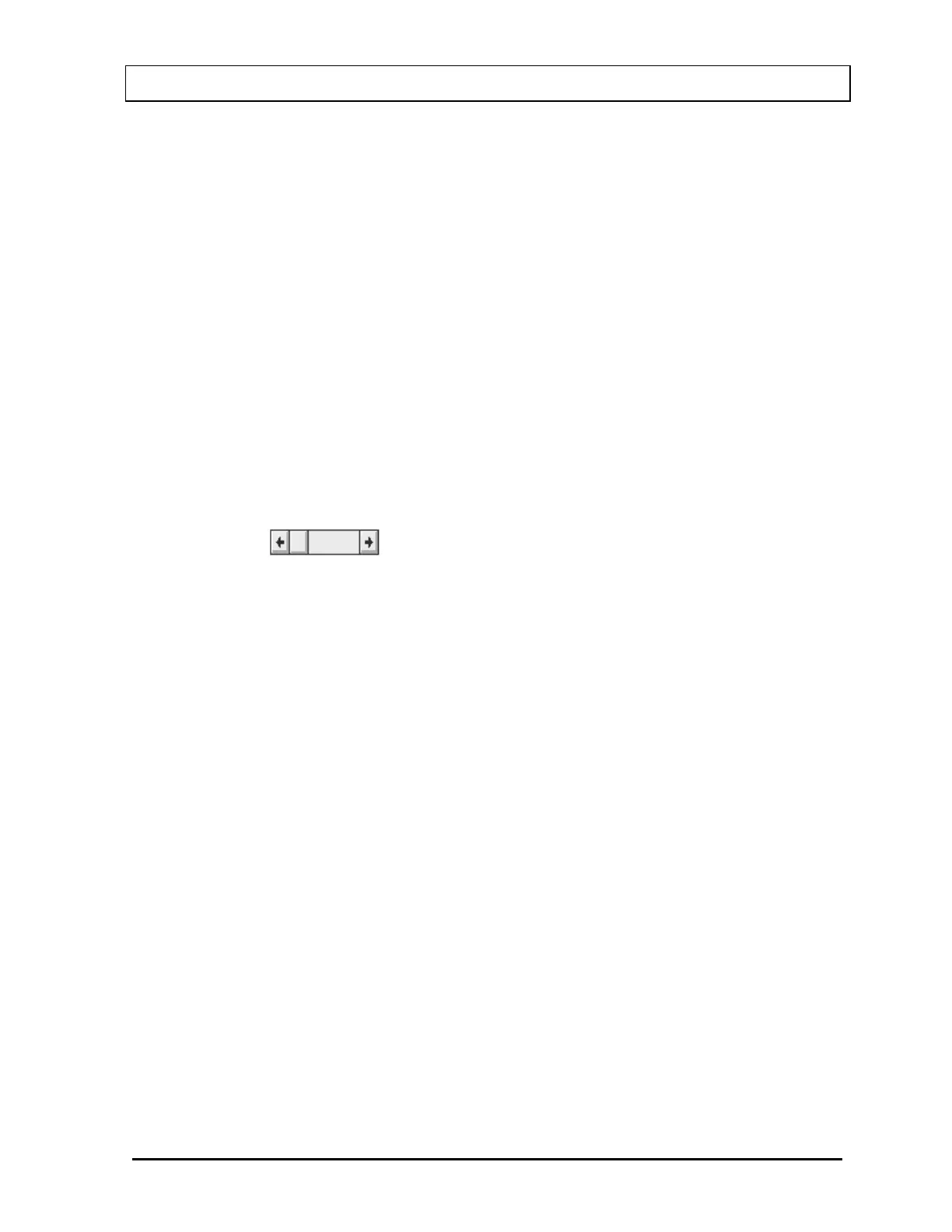
Scroll Bars
There are two types of scroll bars, horizontal and vertical. They are used to change
the value of some parameter within the program.
When using the pointing device to manipulate a scroll bar, there are a number of
actions that will cause the bar to change. Clicking or tapping the arrow at an end of
the bar will cause the “value” of the scroll bar to change in that direction by an amount
referred to as a small change. Clicking or tapping the bar itself at any location
between the end arrow and the slider will cause the value to change in that direction
by an amount referred to as a large change (usually 8 to 32 times the amount of a
small change). The slider may also be moved by placing the pointing device’s cursor
on the slider, pressing the left pointer button down and holding it there while the slider
is “dragged” to the desired position. This can also be accomplished by tapping and
holding the slider with your finger or stylus and “dragging”.
The scroll bar may also be adjusted from the keyboard. The scroll bar is activated
through the Tab key. When it is active the slider will blink. The slider can then be
positioned using the following keys:
Up Arrow ................... Moves the slider a small change up or to the right
Right Arrow ............... Moves the slider a small change to the right or up
Down Arrow ............... Moves the slider a small change down or to the left
Left Arrow .................. Moves the slider a small change to the left or down
Home ........................ Moves the slider all the way to the left or down
End ........................... Moves the slider all the way to the right or up



 To Next Page