CAPINTEC, INC. CAPTUS
®
4000e
15-10 CUSTOM PROTOCOLS December 15
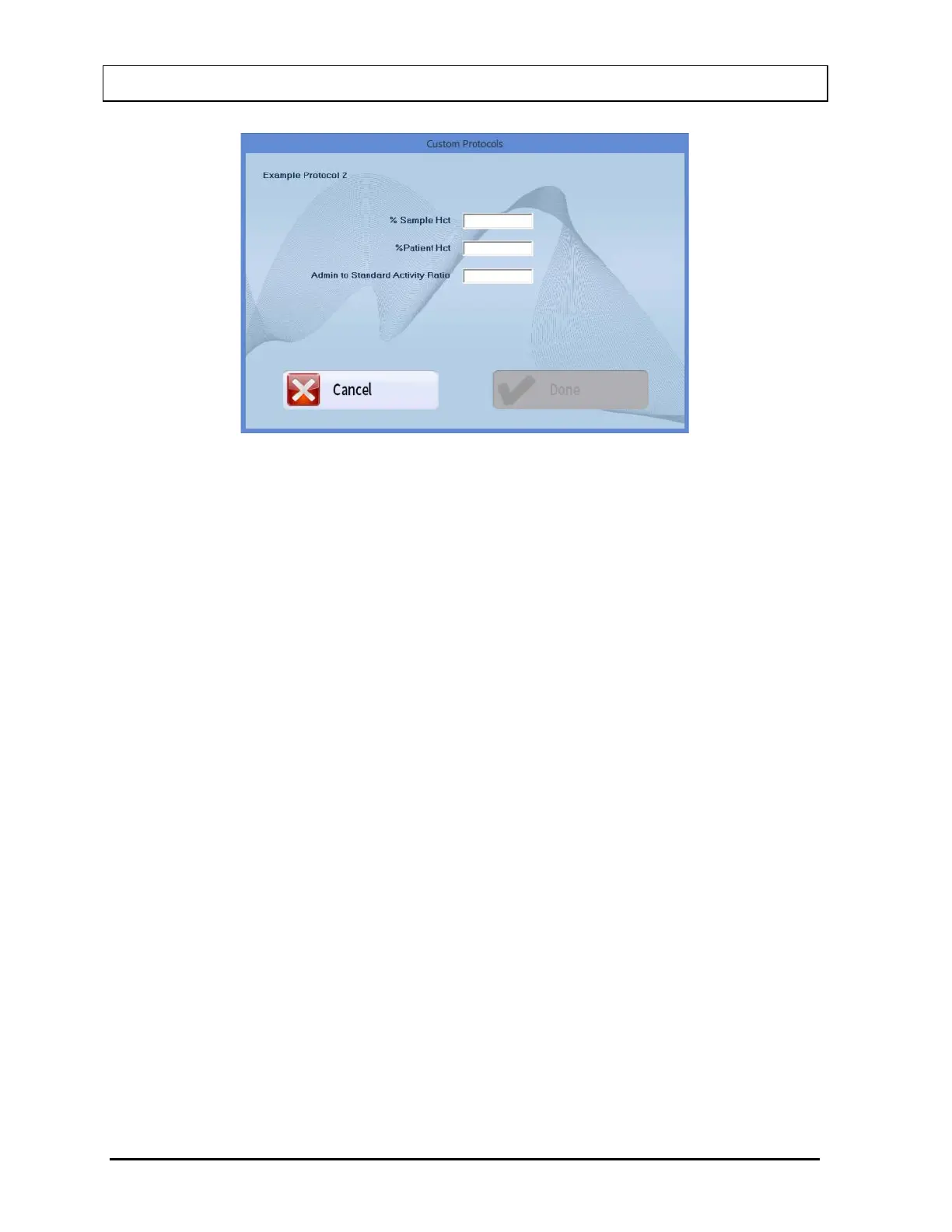
Figure 15-9
9. In the Comment text box, enter a comment if desired.
10. To save the data, select the Done button or press ALT+D. To discard the data and
return to Figure 15-1 Custom Protocols Main Screen, select the Cancel button or
press ALT+C.
Editing Patient Information
1. To select a patient to be edited, use the keys or Page Up and Page Down keys to
move up or down in the patient list in the Patient Directory list box. If the list is long,
the scroll bar is also available. To reach a particular patient, press the first letter of the
patient name. Press the key if necessary, to go further down (Figure 15-10).
2. Select the Edit button. The Patient Data Screen (Figure 15-8) will appear.
3. Click in the text box to be edited or use Tab keys to move around. Type over the
existing information wherever needed.
4. select the Done button to save changes or select the Cancel button to discard the
changes and return to Figure 15-1 Custom Protocols Main Screen.
Deleting Patient Information
Deleting Selected Patients
On the Custom Protocols Main screen, select one or more patients for deletion by
clicking in the check box to the left of the patient in the Patient Directory list box. A
check should appear in the check box to indicate it has been selected. The patient
can also be selected by first highlighting the desired patient by clicking and then
double-clicking anywhere in the grid to place a check in the box. To deselect a
patient, click in its check box again or double-click anywhere in the grid while the
desired patient is highlighted and the check will be removed from the check box.



 To Next Page