CAPINTEC, INC. CAPTUS
®
4000e
3-2 GENERAL OPERATING INSTRUCTIONS August 15
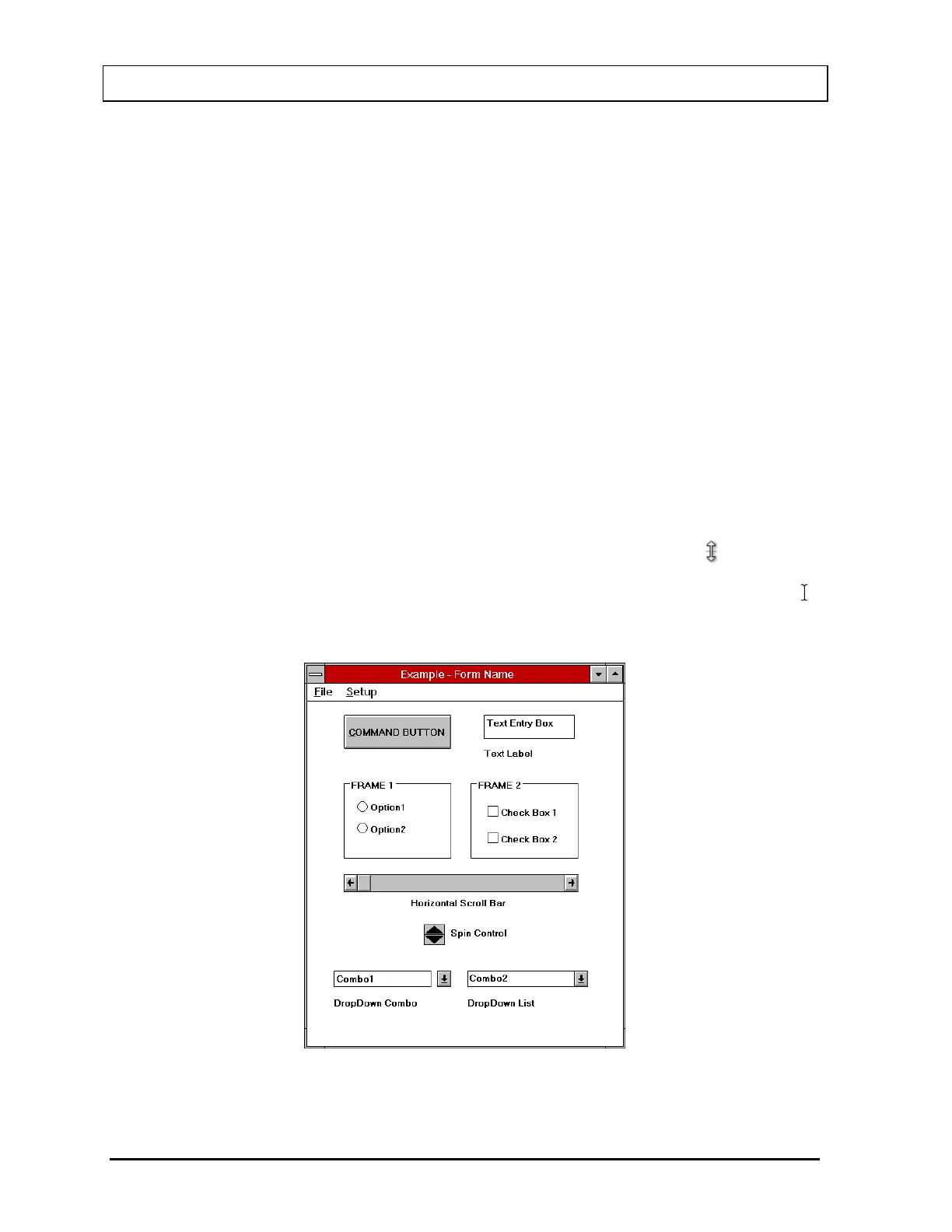
Windows Controls
The most common Windows controls are described below. When controls are selected, they
cause functions or actions to be performed. A control can be selected in several ways;
• Using the pointing device – Positioning the pointing device cursor over the control
and clicking the left pointing device button selects the control. The pointing device
cursor takes several different shapes depending on what is going on in the program
and where it is on the screen.
• Using your finger or stylus to tap the control.
• Using the keyboard – Most controls can also be selected with the keyboard – The
Tab key on the keyboard can be used to move from one control to another. Pressing
Shift+Tab will move back one control. Once a control is selected, it can be activated
or changed with other keys. The specific keys that affect each type of control are
discussed below.
Pointing Device Cursor
The pointing device cursor is used to select items on the screen. Most of the time the
cursor appears as an arrow with a black outline filled with white. When the system is
busy doing something that will prohibit it from responding, the cursor changes to the
Wait cursor. When in MCA mode and the cursor is within the boundaries of the
spectrum display, the cursor changes to a double-ended vertical arrow .
When the cursor is hovered over a text box, it will change to a thin vertical “I-beam” .
Note that actually having the ability to input or edit requires that you click the pointing
device button to cause the edit cursor, a blinking vertical line, to appear.
Figure 3-1



 To Next Page