CAPINTEC, INC. CAPTUS
®
4000e
November 16 LAB TESTS 10-7
5. Select a General Information text box if you wish to change the default value for
Counting Time or enter the ID number of the Technologist performing the procedure.
6. When finished adding patient data, select the Done button to save the entered
information, or the Cancel button to discard the changes.
7. To add more patients, select the Add button on Figure 10-2 Schilling Test Main Screen.
Editing Patient Information
Note: Once the patient urine sample has been measured, the following fields on the Edit
Patient screen cannot be changed – Lot Number, Activity, Total Urine Volume,
Standard Dilution, Urine Sample Aliquot and Counting Time.
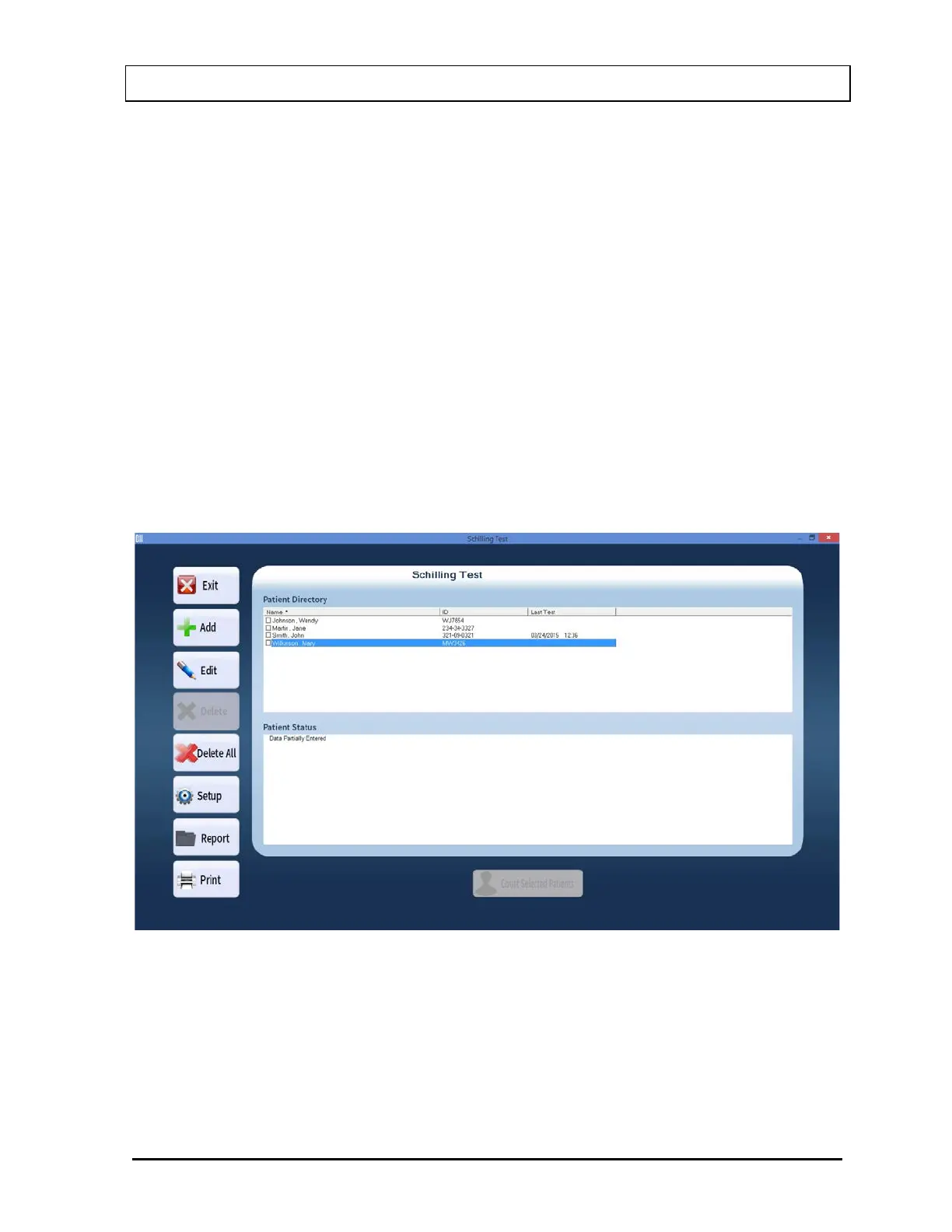
1. To select (highlight) a patient to be edited, use the keys or Page Up and Page Down
keys to move up or down in the patient list. If the list is long, the scroll bar is also
available. To reach a particular patient, press the first letter of the patient name. Press
the key if necessary, to go further down (Figure 10-5).
Figure 10-5
Selecting a patient with partially entered data will prompt you with the screen below
(Figure 10-6). Select the Yes button or press the Y key to update the patient information
or select the No button or press the N key to return to the Schilling Test Main screen.



 To Next Page